How to add programs (Replacements behaviors and Skill acquisition) to client profiles (for analysts)
This guide is essential for analysts looking to efficiently add replacement behaviors and skill acquisition programs to client profiles. It provides step-by-step instructions for accessing client information, importing programs from libraries, and creating new entries from scratch, ensuring a tailored approach to each client's needs. Additionally, it covers customization options, data collection methods, and organization strategies, making it a comprehensive resource for enhancing client management and program effectiveness.
Section I: Accessing the replacements and skills
1. Navigate to the Client's Profile:

- Go to the Clients section.
- Select the client from the list.
- You can navigate to the search bar at the top right of your screen to look up the desired client. You may search using the client's name, Medicaid number, EQ Health number, caregiver's name, or phone number.

2. - A screen displaying the client information will appear.
- Click on the client's name or go to the menu icon (☰) to display the options.

3. Access the Skills & Behaviors tab:
-
In the menu, navigate to the Skills & Behaviors Section.
Choose the tab based on what you're adding:
- Replacement Behavior
- Skill Acquisition Program
This selection ensures the correct category for your entry, whether you're working on a replacement behavior modification plan or a new skill development program.


4. Once inside the Replacement Behaviors or Skill Acquisition section, click the red + icon to create a new entry.

Users have the option to either manually create a new program from scratch or import existing items from pre-designed or custom libraries. Both methods allow flexibility.
Section II. Adding a Program by importing from Libraries
5. Users can import existing items from the pre-elaborated or custom libraries.
- Just click the red "+" and select Import from Library. This will open the library browser
This process is broken into key steps:
- Search
- Import
This will allow users to easily browse through libraries, select relevant replacements or skills, and import them into a client’s profile for further customization.
1. Search


6. The Search step allows users to explore all the available libraries to find the behaviors and programs they want to import. During this step, users can:
- Browse the Libraries: Users have access to all available libraries, including system libraries, shared agency libraries, and their own created libraries.

If you wish to create and manage your own library, you may refer to the following guide, which outlines the required steps and configurations to complete this process properly: Create a new library
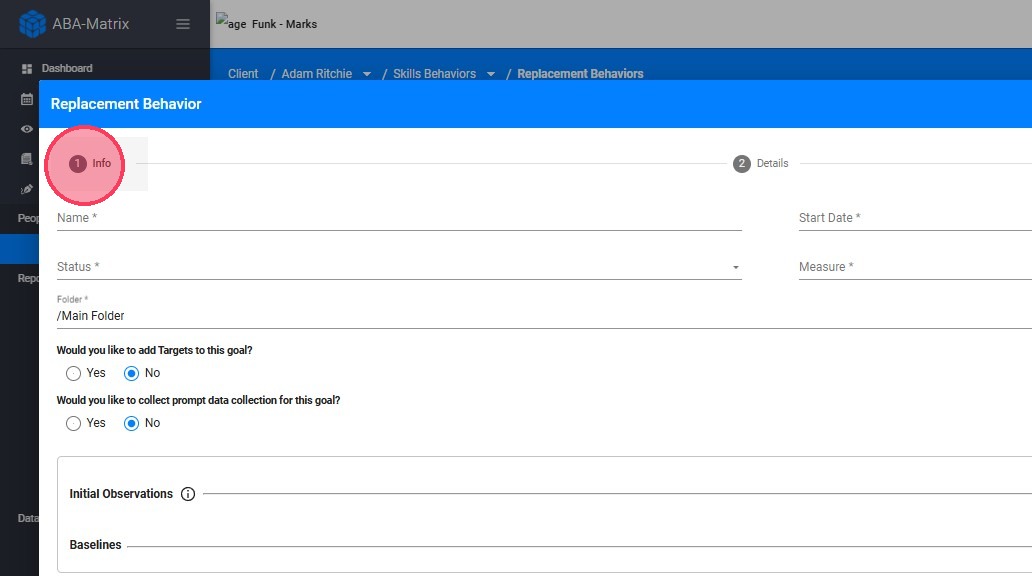
7. Preview Programs:
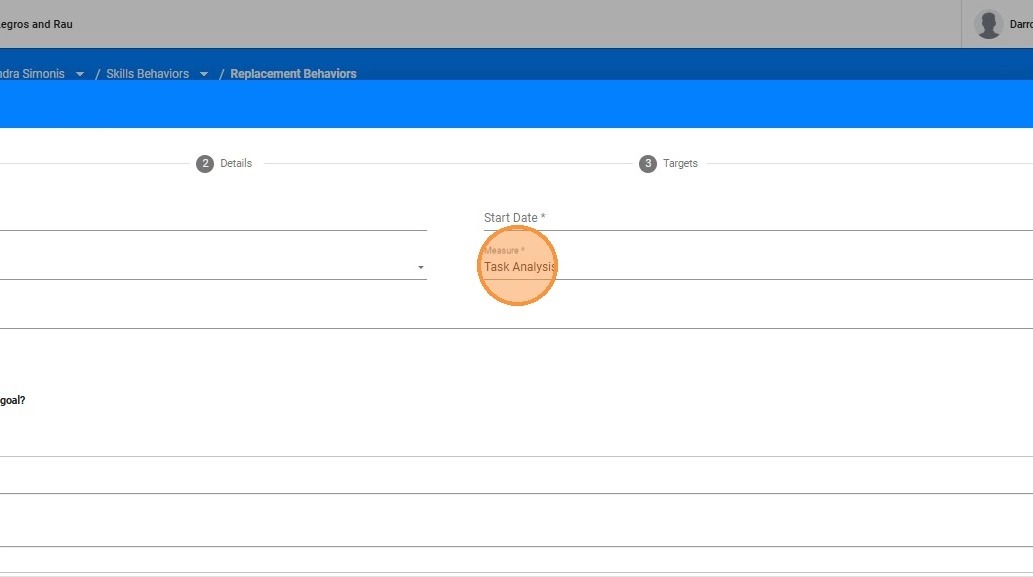
- Users can easily view a list of all programs, including the folders where they are stored and the number of times they've been imported.

8. - Clicking the arrow next to an item provides a quick preview of key details such as its name, description, measurement type, and other relevant information, making it convenient to review and organize content efficiently.



9. Select Programs to Import:

Once users have identified the programs they want, they can select one or multiple items, and move forward to the import stage by clicking "Next"
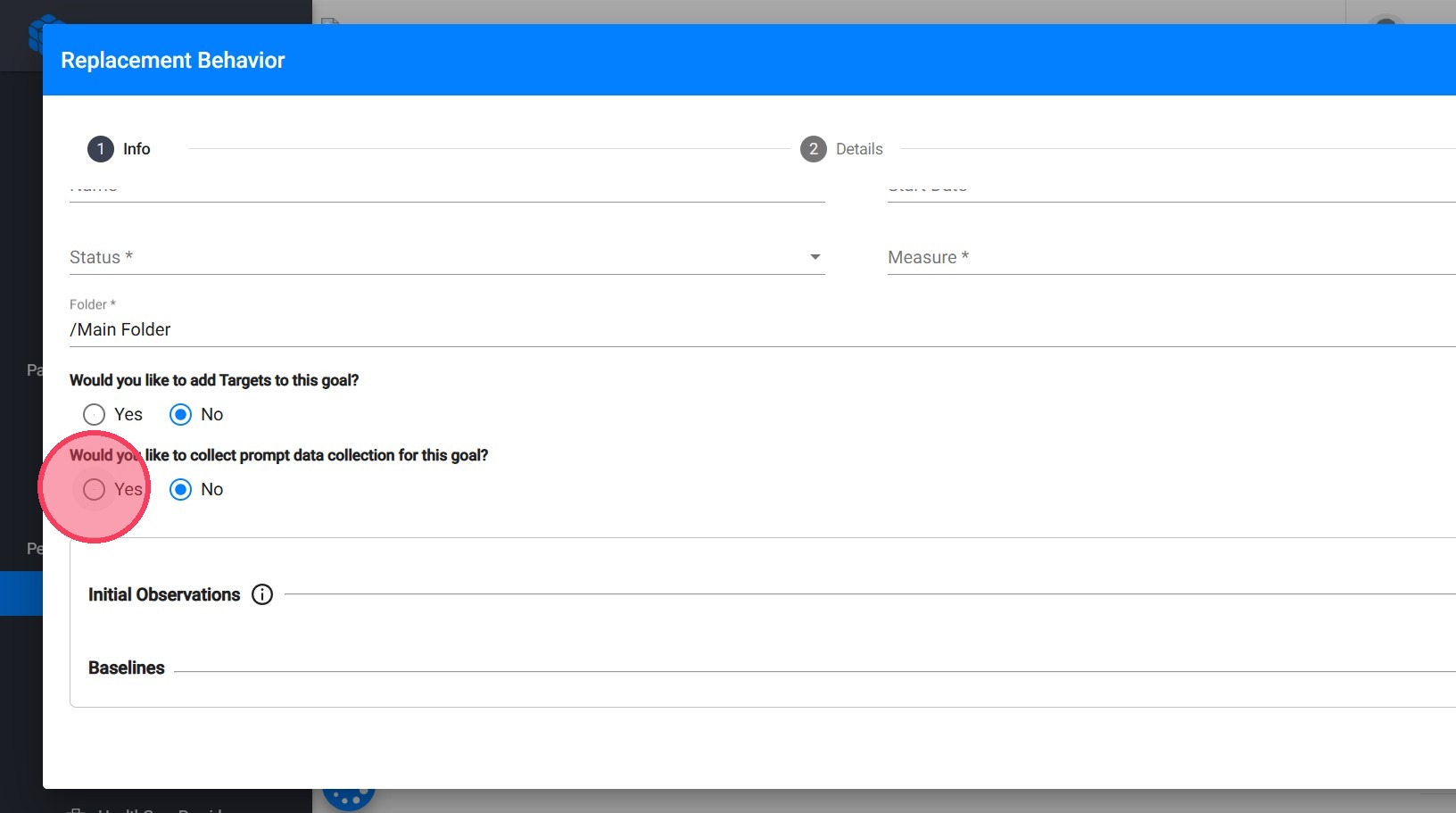
2. Import
10. After selecting the replacements or skills, the next step is the Import process, where users can review and customize the content they’ve chosen.
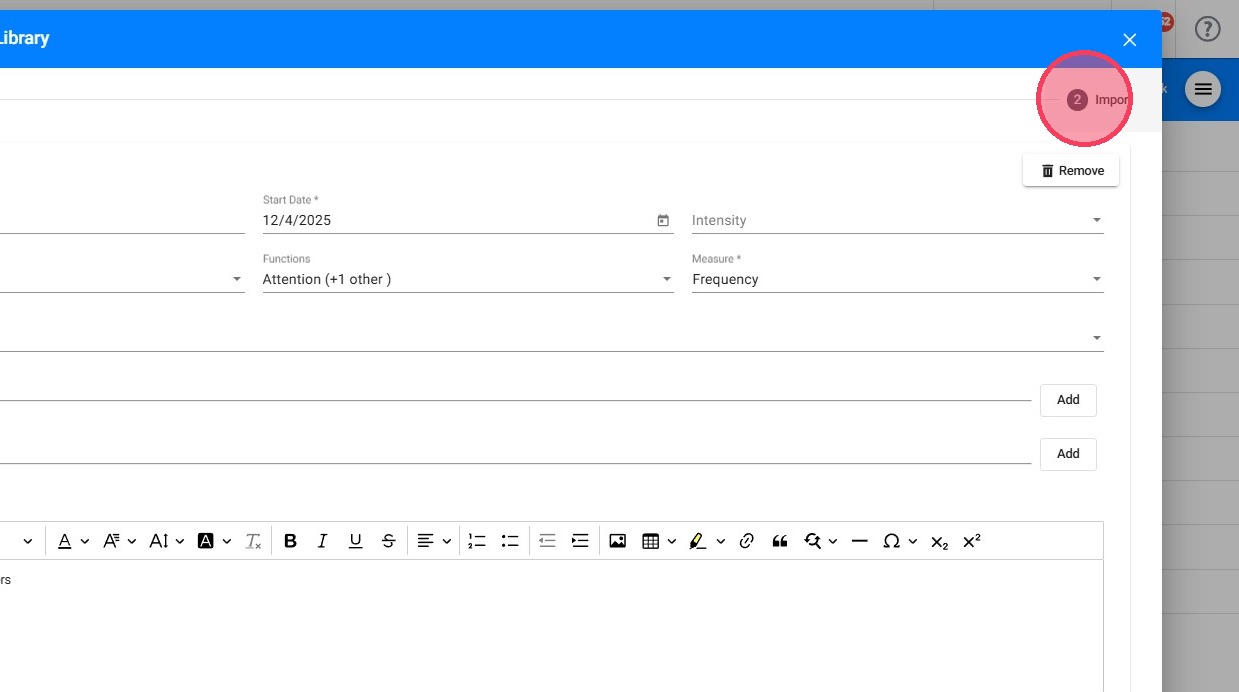
11. Edit and Customize:

Users can fully edit the selected replacements or skills to tailor them to the specific case.
12. The available statuses within the system include:
- In Observation: This status is assigned to behaviors or programs when they are newly observed. This status is available only at the beginning of the behavior observation.

- Data collection is allowed.
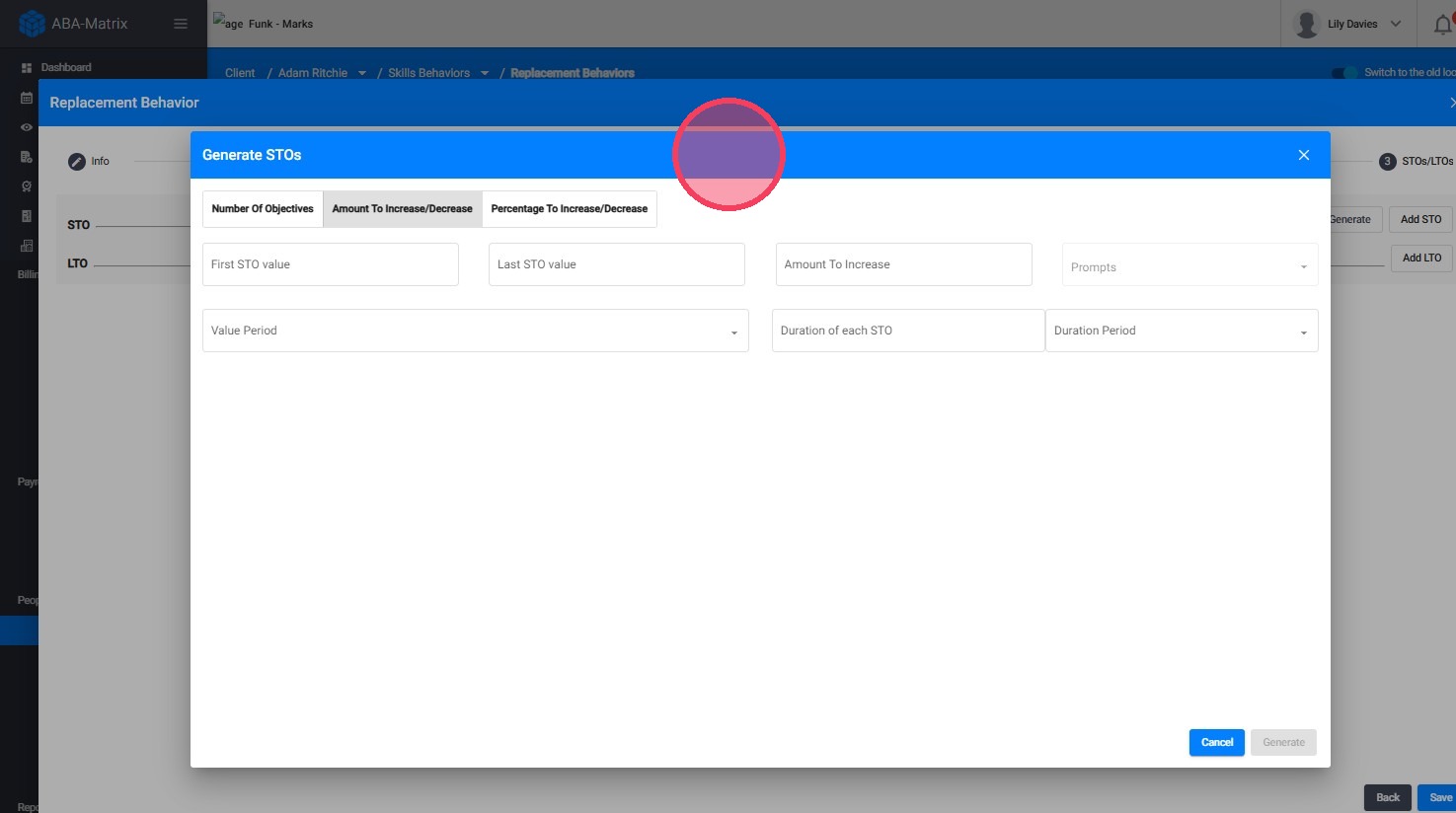
- Pending: Typically used for behaviors or programs that are not currently being addressed or are awaiting further action.
- Data collection not required.
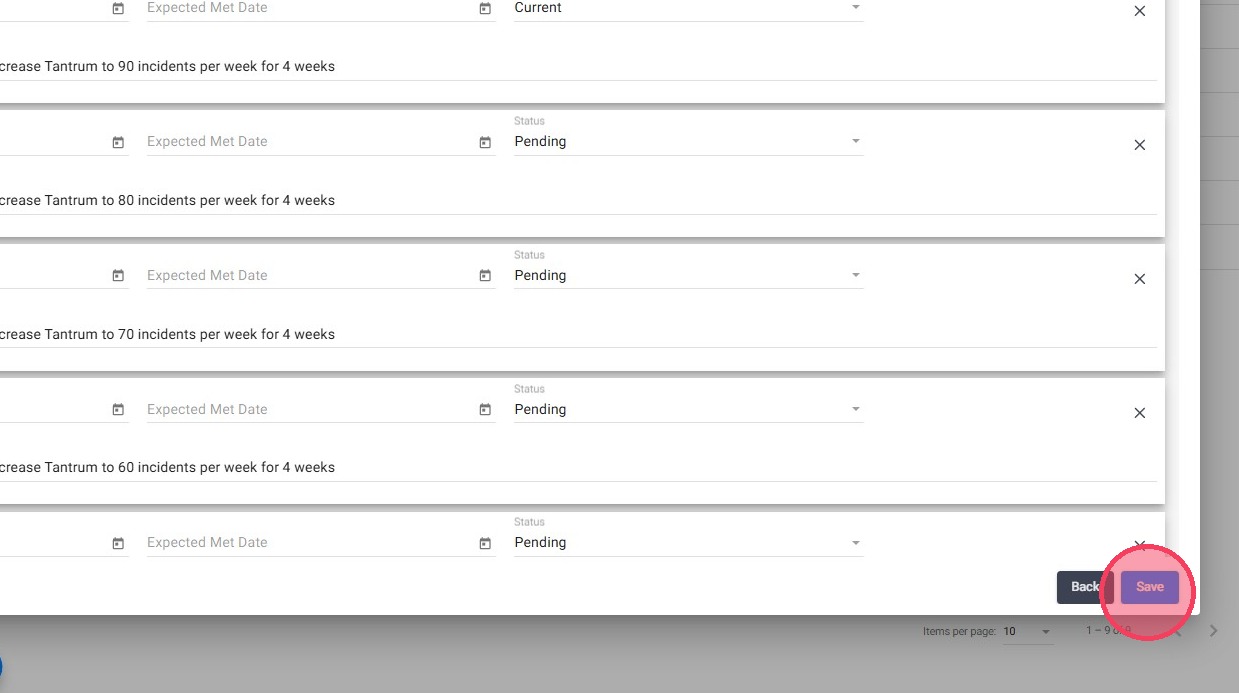
- Ongoing: These are behaviors or programs that are actively being targeted and monitored for progress.
- Require regular data collection

- Mastered: Behaviors or programs in the "Mastered" status indicate that has been successfully addressed.

- No longer requires data collection. They are not displayed in the session notes.
- Discontinued: Behaviors or programs labeled as "Discontinued" are no longer being targeted or addressed.
- They do not require data collection and are not displayed in the session notes.

13. The available measures within the system include:
- Frequency: Tracks how many times a behavior occurs during a session, providing a count of its repetition.
- Percentage: Calculates the proportion of a specific behavior compared to total opportunities or responses as (specific responses ÷ total responses) × 100.
- Time -seconds-: Records the duration of the behavior in seconds, suitable for short-duration behaviors. Example: (10s + 12s + 8s) ÷ 3 = 10 seconds (average).
- Time -minutes-: Tracks the duration of behaviors in minutes and calculates the average. Example: (5 min + 7 min + 6 min) ÷ 3 = 6 minutes.
- Time (sum) -min-: Measures the total duration of a behavior across all instances in a session. Example: 10 min + 15 min + 20 min = 45 minutes.
- Task Analysis: Commonly used when a program cannot be assessed as a single discrete response, but instead requires the completion of multiple tasks in a specific order. Task Analysis enables tracking whether each step was completed independently or with prompts based on the configuration set by the agency.

14. If the Task Analysis measurement is selected, the question “Would you like to add Targets to this goal?” will automatically default to Yes, and the system will activate an additional required section for configuring the program steps.
To properly complete the setup, you must:
- Add the steps (targets): Enter each individual step of the task in the order it should be performed.
- Define the status of each step: The status will default to Ongoing, but it can be adjusted if needed (e.g., pending, mastered, etc.).
- Set the effective start date: This date will default to the replacement’s start date, but it can be modified if necessary.
All required fields in this section must be completed before finalizing the program setup to ensure accurate step tracking and proper data collection within the system.

15. From the Import from Replacement Library window, you can assign a folder to the program. This allows you to effectively organize behaviors and skills.
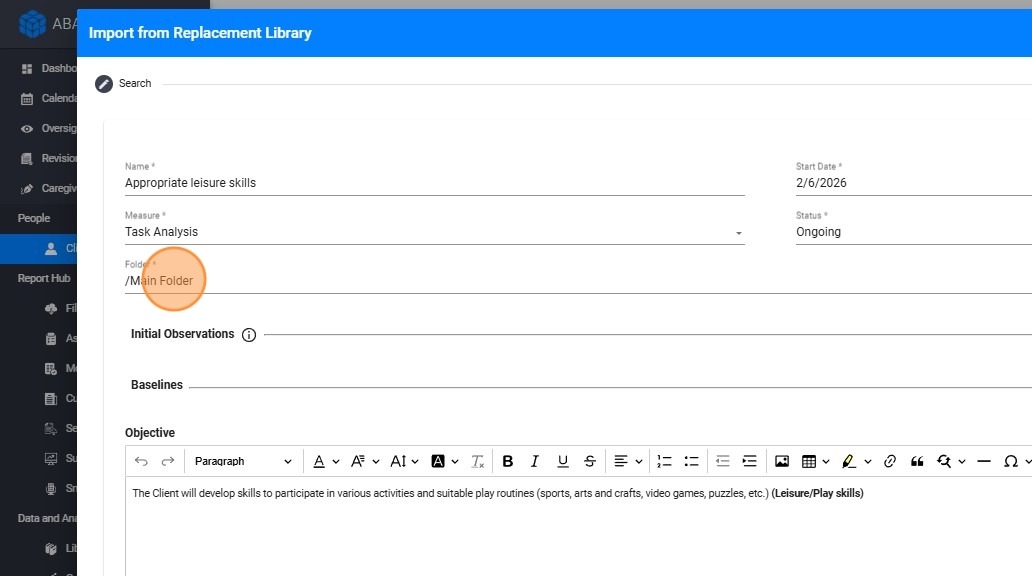
For more information about how to create and manage folders, please, refer to the following guide: How to use the folder system for skills and behaviors (for analysts)
16. The preset information imported with the program can be tailored to meet the individual needs of the client. The Objective, Definition, Barrier Procedures, and Teaching Materials sections are fully editable, allowing you to adjust content as needed.
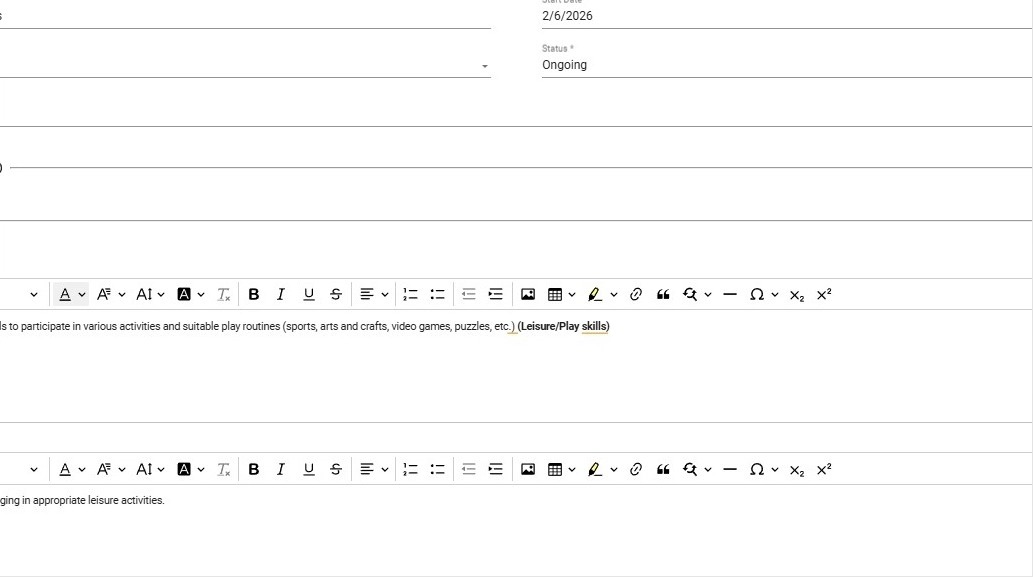
These text sections provide a variety of formatting options to make your documentation more effective and visually appealing, including text formatting (bold, italics, underline, color, and highlights), content organization (headings, alignment, and spacing), lists (bulleted and numbered), hyperlinks, tables, and special features such as undo/redo and clear formatting.
2.1 How to add targets while importing a program from the library

17. If you would like to add targets to the program or skill, simply select Yes for the question “Would you like to add Targets to this goal?” to activate the Targets section. From there, you can create individual targets for the replacement/skill.

18. You may add as many targets as needed.

19. For each target, you can add:
- Name
- Start Date
-
Status
Enter Initial Observations & Baselines
- Initial Observations (Value & Date)
- Baselines (Value & Date)
2.2 How to add prompts while importing a program from the library
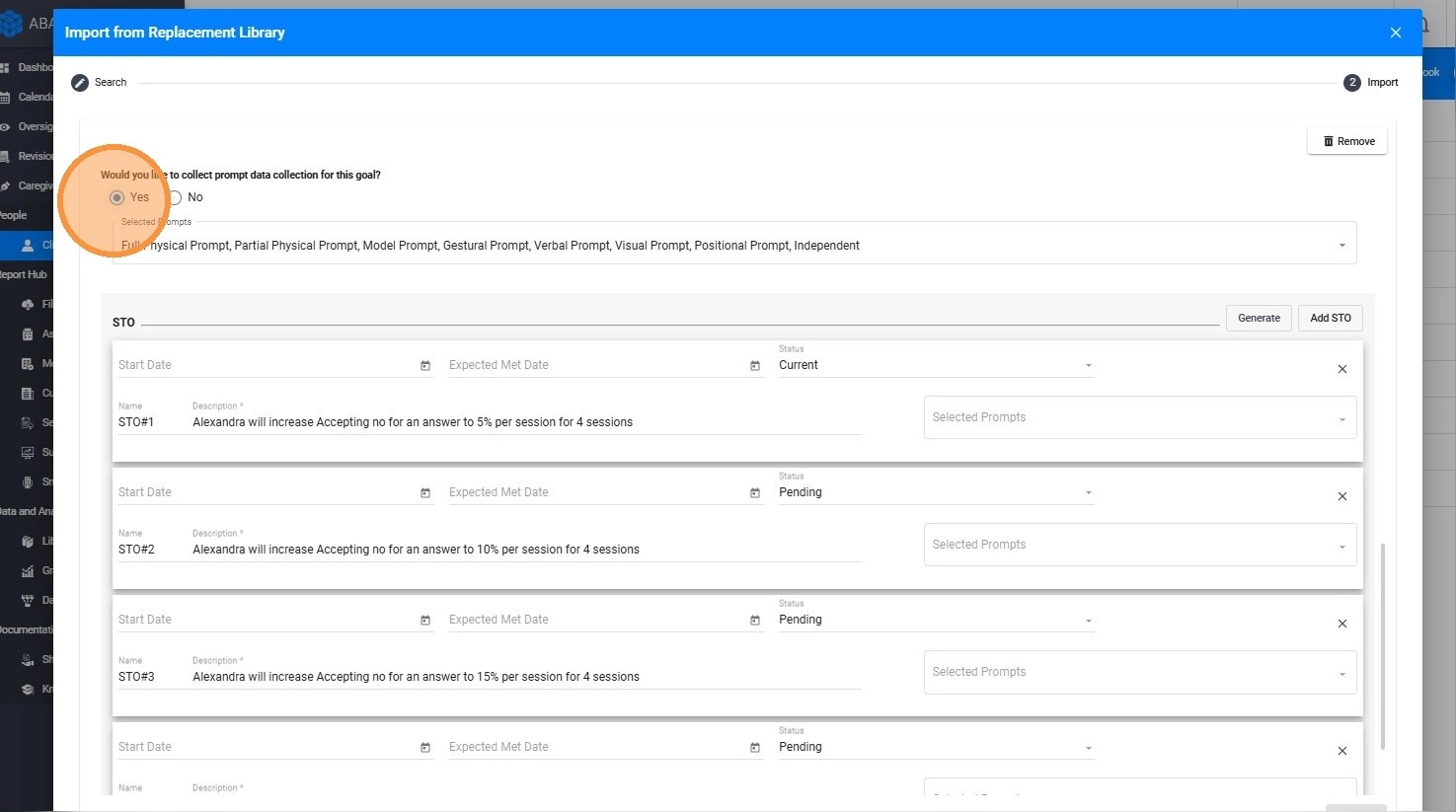
20. If you would like to add prompt data collection to the replacement or skill, select Yes for the question “Would you like to collect prompt data for this goal?”
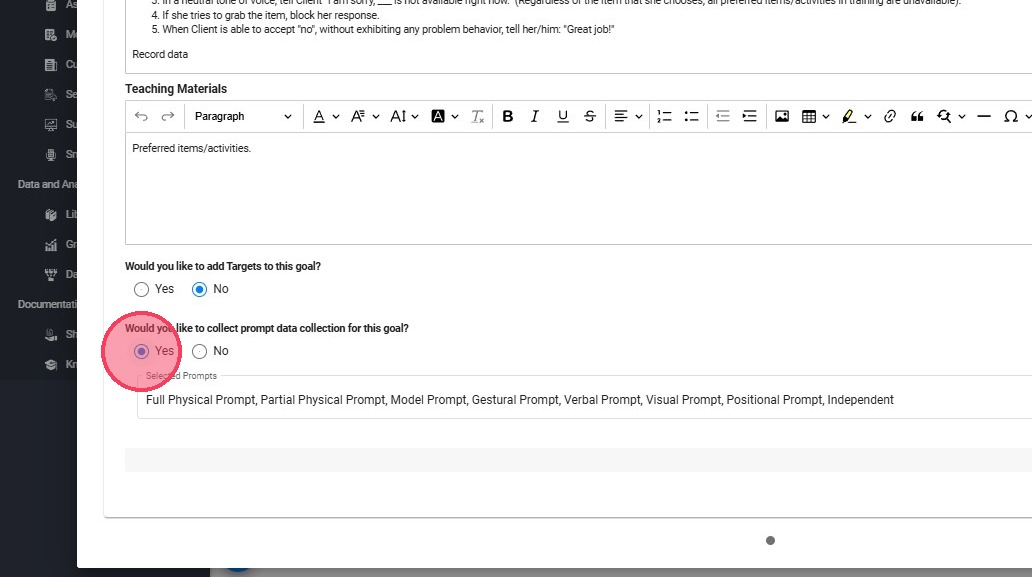
21. Once enabled, you will see a list of the agency’s available prompts. You can select which prompts to use for that specific replacement or skill, allowing you to customize the prompt hierarchy to align with your teaching procedures.

You can link prompts to specific STOs, allowing prompt data collection to align with both the current STO and the prompts assigned to it.
For example, if the current STO is linked to Physical Prompt and Model Prompt, those will be the only available options when collecting data. For more information on how to link prompts with STOs, please refer to the following guide: How to create and track STOs in ABA Matrix
3. Adding STOs and LTOs
You can use the STO Auto-Generation tool to automatically create measurable Short-Term Objectives (STOs). For more details on how to configure and generate STOs, please refer to the guide linked below:
22. STO Auto-Generation
Simply click Generate STOs, select a generation method (by number of objectives, fixed increase/decrease, or percentage change), complete the key parameters (start/end values, measurement frequency, duration, prompts, and template), and choose Generate to have the system build the STOs automatically.

23. After generation, you can manually edit the objectives, add new STOs, and assign their status.
The available statuses are:
- Pending: Marks the STOs that are waiting for implementation.
- Current: Indicates the active STO.
- Mastered: Designates objectives that have been successfully achieved.
- Discontinued: Indicates STOs that are no longer applicable or relevant.

The first objective is automatically generated with a Current status, and if it remains in this status, you must enter the effective start date for that status.
24. You can add Long-Term Objectives (LTOs) for the selected program.
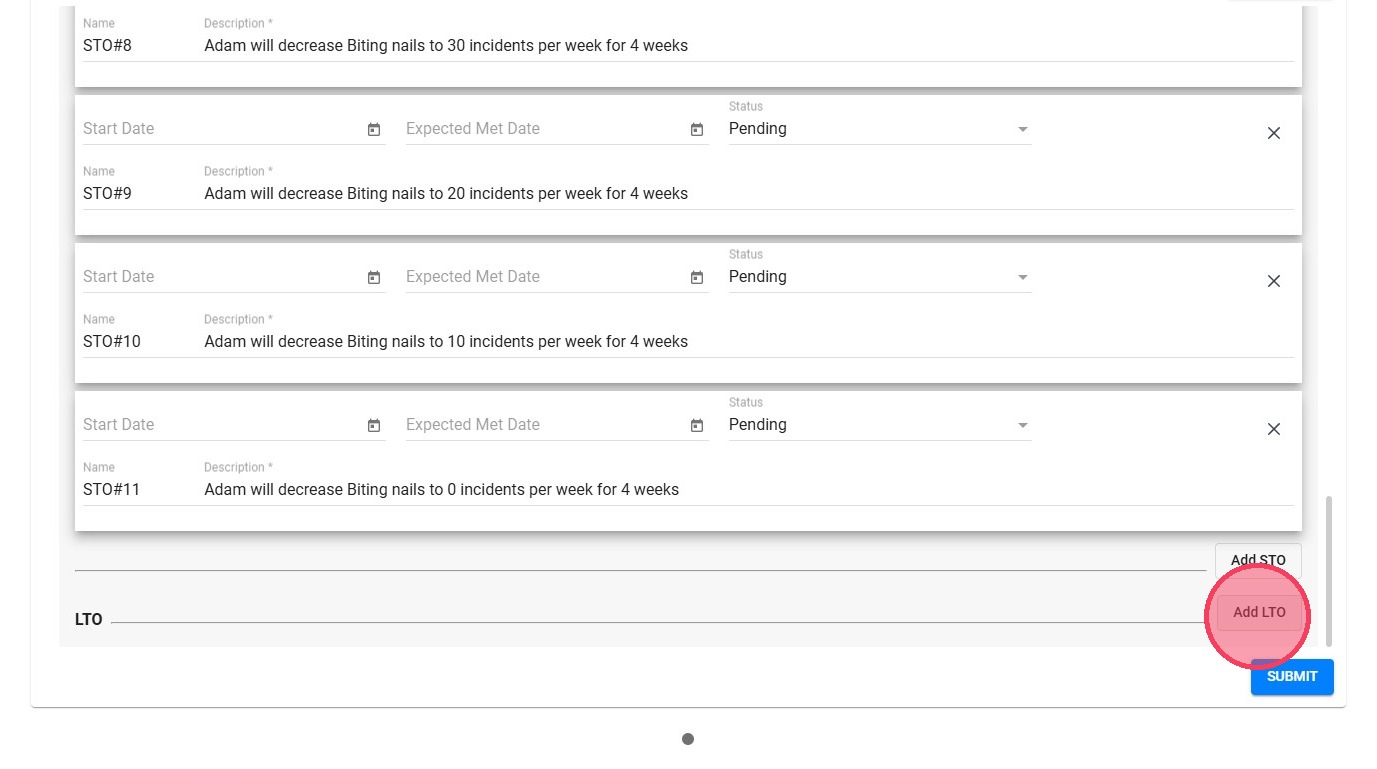
For replacements and skills, if you enable prompt data collection, you can link specific prompt levels to each STO. During data collection, only the prompts associated with the STO marked as current will be available.
For more details on how to include prompt levels when auto-generating STOs, please refer to the guide linked below:
4. Final Review and Submission
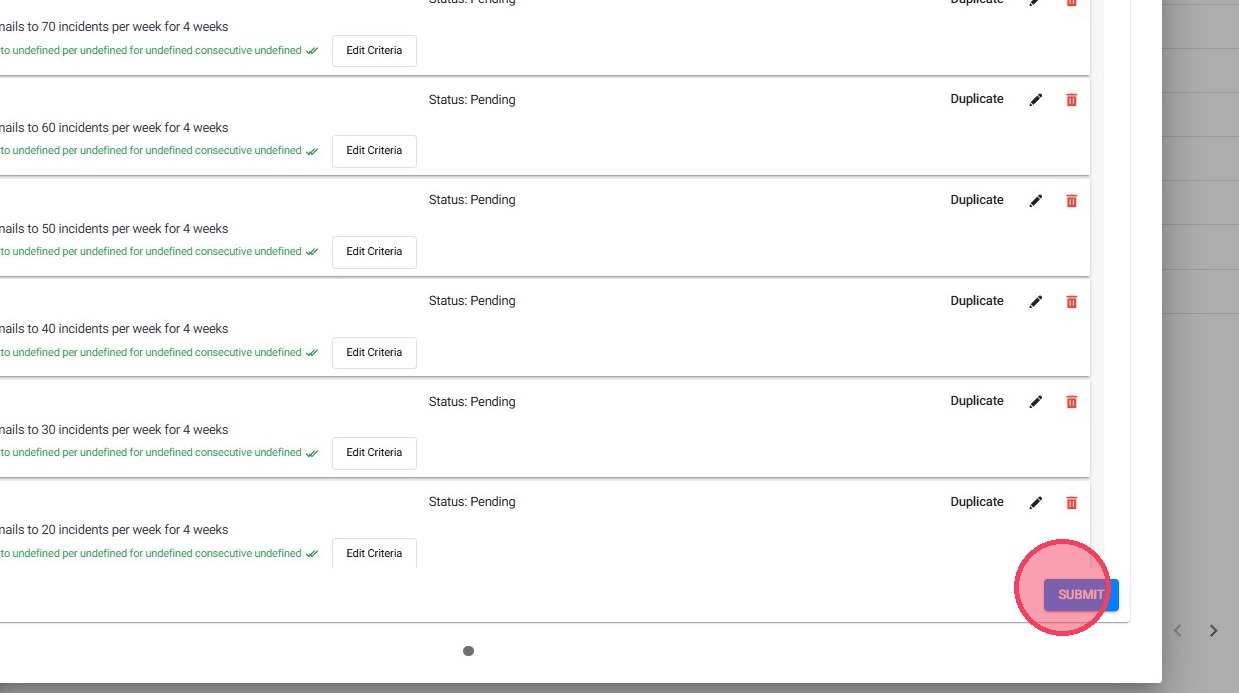
25. After customizing each program, users can click Submit to finalize the import. Once submitted, the program is added to the client’s profile.
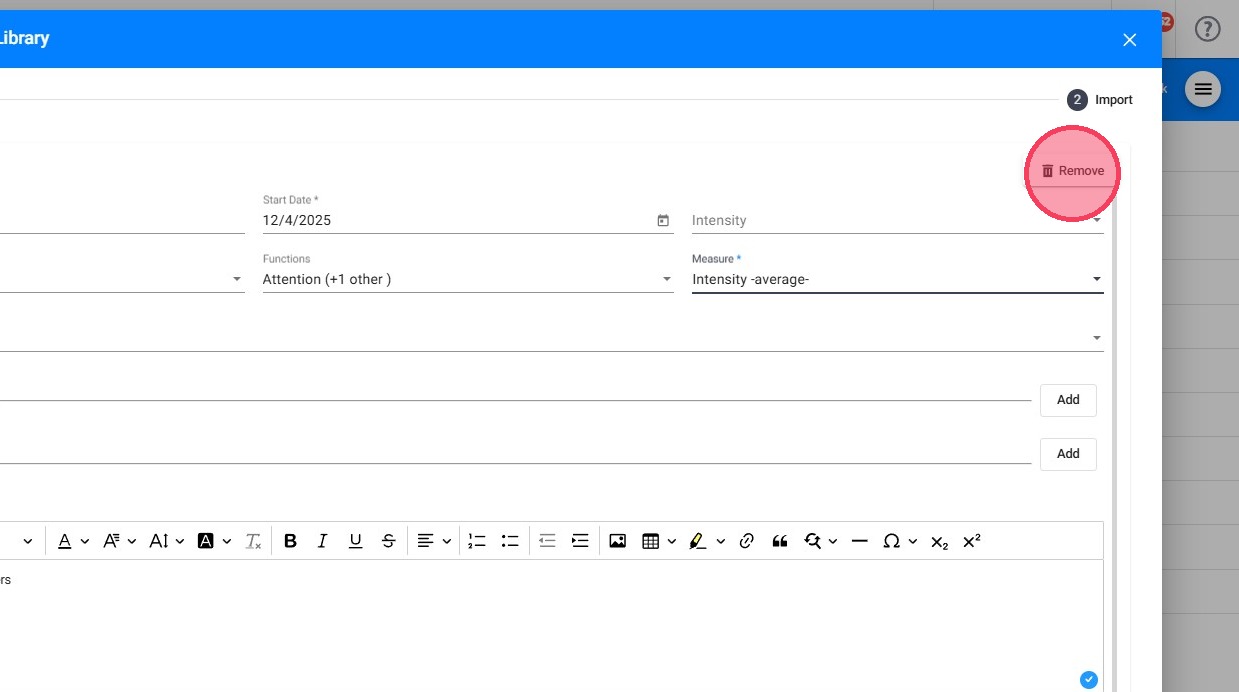
26. You can remove previously selected items if you don't want to import them
Section III: Creating a Program from Scratch
Users have the option to create Programs from scratch.
1. Create a New Entry from Scratch
27. - Click the red "+" icon
- Select "Create from Scratch"
This allows you to start a new entry without importing from a library.
2. Customize the Program
28. When creating a program entry, the window is divided into three tabs: Info, Details, and STOs/LTOs.
29. Info
This tab is used to enter the basic information for the program. Here you can add:
- Program name
- Start date
- Status
- Measurement type
- Folder where it will be saved
- Configuration of targets and prompts
- Initial observations
- Baseline information
30. If the Task Analysis measurement is selected, the question “Would you like to add Targets to this goal?” will automatically default to Yes, and the system will activate an additional required section for configuring the program steps.
To properly complete the setup, you must:
- Add the steps (targets): Enter each individual step of the task in the order it should be performed.
- Define the status of each step: The status will default to Ongoing, but it can be adjusted if needed (e.g., pending, mastered, etc.).
- Set the effective start date: This date will default to the replacement’s start date, but it can be modified if necessary.
All required fields in this section must be completed before finalizing the program setup to ensure accurate step tracking and proper data collection within the system.
2.1 Managing Targets
31. If you would like to add targets to the program or skill, simply select Yes for the question “Would you like to add Targets to this goal?” to activate the Targets section. From there, you can create individual targets for the replacement/skill.
32. For each target, you can add:
- Name
- Start Date
-
Status
Enter Initial Observations & Baselines
- Initial Observations (Value & Date)
- Baselines (Value & Date)
33. You may add as many targets as needed.
2.2 Managing Prompts
34. If you would like to add prompt data collection to the replacement or skill, select Yes for the question “Would you like to collect prompt data for this goal?”
35. Once enabled, you will see a list of the agency’s available prompts. You can select which prompts to use for that specific replacement or skill, allowing you to customize the prompt hierarchy to align with your teaching procedures.

In order to link prompts to specific STOs, please refer to the following guide: How to create and track STOs in ABA Matrix
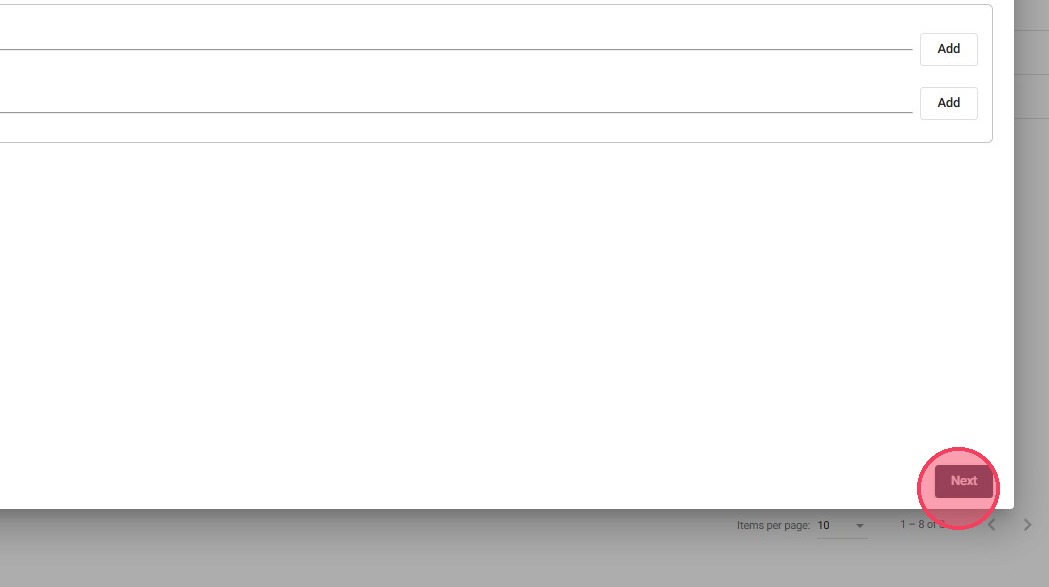
36. Click “Next” to move to the second section.

37. Details
This tab allows you to add additional written information related to the program, such as:
- Objective
- Definition
- Barrier
- Procedures
- Teaching Materials

38. These text sections provide a variety of formatting options to make your documentation more effective and visually appealing, including text formatting (bold, italics, underline, color, and highlights), content organization (headings, alignment, and spacing), lists (bulleted and numbered), hyperlinks, tables, and special features such as undo/redo and clear formatting.
39. Click “Next” to move to the next section, or “Back” if you need to make any adjustments to the previous section.
2.3 STOs/LTOs Section
40. You can create Short-Term Objectives (STOs) and Long-Term Objectives (LTOs) either automatically or manually.
- STO Auto-Generation:
Users can utilize the STO auto-generation tool to automatically create STOs with measurable targets to support progress tracking.
Click Generate to create the STOs.
41. Even when creating objectives from scratch, you can use the automatic STO generation tool. Selecting Generate STOs opens a configuration window where STOs can be created using different generation methods (by number of objectives or defining how values increase or decrease). When prompt data collection is enabled, you can link prompt levels to each STO. You can also control how often progress is measured, define how long each STO remains active, preview the generated objectives using a template, and edit or re-generate the STO wording as needed.
42. You can also create the STOs manually:
- Click the "Add" button to create a new STO or LTO manually.
- Enter details such as Start Date, Expected Met Date, Status, Effective Date, and Description (this one should not be empty)
3. Save the Program
43. After completing the information, click the "Save" button to finalize and store your new program.
Section IV. View Programs
44. You can view programs either in a list format or organized by folders. This allows you to view and access the information in a way that suits your needs best.
45. To switch between these views, choose the desired option, depending on your preference.
- From the “Replacement Behaviors” or "Skill Acquisition" section, look for the button at the right and click on it to toggle between the list view (table view) and the folder view (structure view)
46. You can view theprograms in the familiar list view, which provides a straightforward way to access all your data.

Remember that only 10 programs appear on a page; if you include more than 10, they will be stored on another page, which you can access by pressing the button at the bottom right of your screen, as shown in the image.