How to Set Up Modality Options (In Person or Remote) for Visits (for administrative staff)
Learn how to efficiently manage client appointments and adjust scheduling settings within the ABAMatrix platform. This guide provides step-by-step instructions for setting visit details, selecting providers, and finalizing locations to keep your calendar accurate.
Configure Modality Options (In Person or Remote)
Tip: When scheduling visits in ABA Matrix, users can select the modality that indicates how the service will be provided:
- In Person: The provider and client are physically present at the same location for the visit.
- Remote: The service is provided remotely rather than with the provider and client physically together.
By default, the appropriate modality can be selected when a visit is created or edited. However, if your agency has certain services that should only be scheduled as In Person, you can configure this restriction by visit type.
1. Configure Visits as In Person Only
- Go to Agency > Settings.
- Open the Scheduling section.
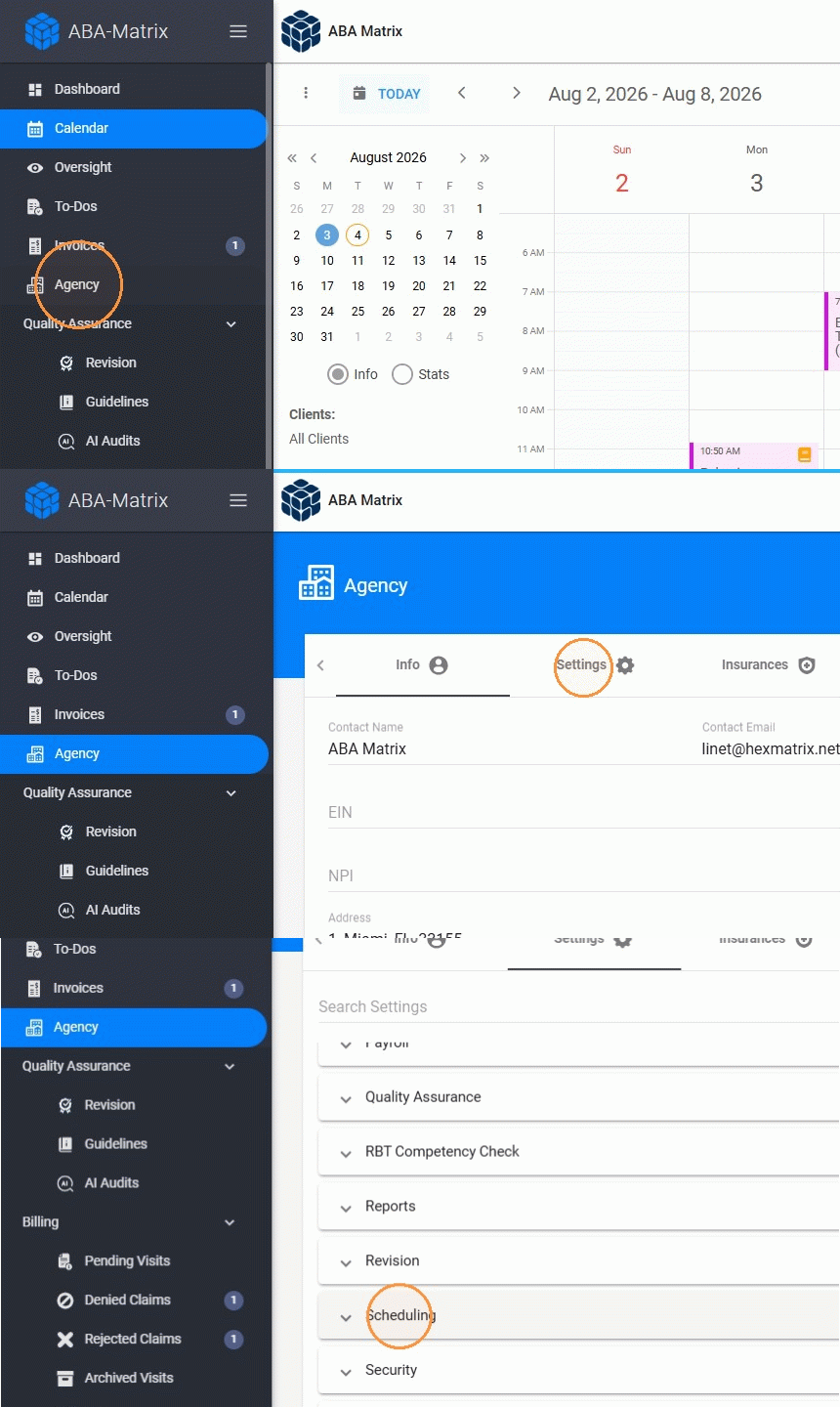
2. - Locate “Allow only In Person selection when creating or editing events”
- Enable the setting
- Select the visit types that should be restricted to In Person
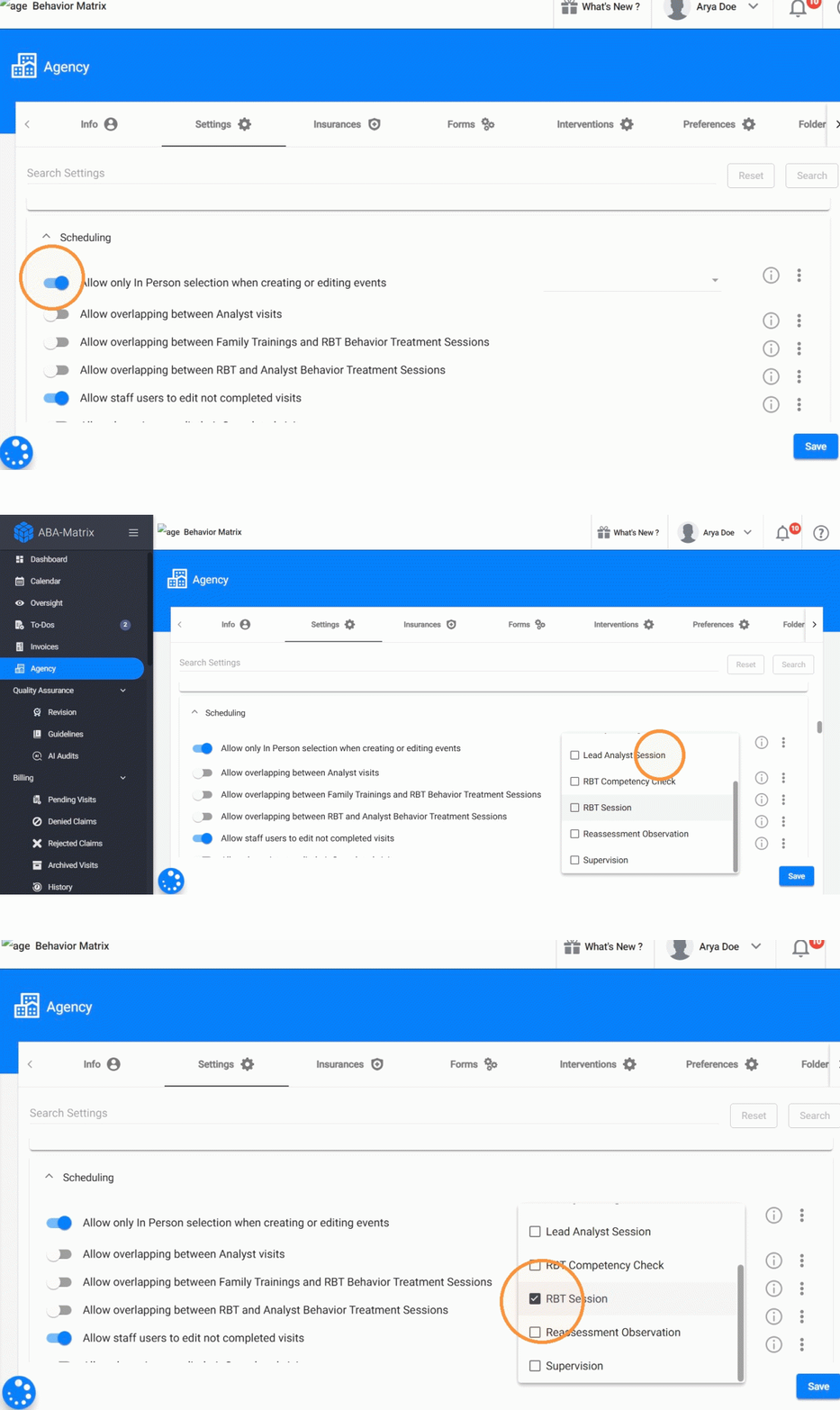
Tip: This setting does not make every visit in ABA Matrix In Person only. The restriction applies only to the visit types selected in the setting. Visit types that are not selected can continue to be scheduled using In Person or Remote, as applicable.
For example:
- RBT Session selected: RBT Sessions can only be created or edited as In Person.
- Supervision not selected: Users can continue choosing from the available modalities when creating or editing Supervision visits.
Select the Modality when scheduling a visit
3. - To create a new event using the Remote or In-Person modality, log in to ABA Matrix and click the “+” symbol in the upper-right corner of the screen.
- Then, select the type of event you want to schedule.
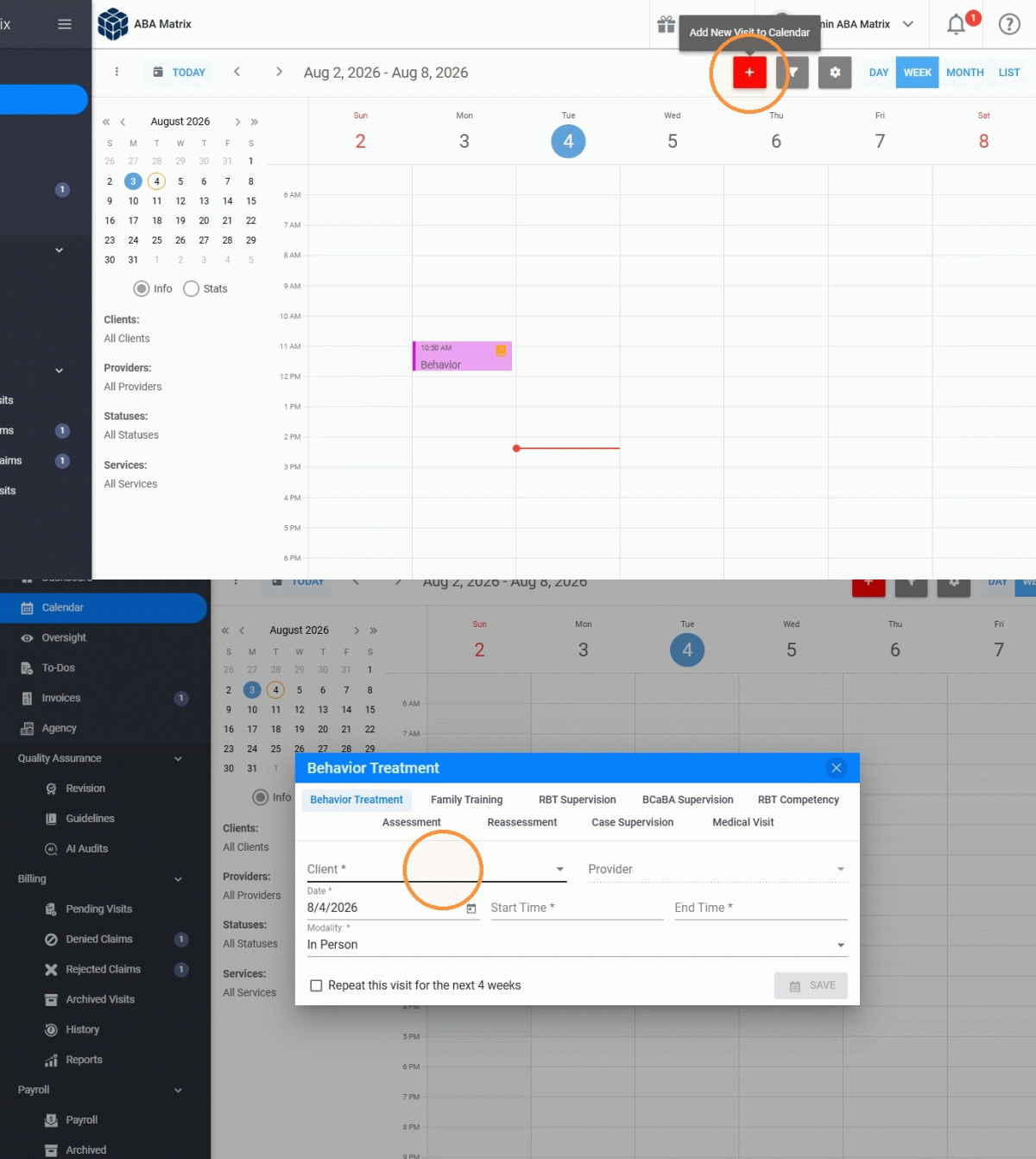
4. Choose the client and provider for the session, then select the date, start and end time, and location.
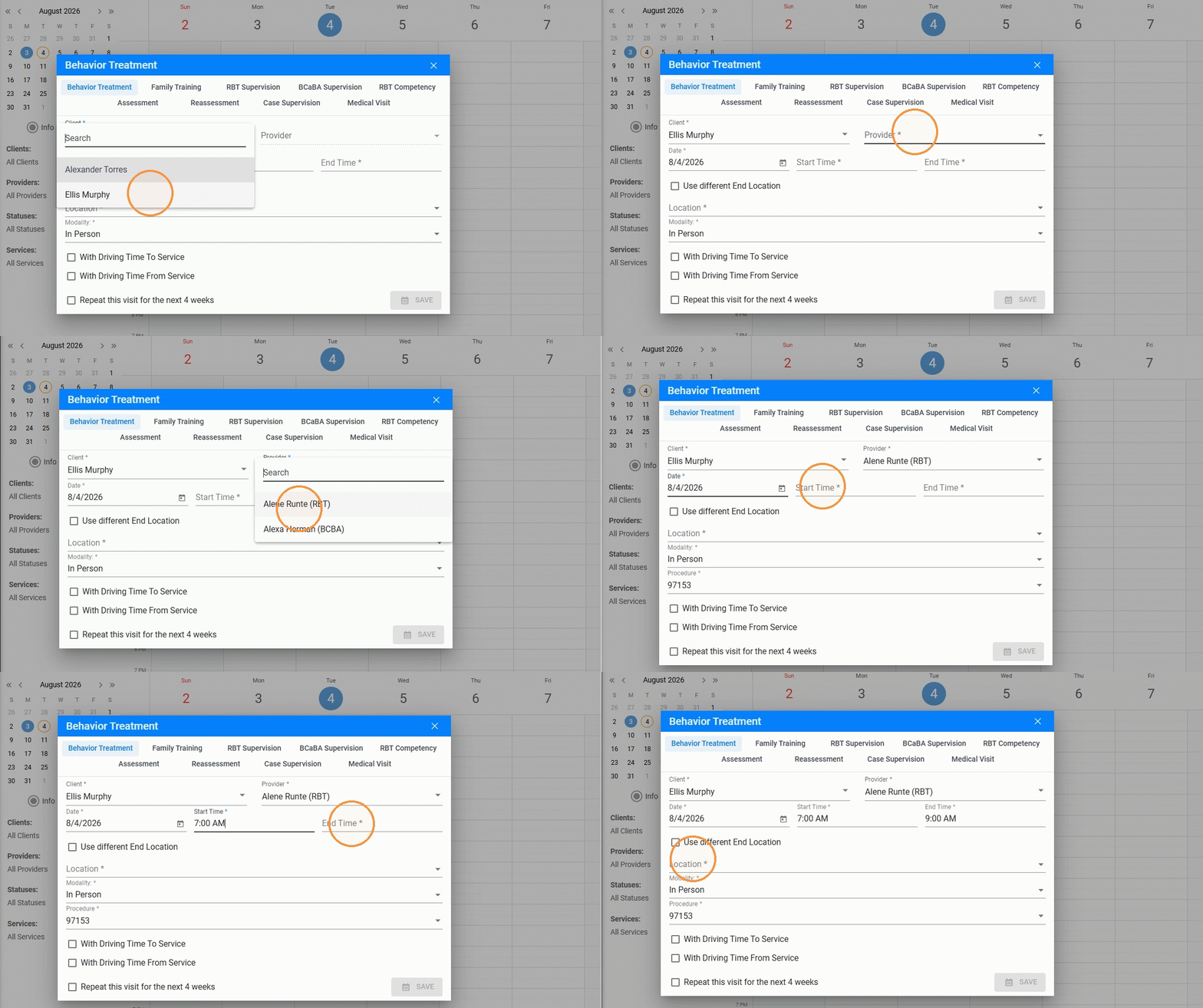
5. Select the modality for the session.
- If the visit type is restricted to In Person, only In Person will be available.
- If the visit type is not restricted, select In Person or Remote based on how the service will be provided.
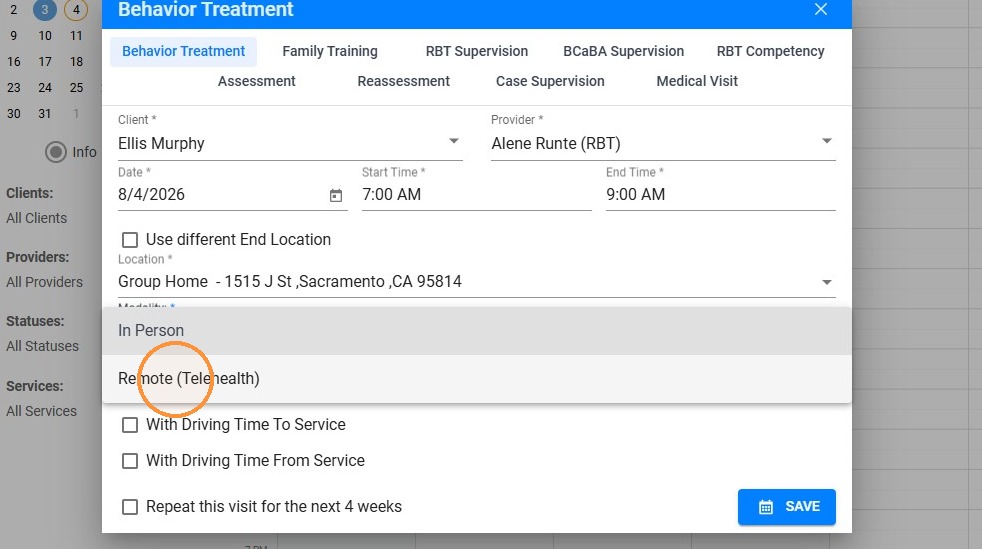
Edit the Modality of an existing visit
Tip: You can also update the modality when editing an existing visit.
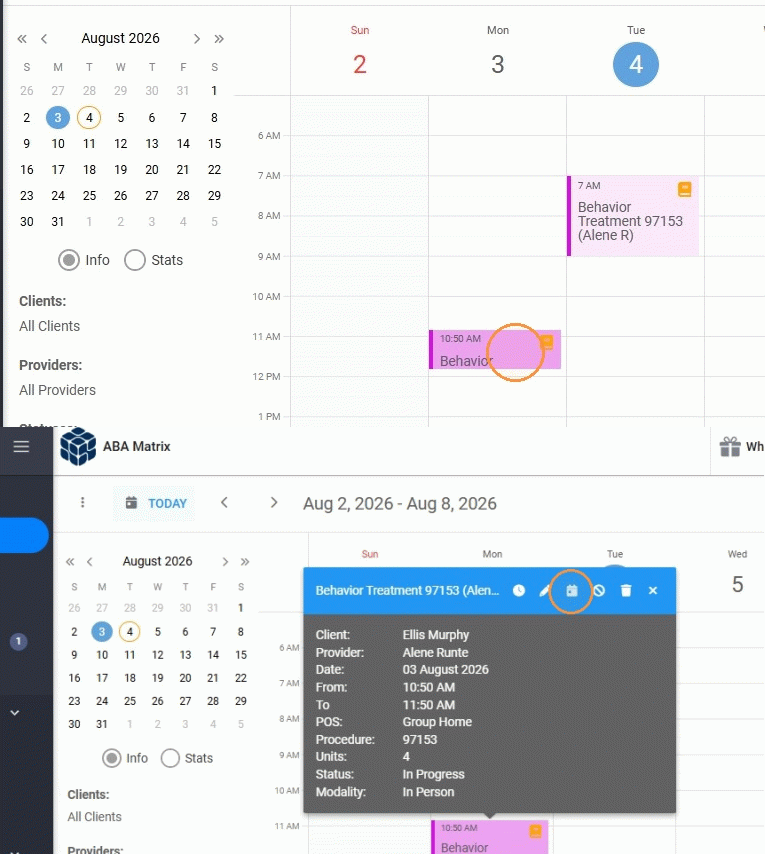
6. - Select the session you want to edit from the calendar.
- Click Edit Visit to update the visit information and modality.
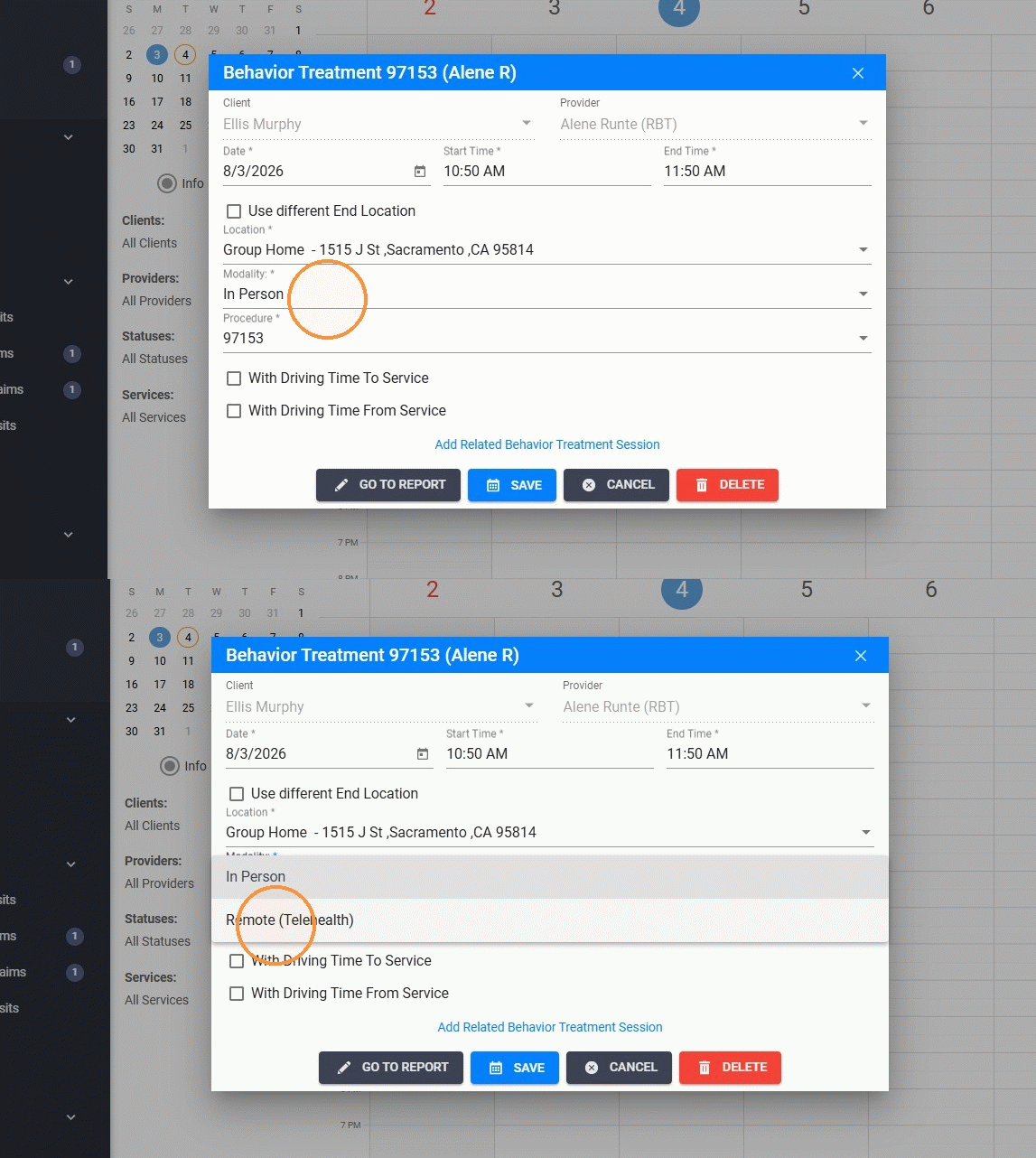
7. - If the visit type is configured as In Person only, the modality cannot be changed to Remote. In Person will be the only available option.
- If the visit type is not restricted, you can change the modality between In Person and Remote, as applicable.
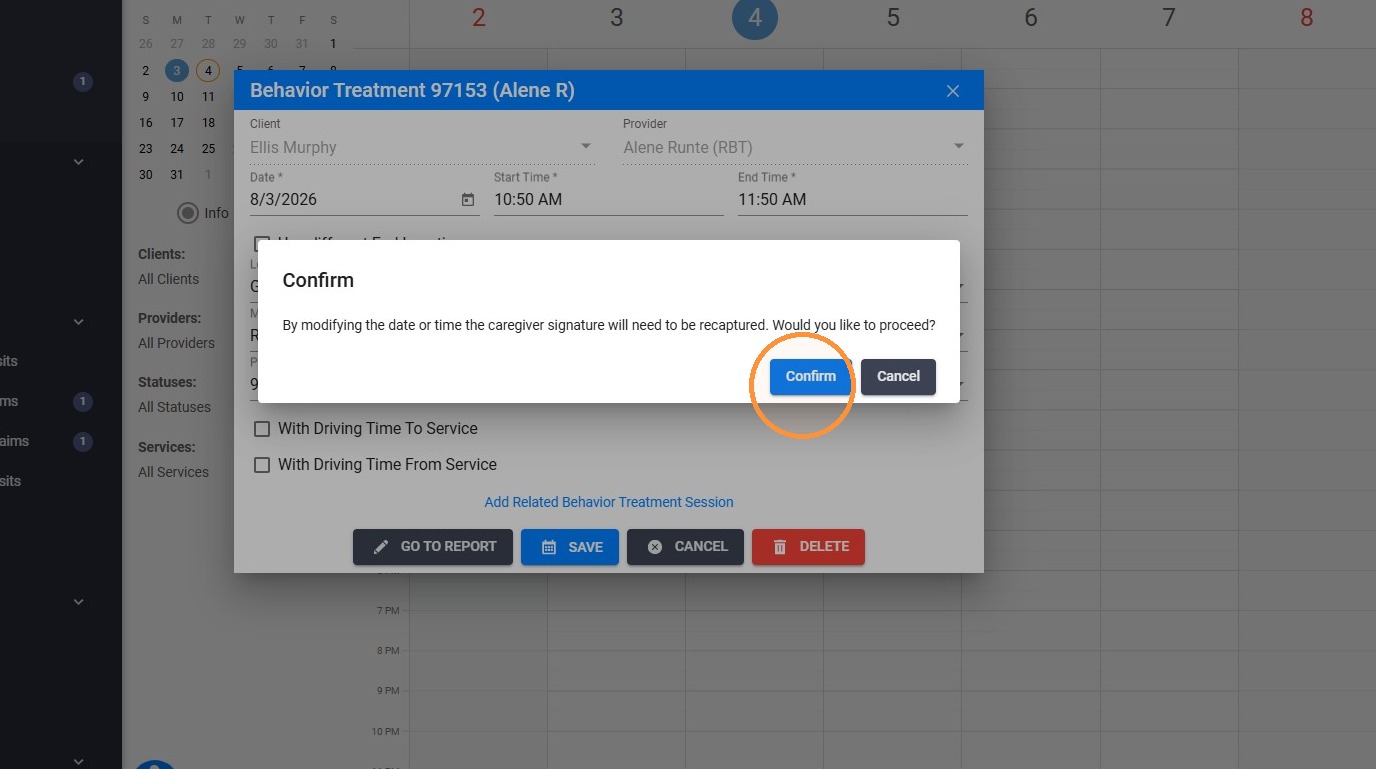
Alert: It's important to be aware that if the caregiver's signature has been obtained for a visit that you wish to update, you will need to recollect the caregiver's signature upon altering the event.
8. Confirm to save the changes made.