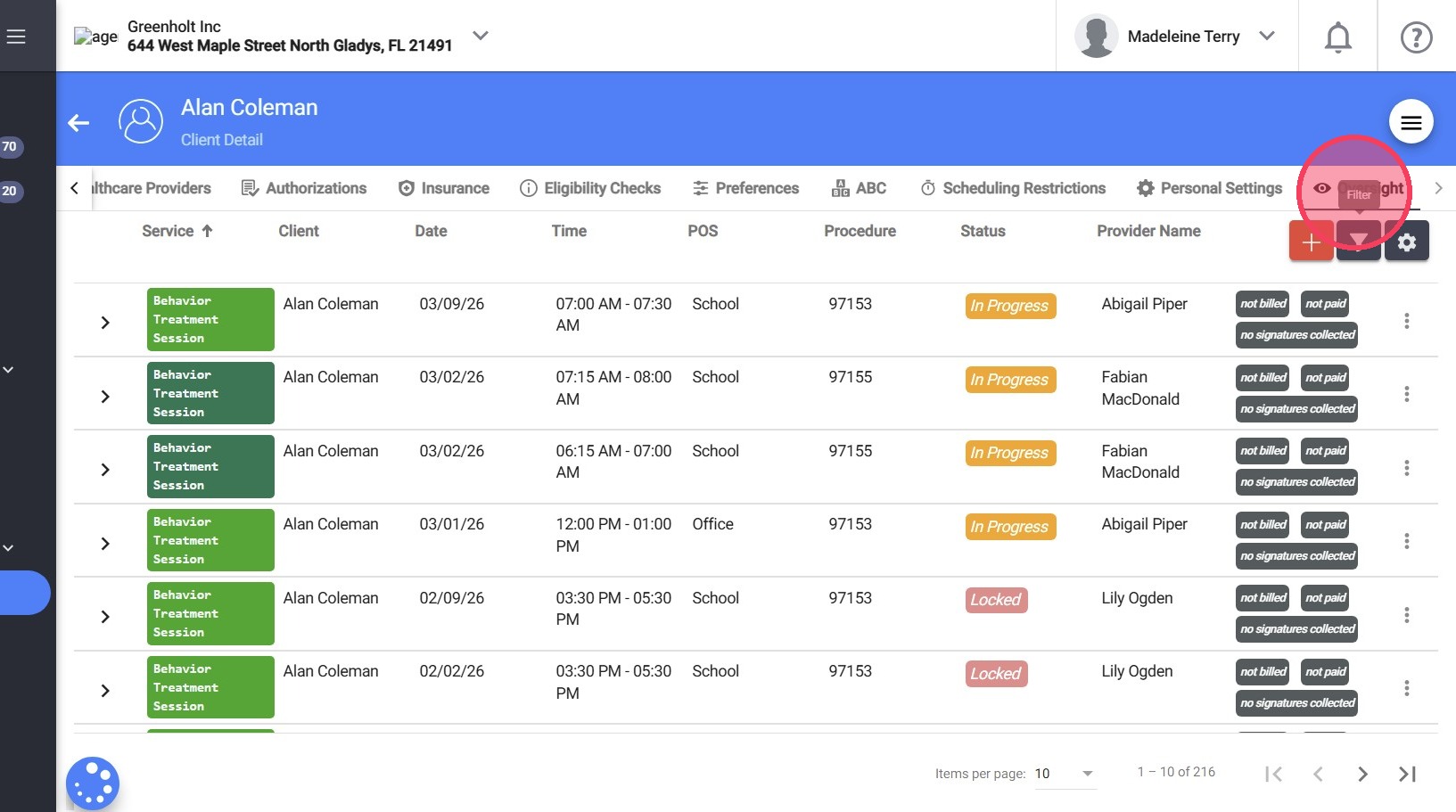
How to navigate Client Profiles (for therapists)
This guide offers a detailed overview of the newly updated client profile interface , designed for enhanced navigation and organization. It highlights features that allow users to access key information faster and with fewer clicks, making the experience more intuitive. This guide will help you explore the new interface’s benefits before deciding whether to switch layouts.
Why You'll Love the Client Profile Experience
✅ Quick access to all client information with just a few clicks.
✅ Organized layout that makes it easy to locate the details you need.
✅ User-friendly navigation designed to streamline your workflow.
1. Go to the Clients section to view a list of your clients.
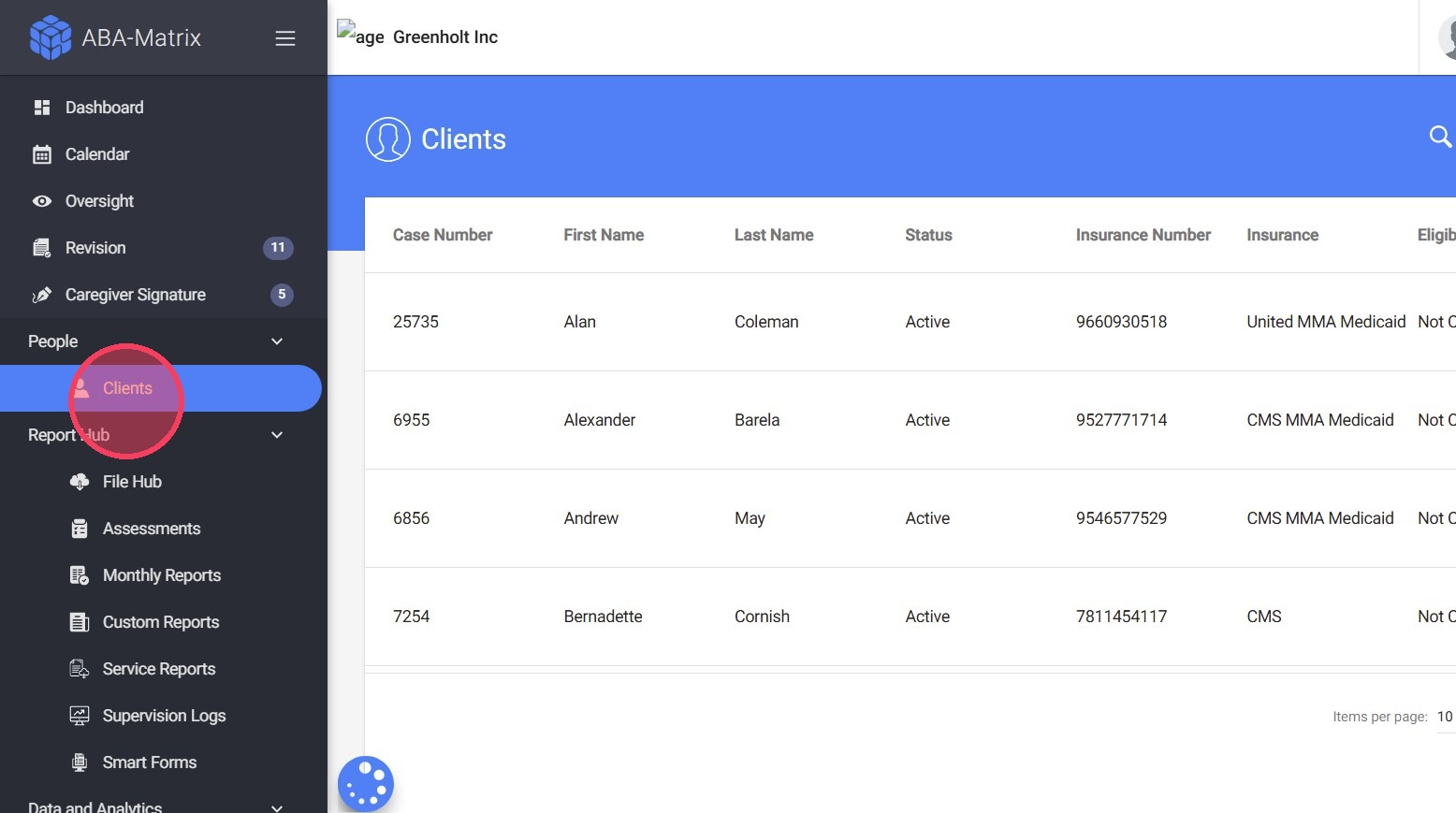
2. To open a specific client profile, click on the client’s name. Their Personal Info will be displayed by default.

Navigating the Client Profile
There are two ways to navigate the client’s information:
- Using the tabs at the top of the profile, or
- Using the General Menu to view all sections at once.

3. Using the tabs:
Navigate through the client profile by selecting the different tabs at the top.

4. You can use the arrows on the left or right to scroll through the sections

5. Using the General Menu:
Click the General Menu button in the upper-right corner of the screen (hamburger icon) to view all sections at once.
6. From there, select a section to view its details and expand any subsections as needed.

Exploring the Sections:
Each tab in the client profile contains specific information about the client. Below is an overview of what you can find in each section:
Info

7. Under the Info section, you will find:
- Personal: Basic client details (name, DOB, etc.)
- Address: Client addresses
- Medication: Medications
- Notes: General notes related to the client
Caregivers/Guardians
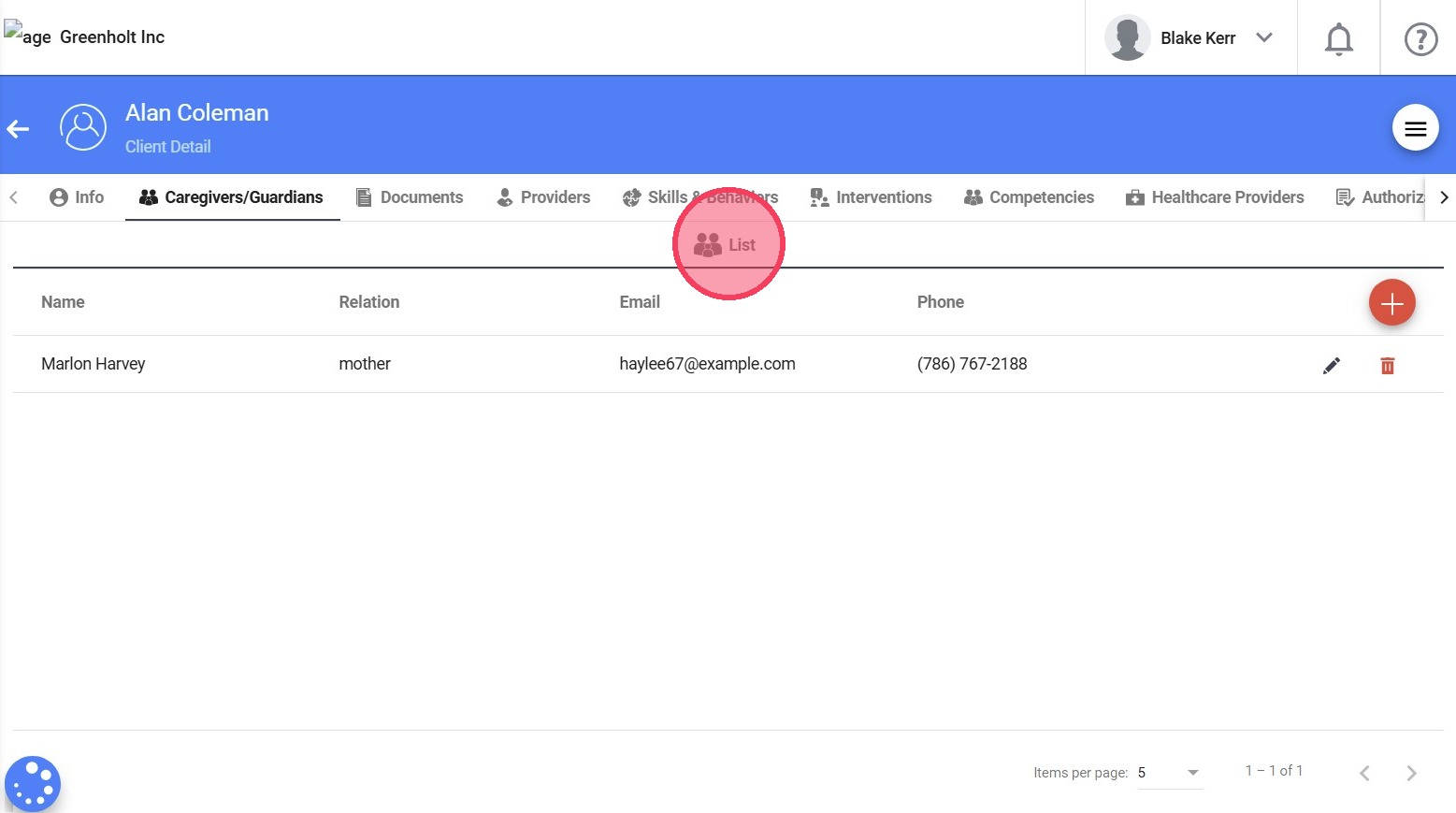
8. Under this section, you will find a List with all caregivers or guardians linked to the client.
Documents
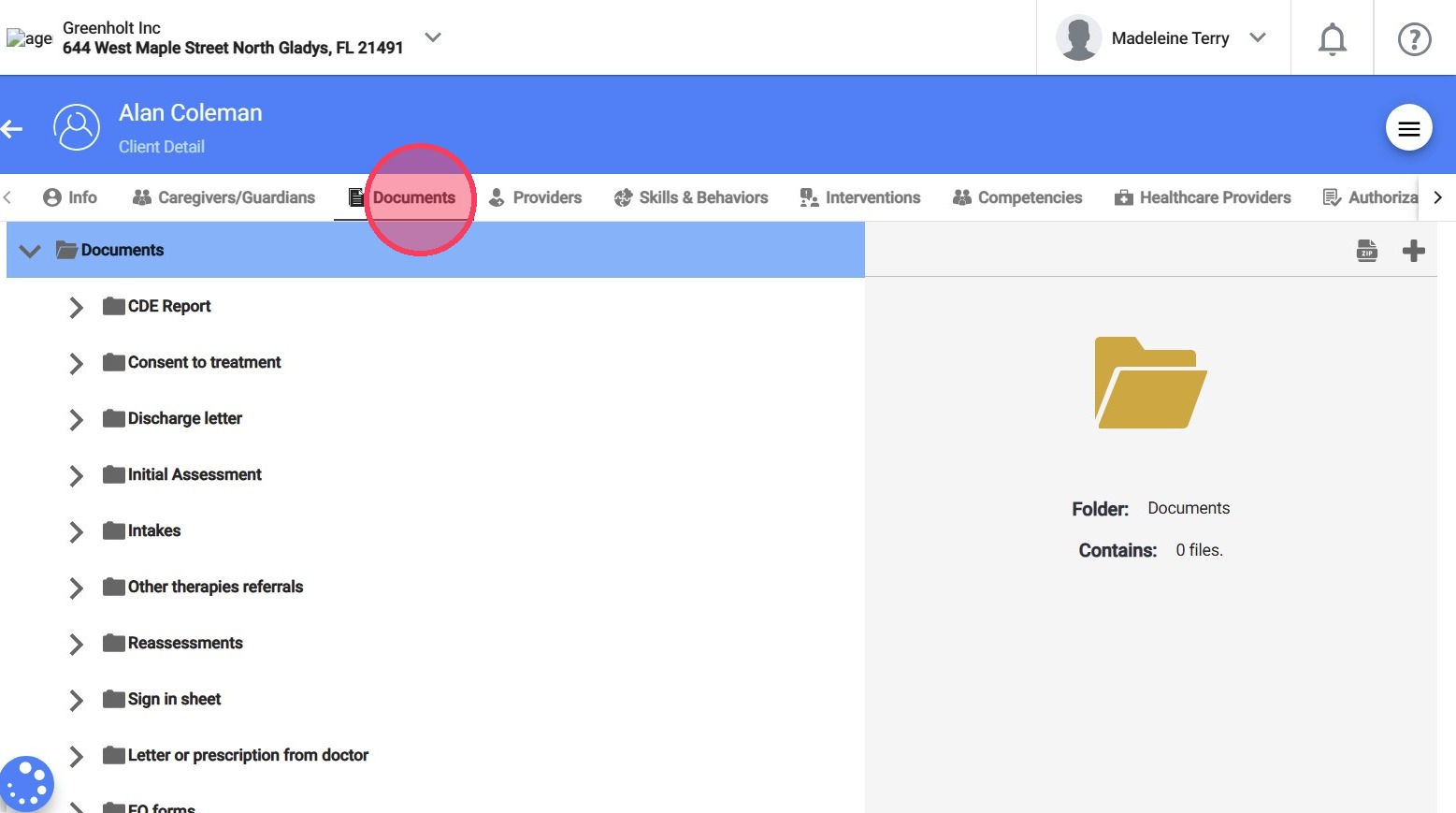
9. Under this section, you will find a list of documents organized according to your agency’s client folder structure.
Providers
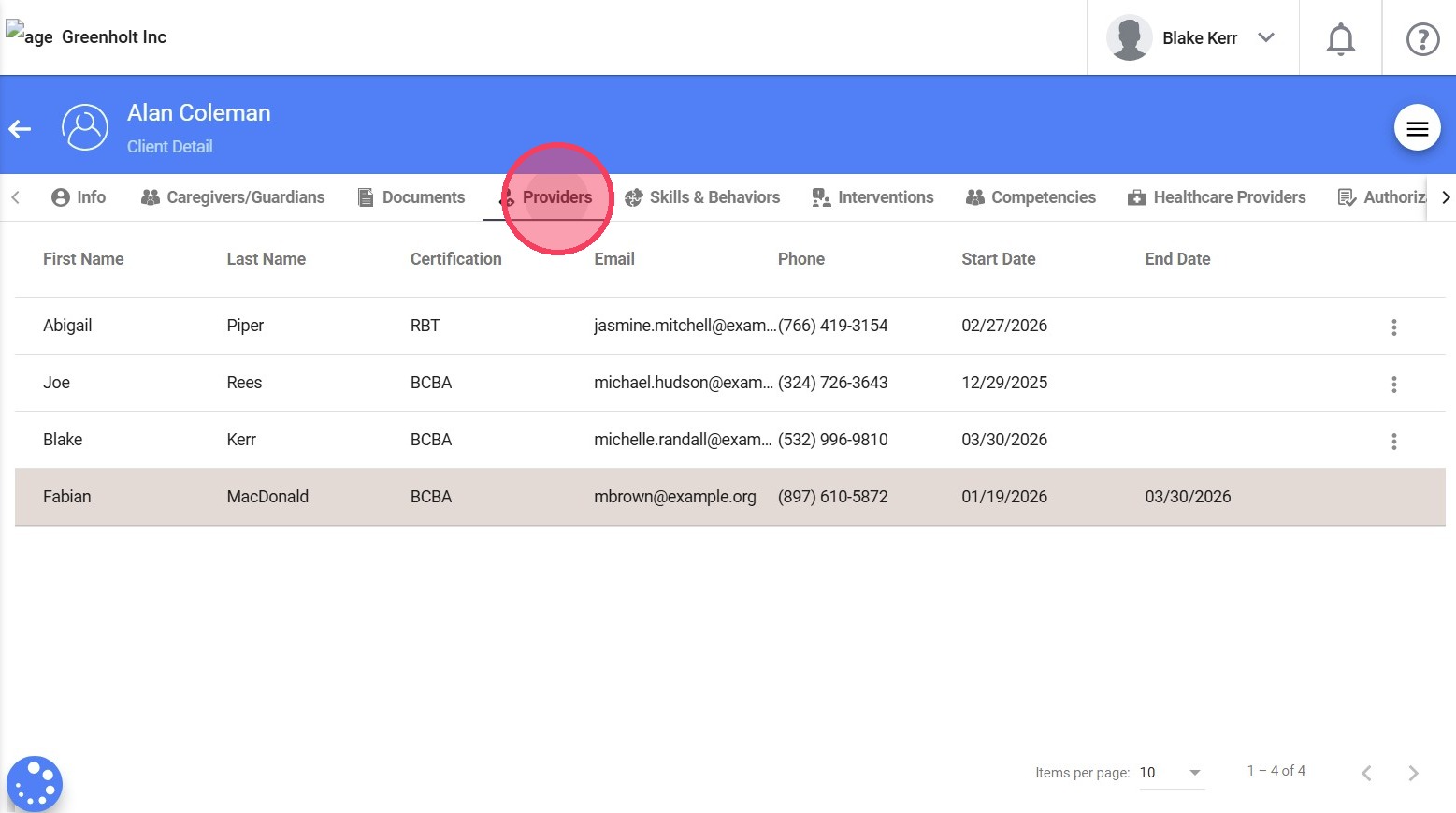
10. Under the Providers section, you will find all assigned providers currently working with the client, as well as past assignments.
Skills & Behaviors

11. Under the Skills & Behaviors section, you will find:
- Maladaptive Behaviors
- Replacement Behaviors
- Skills

12. When you open a behavior, replacement, or skill, the details are organized into clearly labeled and visually separated tabs.
13. This allows you to move easily between sections without losing context and supports quick access to specific information during both review and editing.

From these sections, you can edit active information (e.g., correct the wording of a procedure) or change it using effective dates (e.g., add a new procedure or measure starting next week).
Interventions
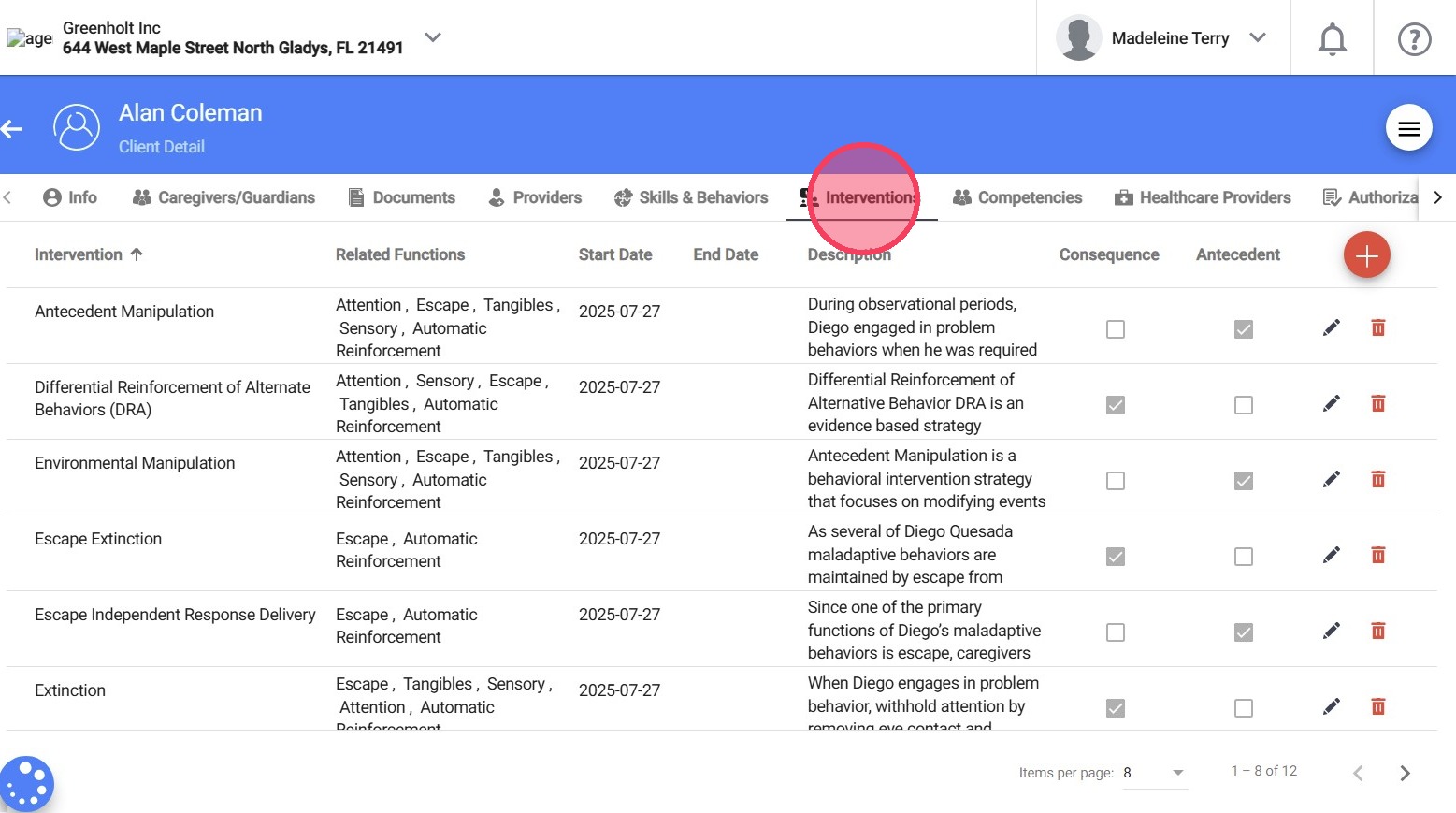
14. Under the Interventions section, you will find all intervention strategies associated with the client.
Competencies

15. Under the Competencies section, you will find:
- Caregiver Competencies: Caregiver goals
- RBT Competencies: RBT goals
Healthcare Providers
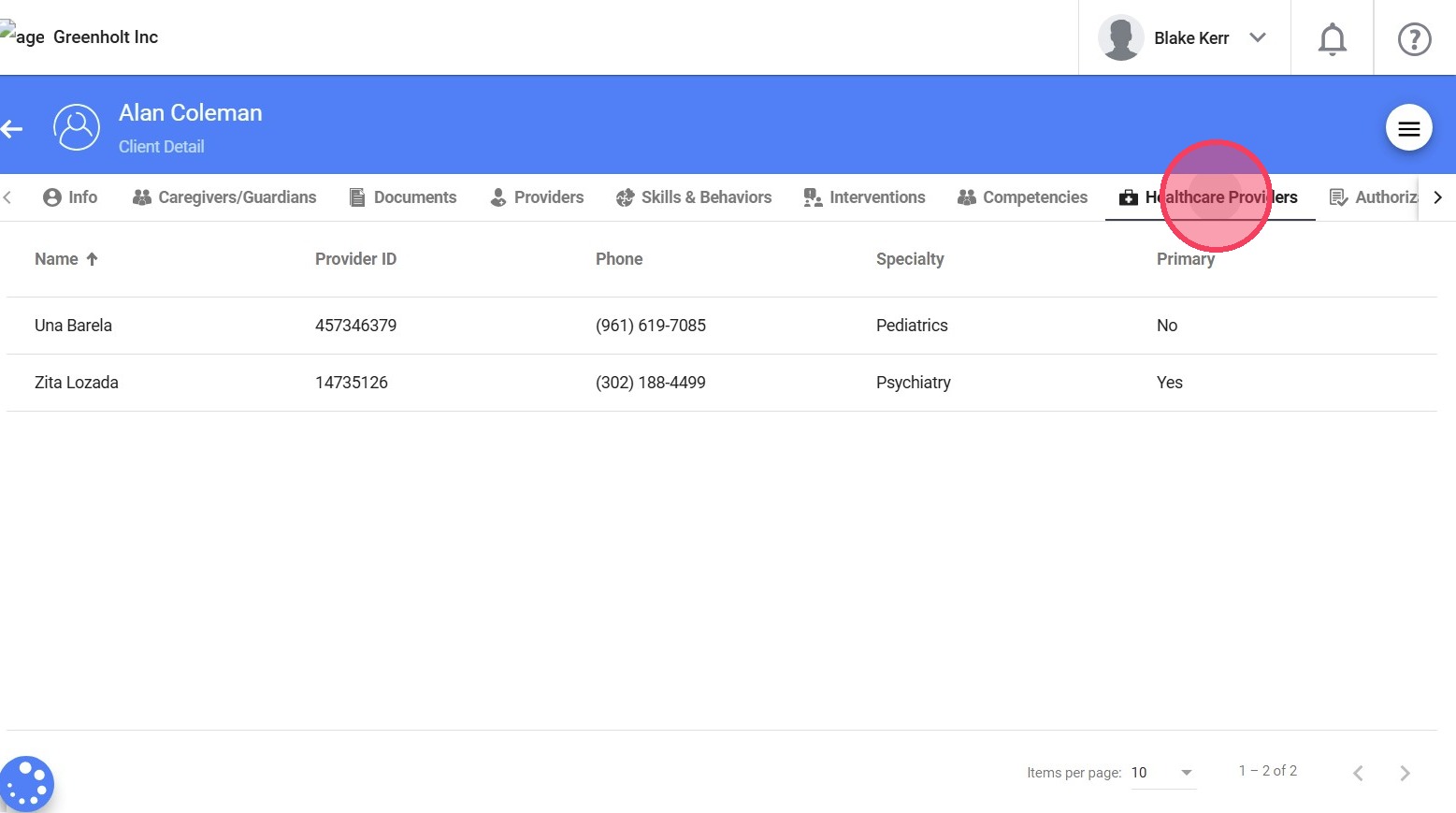
16. Under the Healthcare Providers section, you will find external healthcare professionals involved in the client’s care.
Authorizations
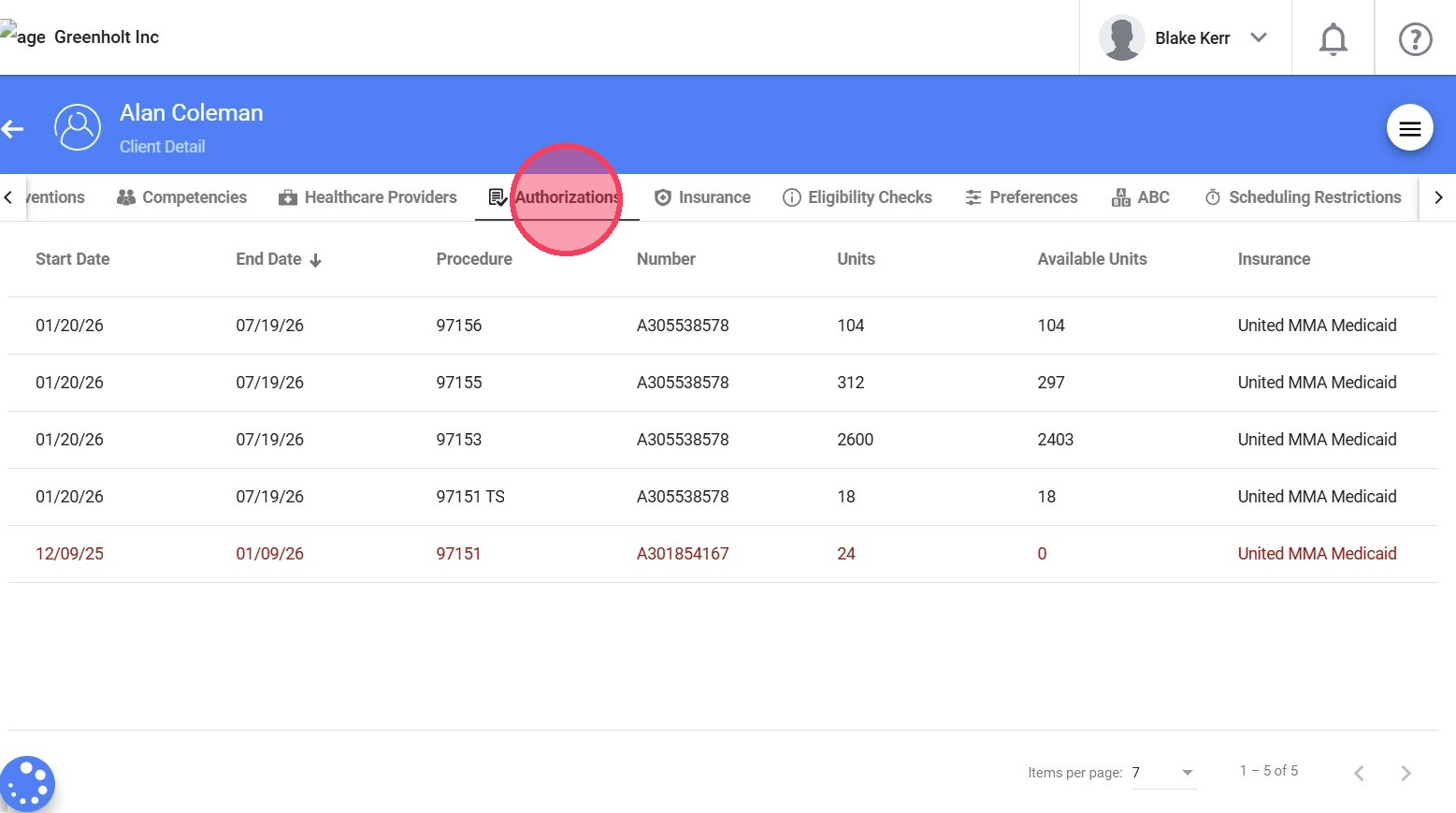
17. Under the Authorizations section, you will find the Approvals, which are authorized services approved by the insurance, including service type, approved hours, and effective date ranges. These approvals are required before scheduling sessions and are used to track available units and ensure services stay within authorized limits.
Insurance
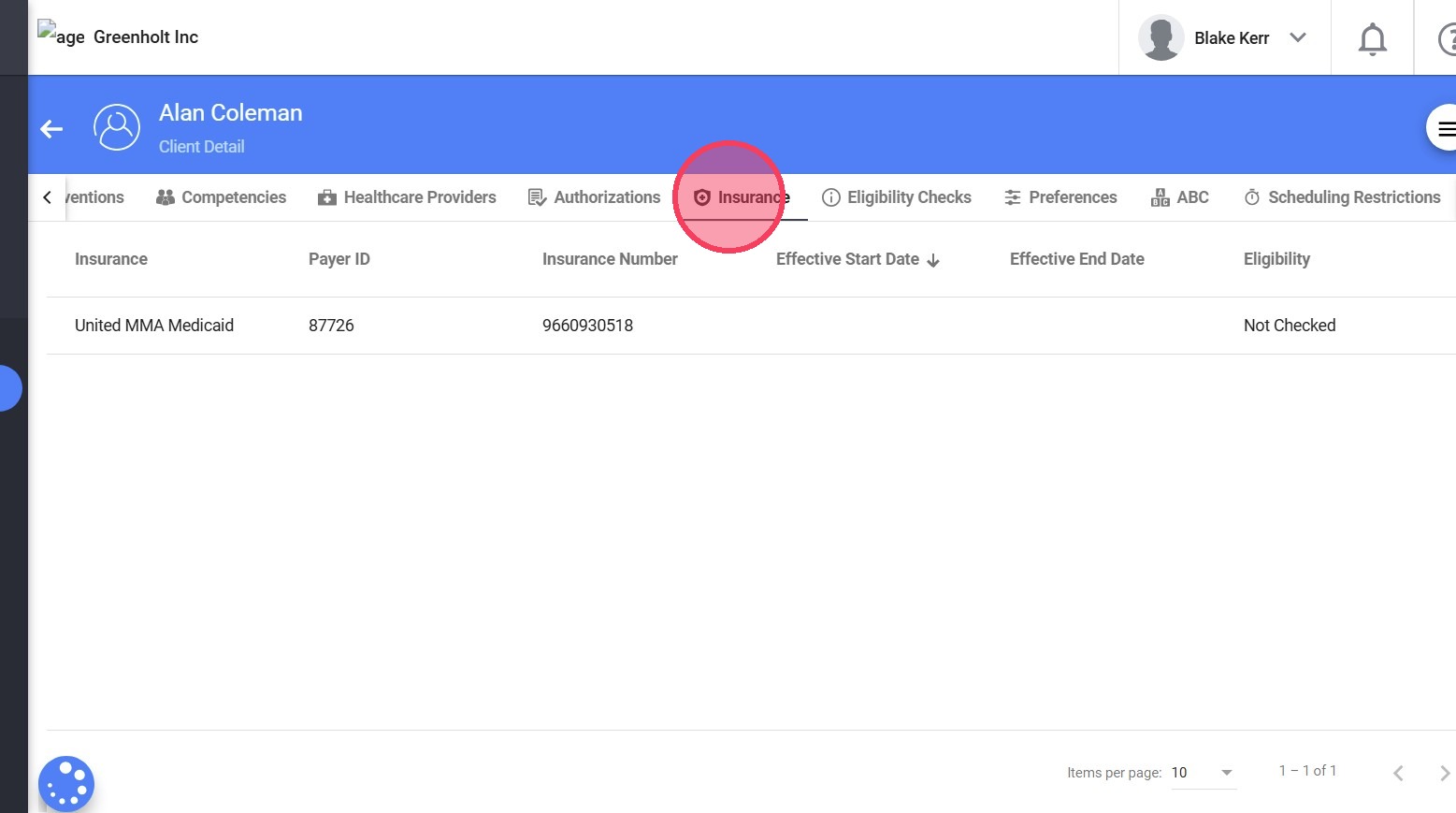
18. Under the Insurance section, you will find the client’s insurance details, including both current and past insurance records.
Eligibility checks
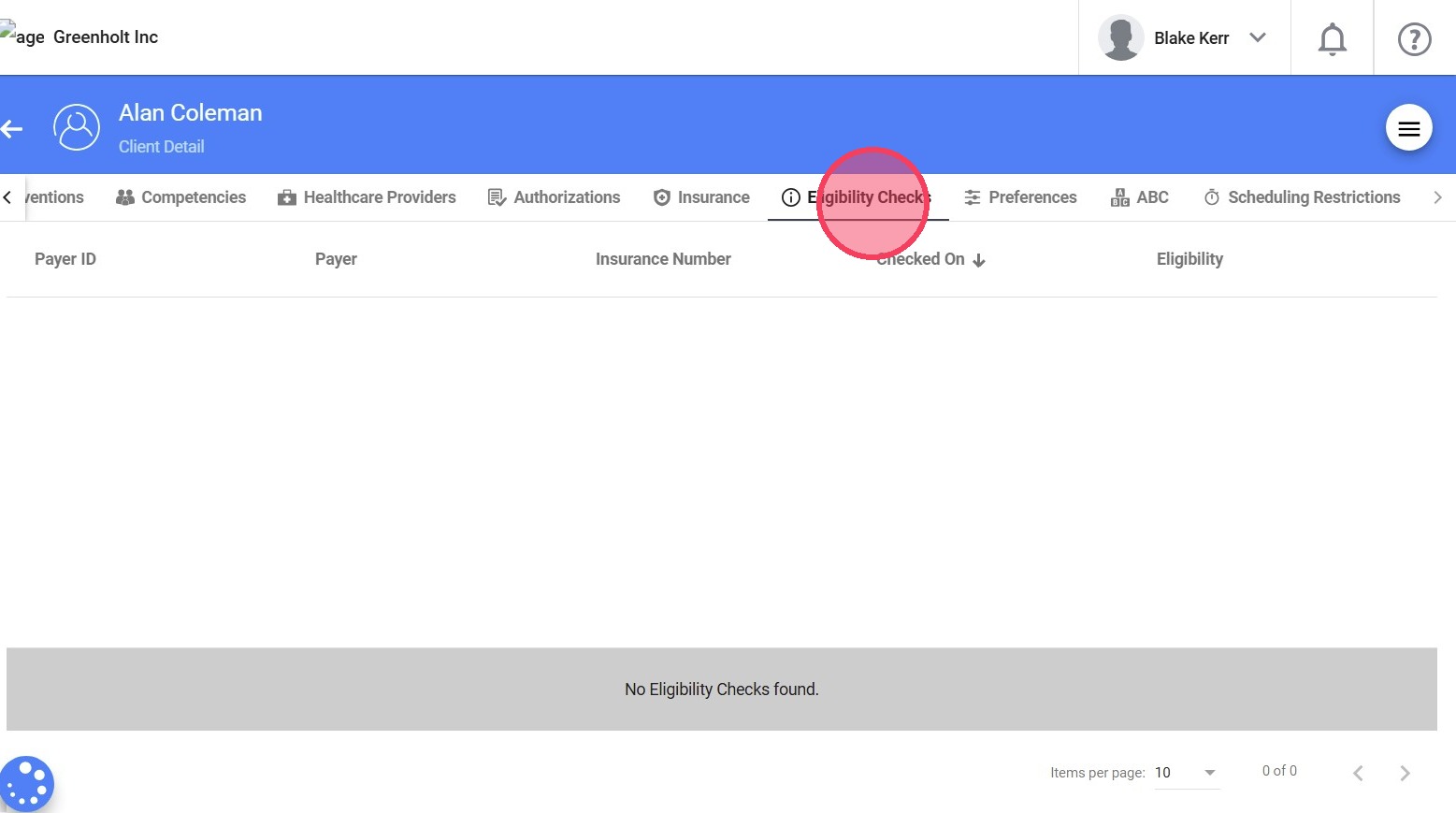
19. Under the Eligibility Checks section, you will find a record of all eligibility checks that have been run for the client. This section is available only if your agency has billing integration enabled.
Preferences
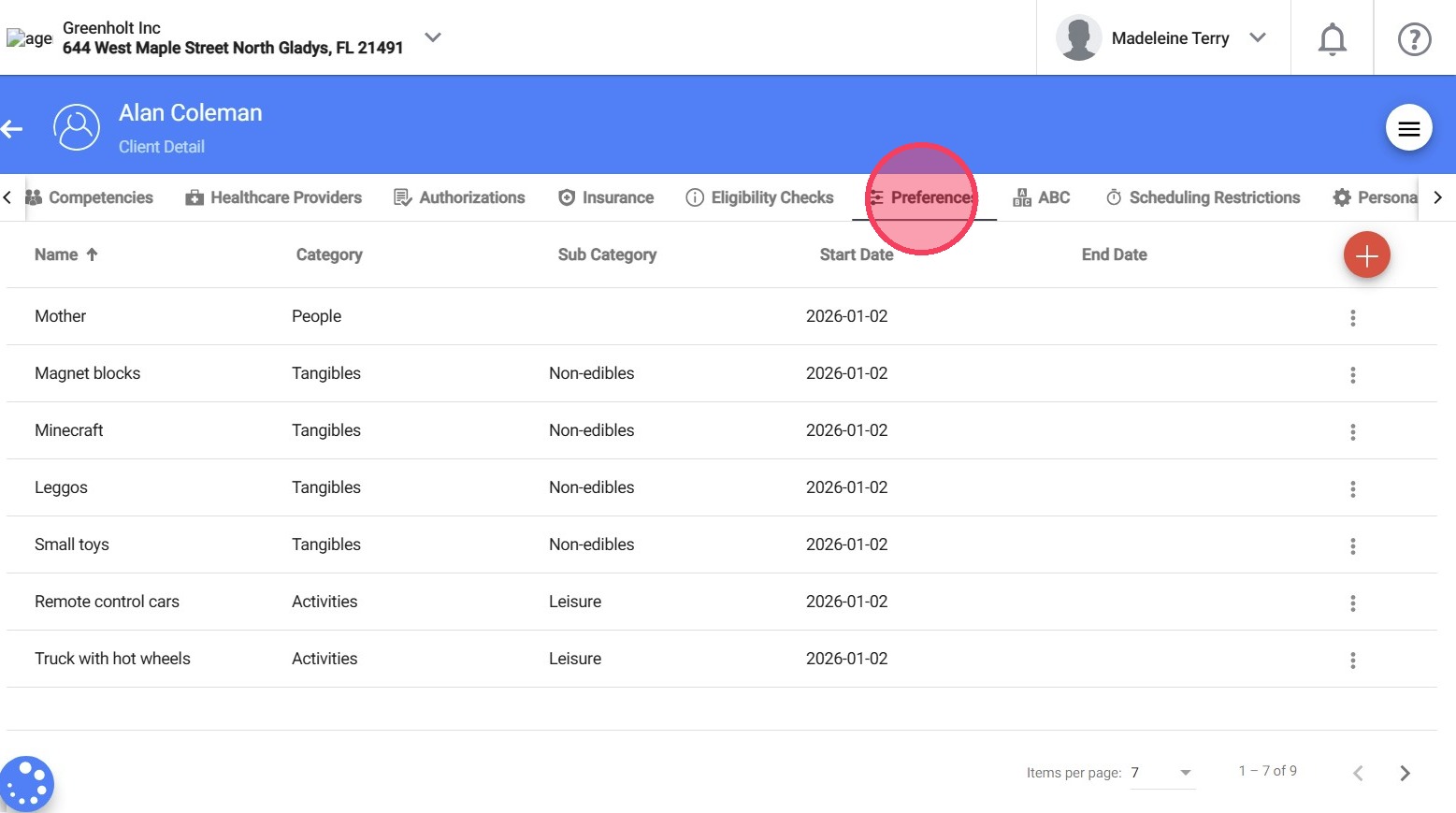
20. Under the Preferences section, you will find client preferences. This information is used in session notes, where preferences appear as reinforcement options for the client, and in behavior treatment plans.
ABC
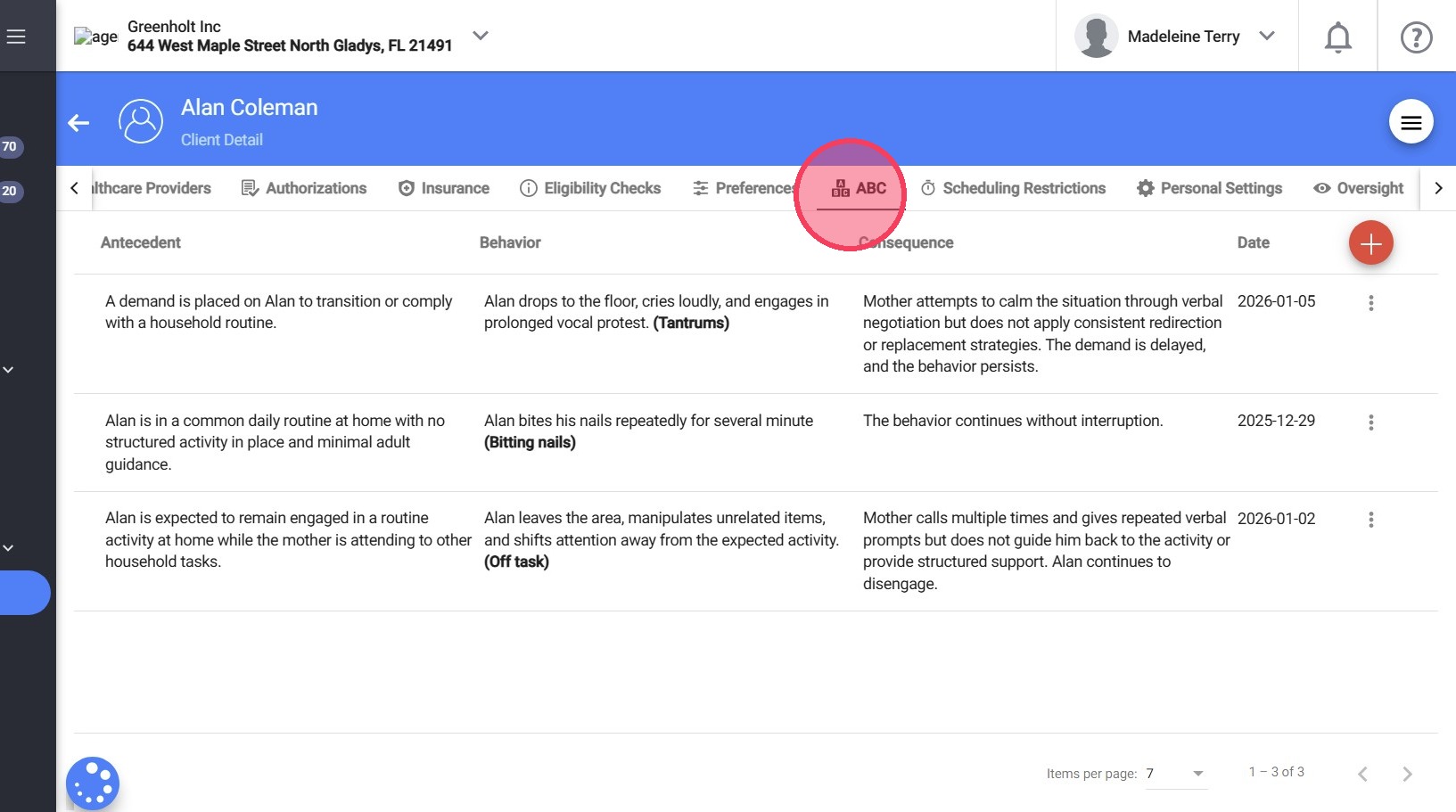
21. Under the ABC section, you will find Antecedent-Behavior-Consequence (ABC) data. This information is also used in behavior treatment plans.
Scheduling Restrictions
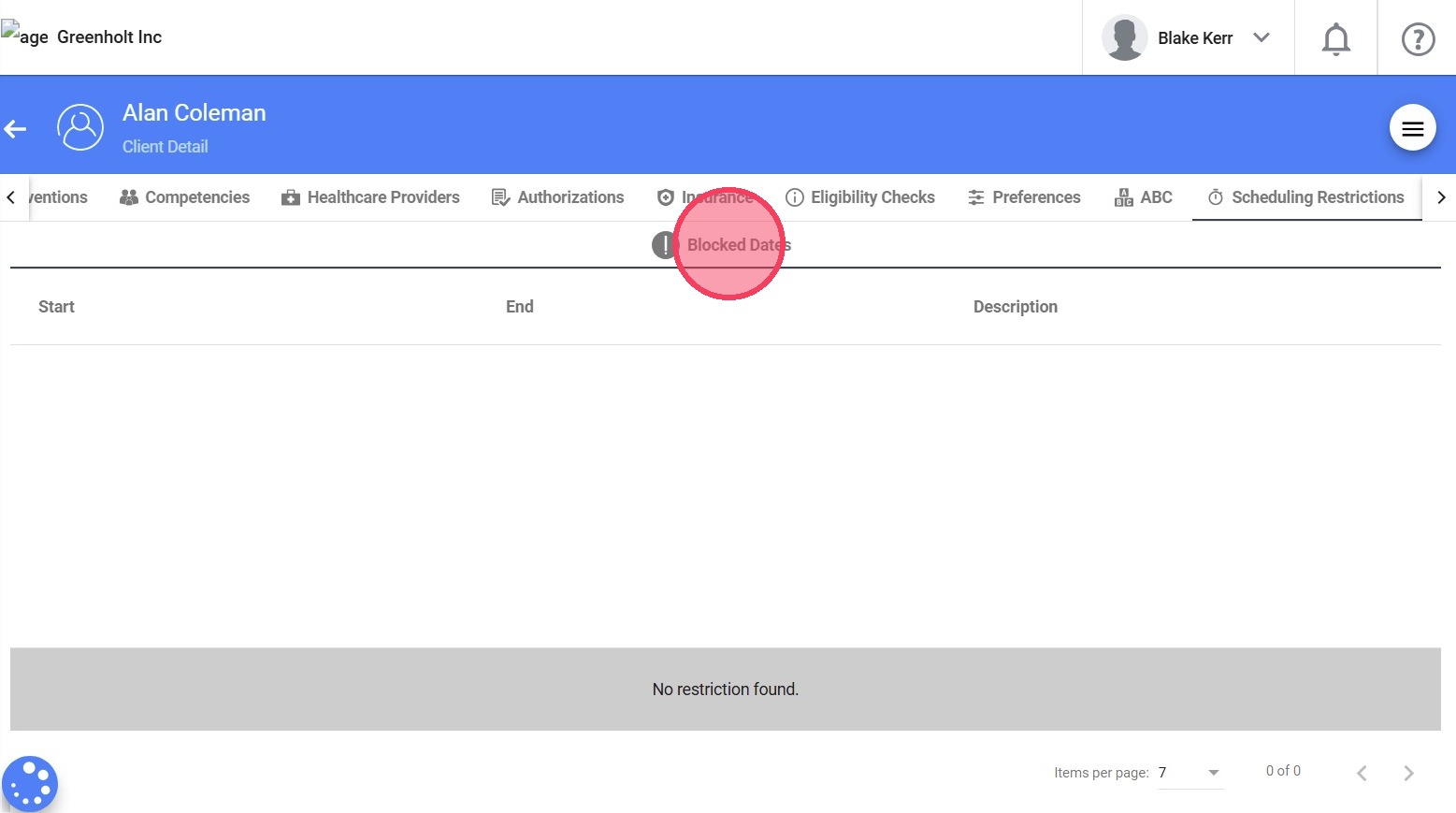
22. Under the Scheduling Restrictions section, you will find Blocked Dates, specific dates when sessions cannot be scheduled, such as client unavailability. This prevents scheduling conflicts and ensures accurate planning.
Oversight
23. Under the Oversight section, you will have a centralized view of sessions and key clinical reports, including monthly reports and behavior treatment plans.