
How to pay Assessments and Reassessments using a Flat Rate (for administrative staff)
This guide provides essential instructions for configuring and managing flat rate payments for assessments and reassessments within analyst profiles. It streamlines the payment process by ensuring that the correct flat rates are automatically assigned to lead analysts, while also allowing for adjustments as needed. By following this guide, users can efficiently manage payroll and ensure accurate billing, ultimately enhancing operational efficiency and reducing errors in payment processing.
Alert: By default, flat-rate payments for assessments and reassessments are not enabled. Assessments and reassessment observations are paid individually by default. If you would like to activate flat-rate payments for assessments and reassessments, please submit a request and our team will be happy to assist.
Flat Rate configuration in Analyst Profiles
1. Flat rates for assessments and reassessments are configured at the analyst profile level.
- Go to the Analyst Profile.
- Open the Pay Rates section.
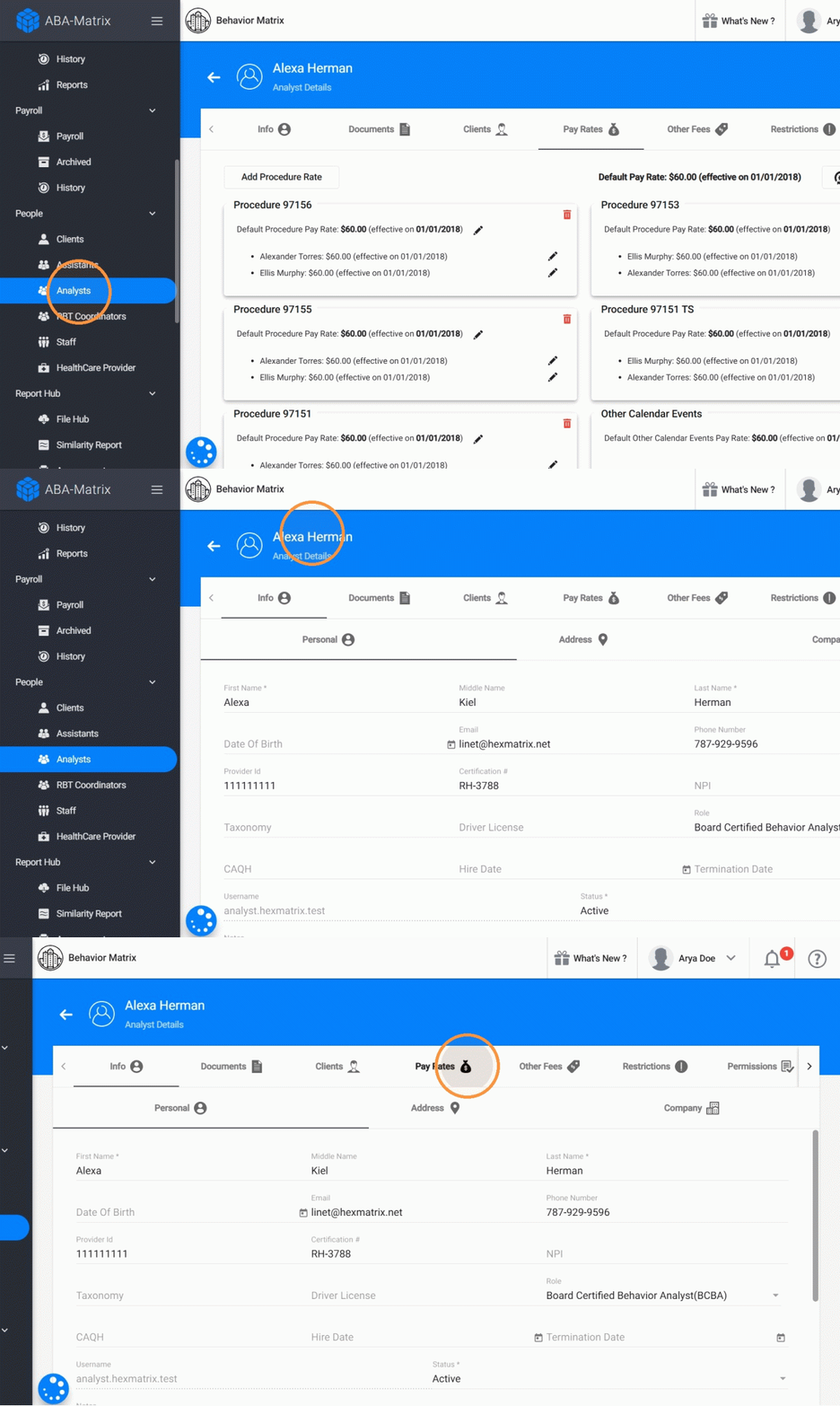
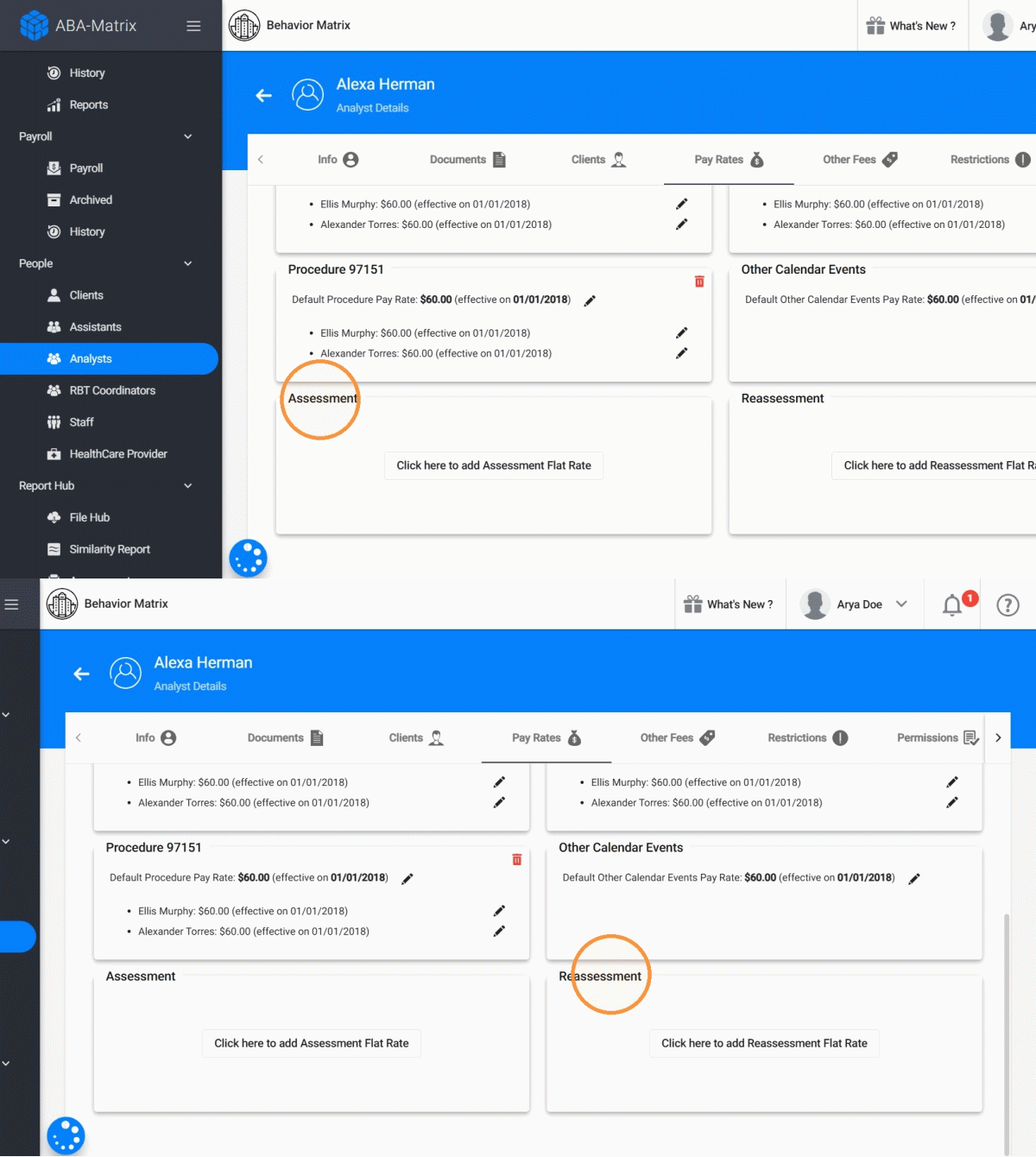
2. Locate the flat rate options:
- Assessment
- Reassessment
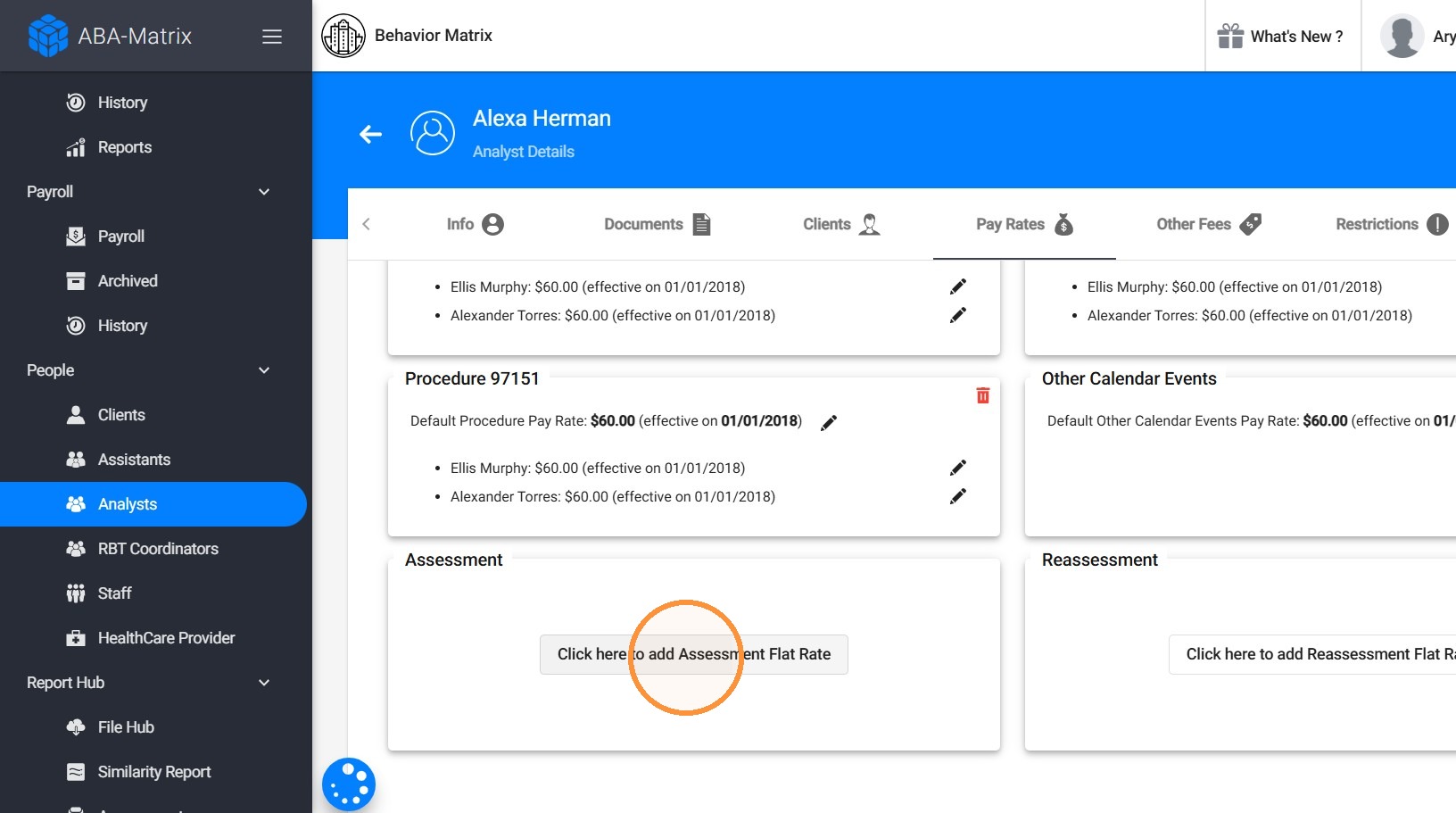
3. Click "Click here to add Assessment Flat Rate"
4. Enter the appropriate flat rate amount with the effective start date and click "SAVE"
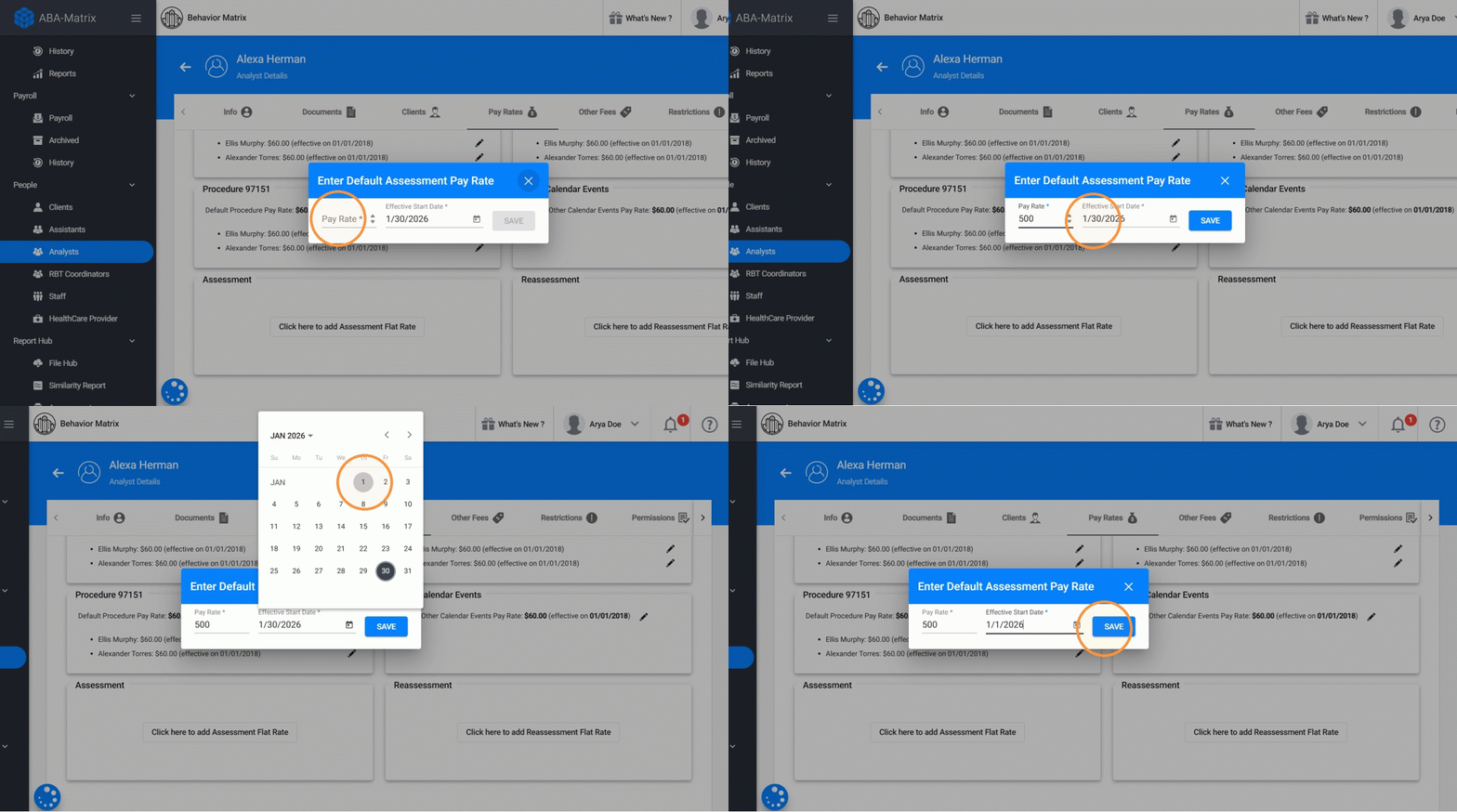
5. These flat rates will be used when assessment or reassessment reports are created.
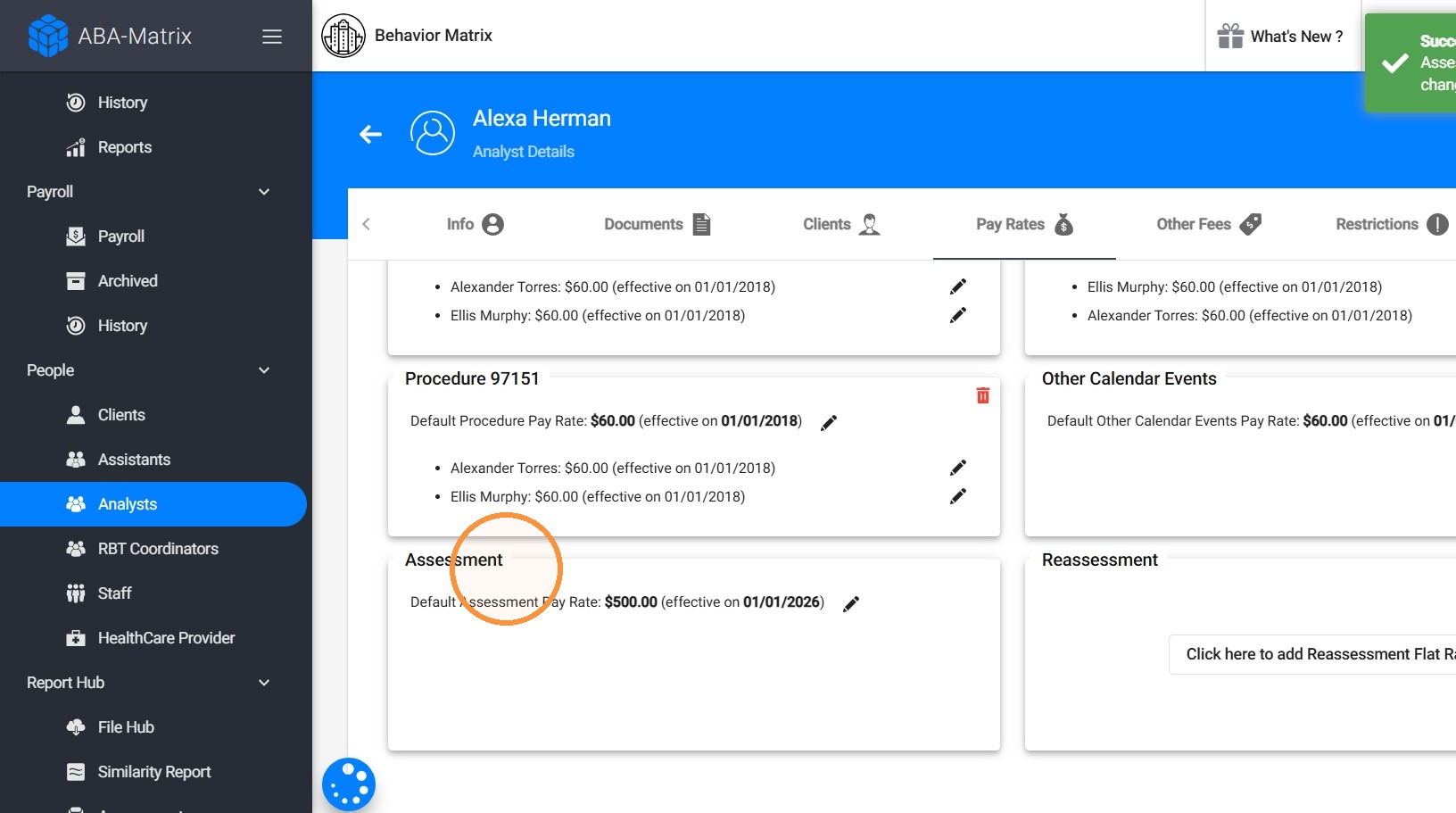
Flat Rate assignment for Assessment/Reassessment Reports
6. Every time an assessment or reassessment report is created, the system will automatically assign the flat rate to the lead analyst on the case by default.
To review this information:
- Go to the Assessment section.
- Locate the report.
- Click the three dots (⋮) on the right side of the report.
- Review the Set to pay to: field and confirm the correct analyst is selected.
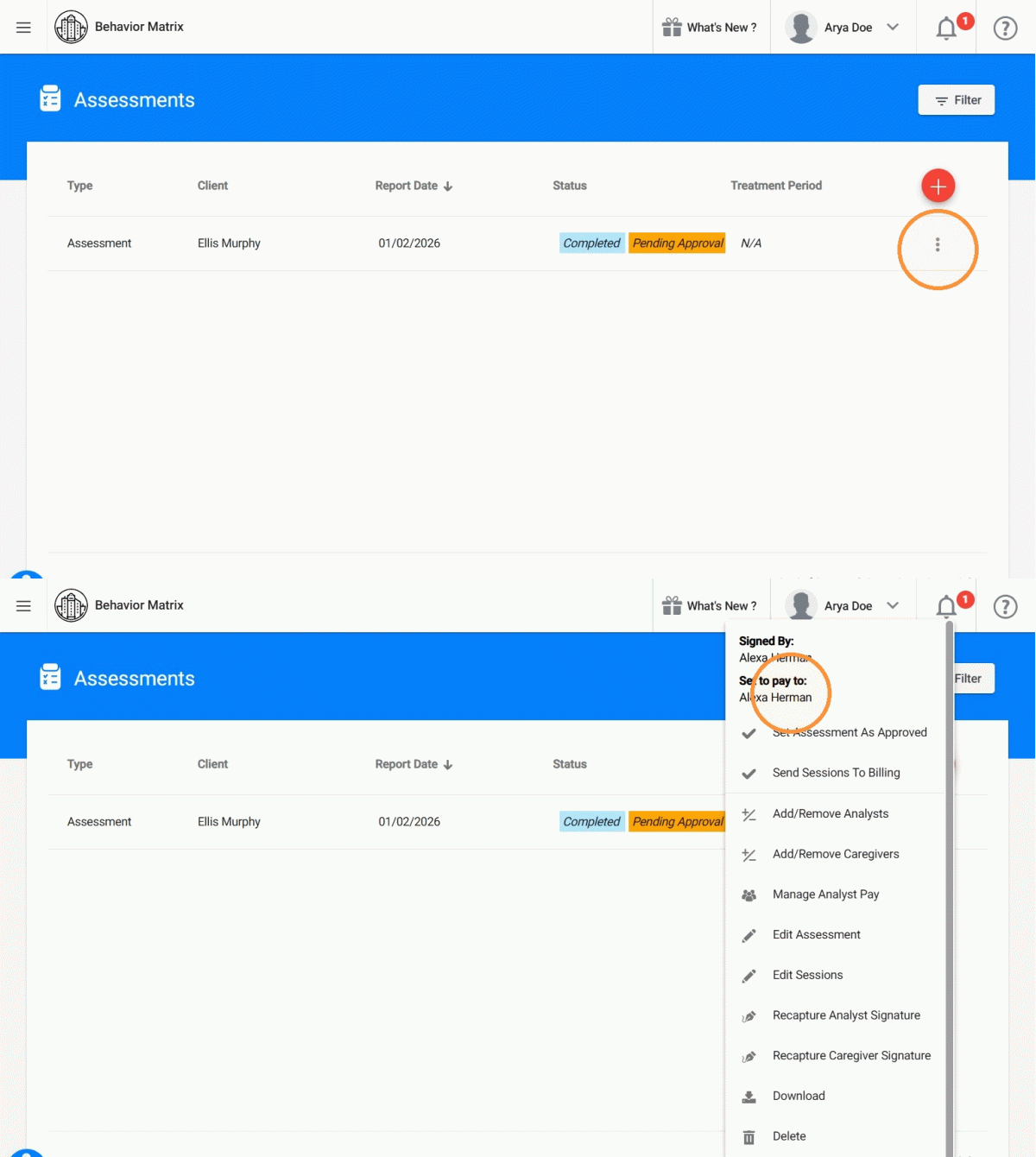
7. If the flat rate needs to be paid to an analyst other than the default lead analyst, you can update the assignment directly from the Assessment section.
- Go to the Assessment section.
- Locate the report you want to update.
- Click the three dots (⋮) on the right side of the report.
- Select Manage Analyst Pay.
- Choose the correct analyst/provider who should receive the flat rate.
- Save your changes.
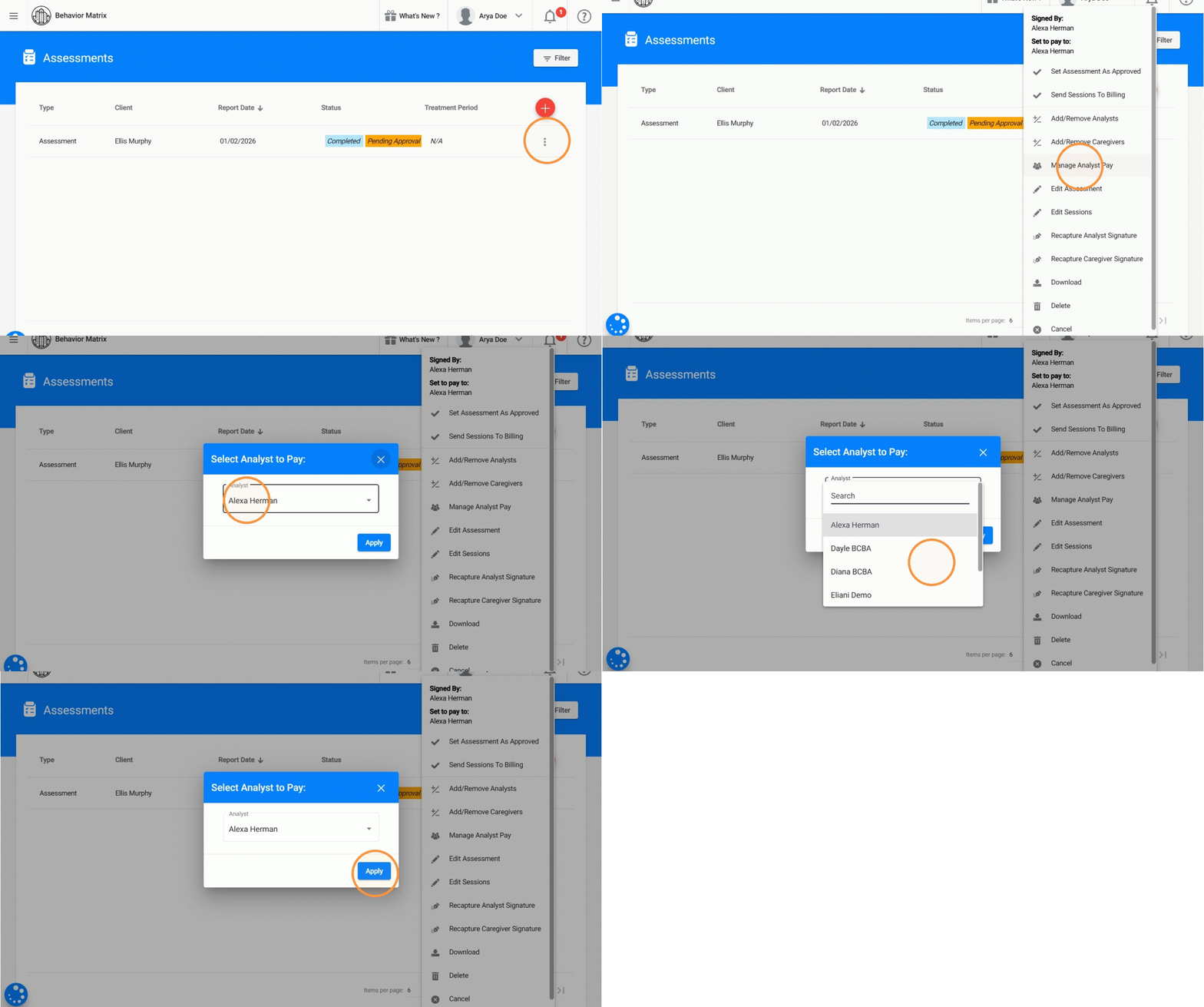
Alert: Always confirm the correct provider is selected before running payroll
Payroll Processing for Flat Rate Payments
Tip: Once an assessment or reassessment report is completed, it will automatically move into Payroll.
8. Billed / Not Billed Report Status
Each report is evaluated based on the billing status of all observation sessions linked to it:
- Billed: All observation sessions linked to the report are billed.
- Not Billed: One or more observation sessions are still pending billing.
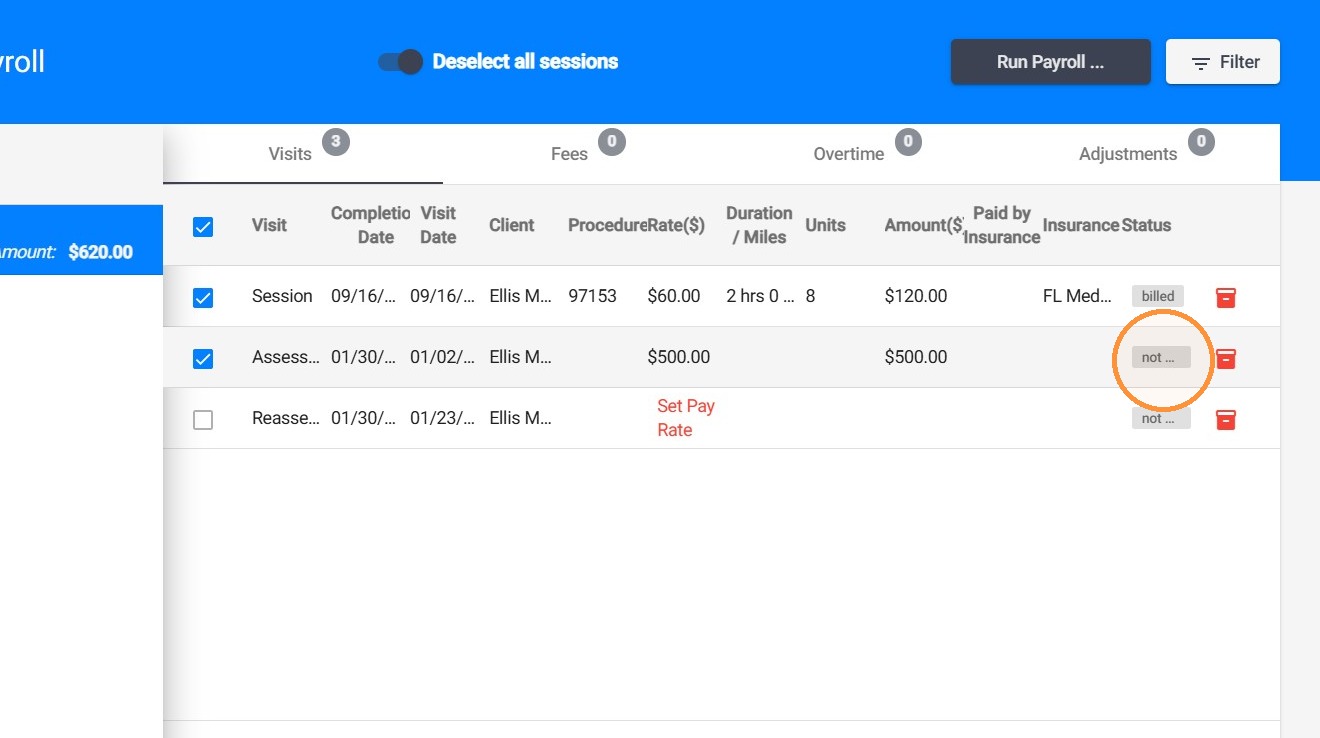
Alert: By default, the “Only sessions transmitted to the insurance (Billed)” filter is checked, so you will only see reports where all observation sessions are billed. If a report has pending observations, it will only appear when you uncheck the “Only sessions transmitted to the insurance (Billed)” filter.
9. The Paid by Insurance column displays the total amount paid for all observation sessions linked to the assessment or reassessment report.
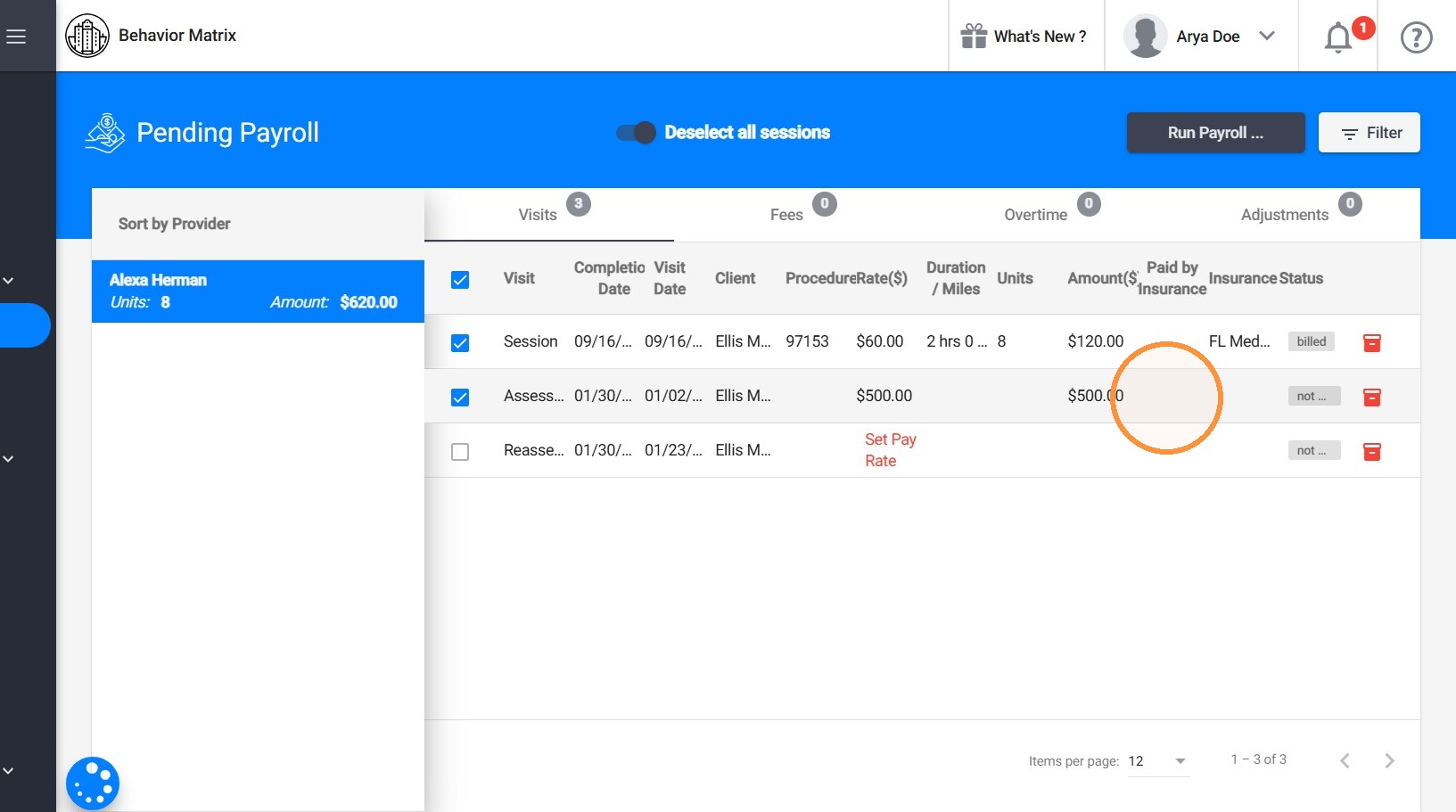
10. If a report appears in Payroll without a flat rate set for the assigned analyst, it cannot be included in payroll. You will see a “Set pay rate” notification until the analyst’s flat rate is configured.
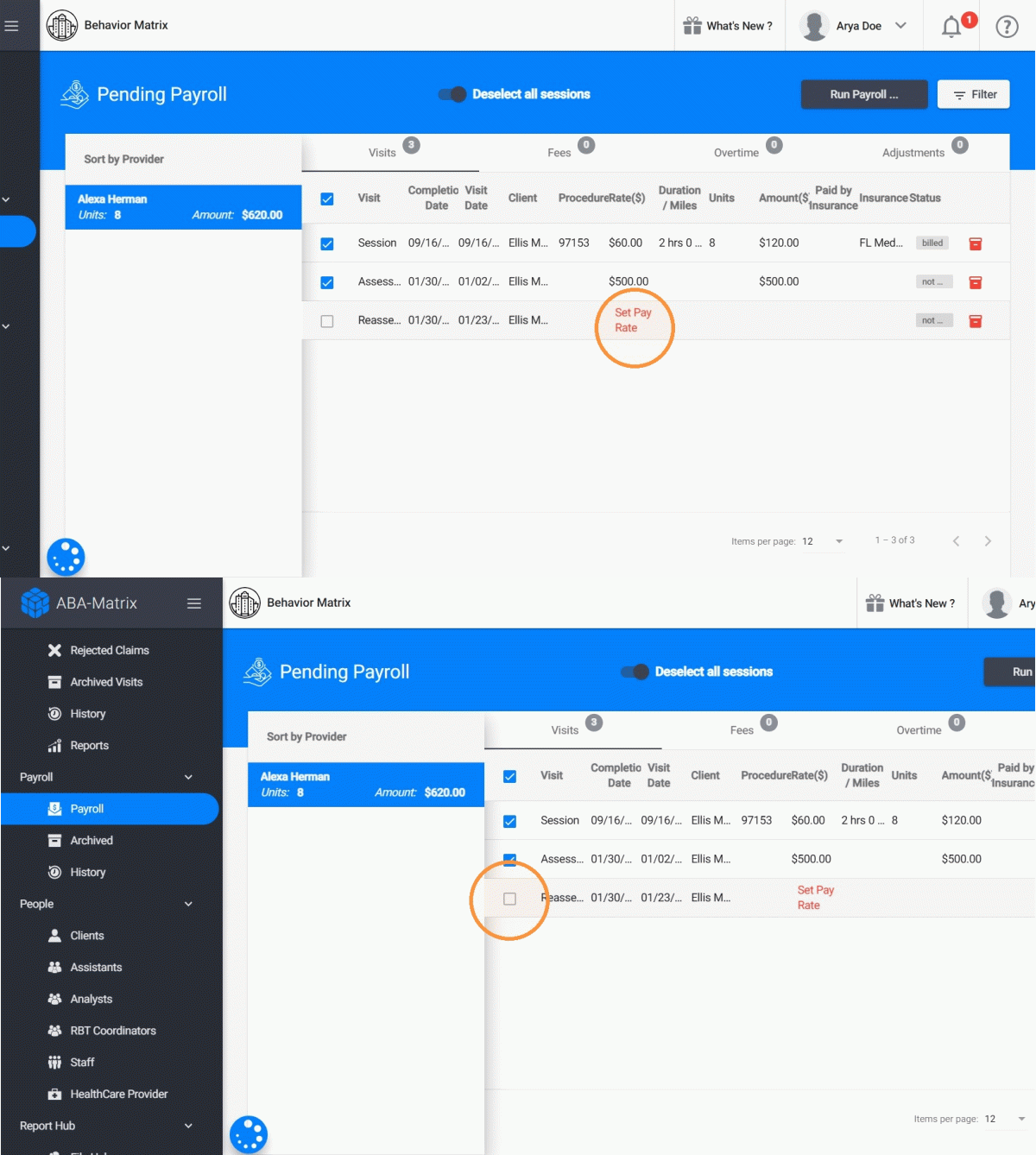
11. Once payroll is run, all included assessment and reassessment reports will appear in the Payroll document with their corresponding flat rate amounts applied to the assigned analyst.
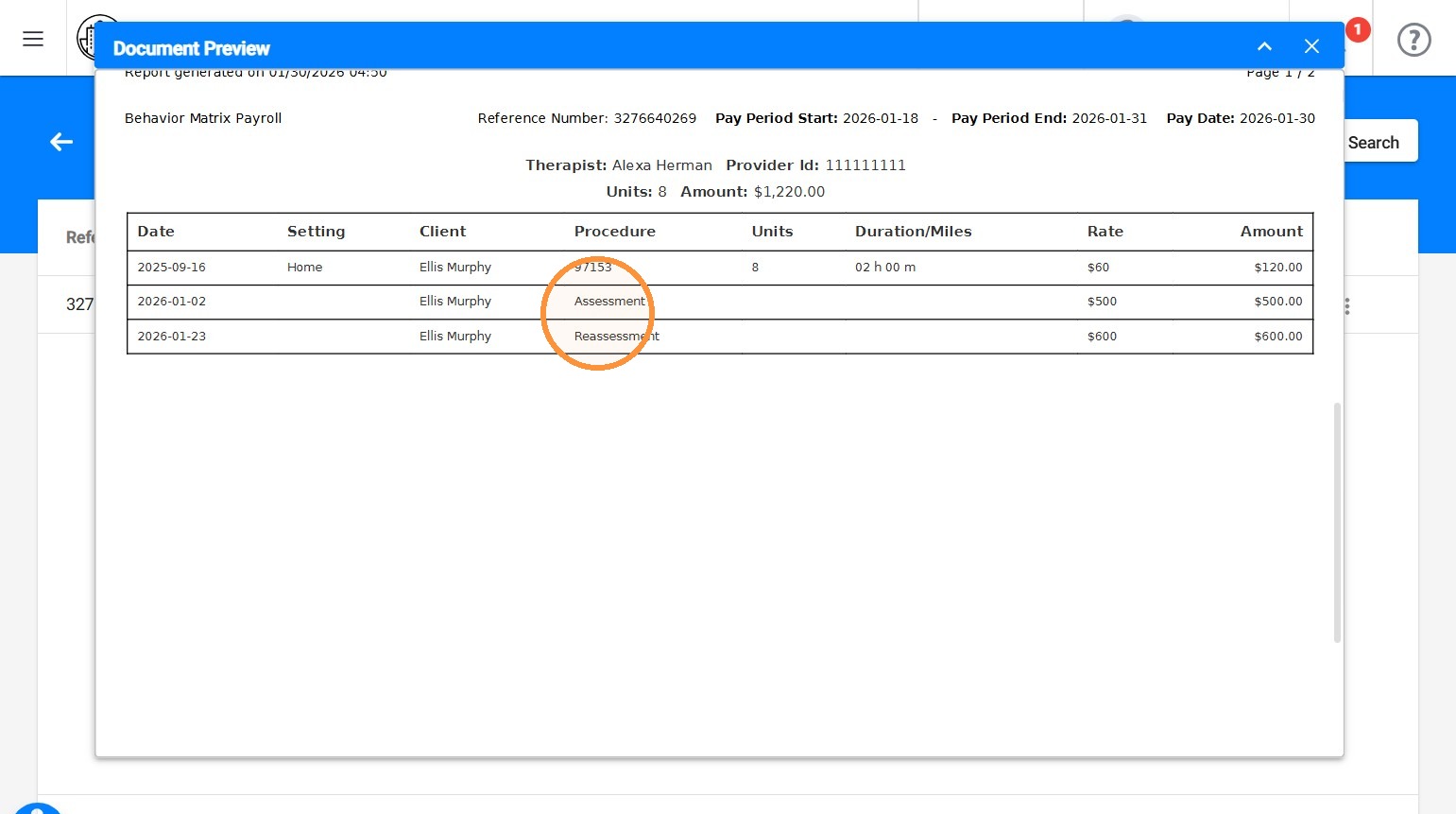
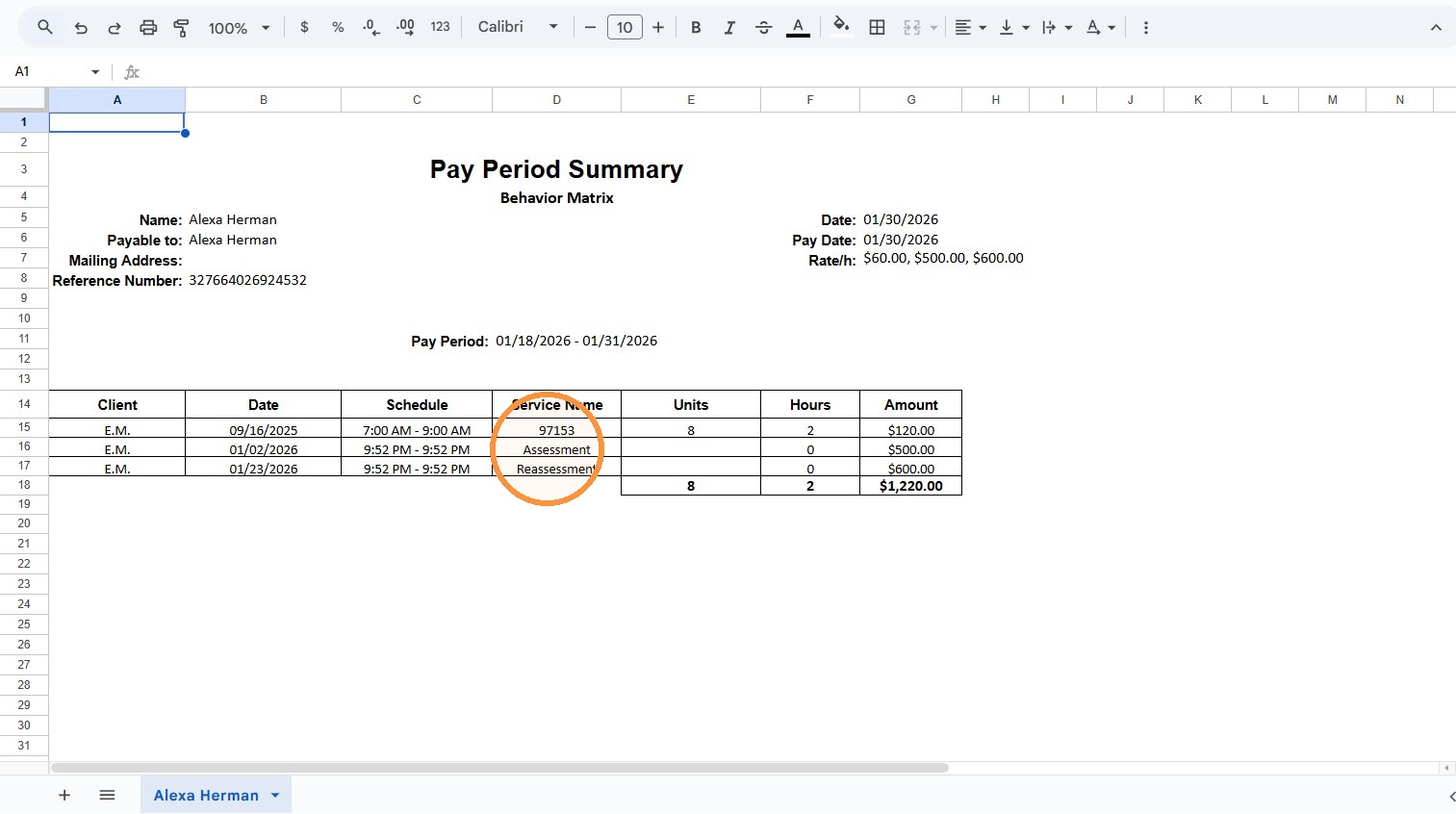
12. After payroll is processed, therapists will also see the completed assessment or reassessment report reflected in their invoices.
Tip: - Flat rates are configured in the Analyst Profile → Pay Rates.
- Reports default to paying the lead analyst, but this can be changed per report.
- Always verify the assigned analyst before payroll is run.