How to collect data for Targets (for RBTs)
This guide offers a comprehensive approach to data collection for RBTs, emphasizing the importance of tracking progress at both the target and program levels. By allowing detailed insights into individual targets, it enhances accuracy in reporting and analysis. The flexible Data Collection Hub further streamlines the process, enabling users to visualize progress effectively. Overall, this guide is essential for improving data collection practices and understanding client development.
1. If a client’s replacement or skill includes targets, you can collect data for each individual target, not just at the program level. This allows for a more precise and detailed view of the client’s progress.
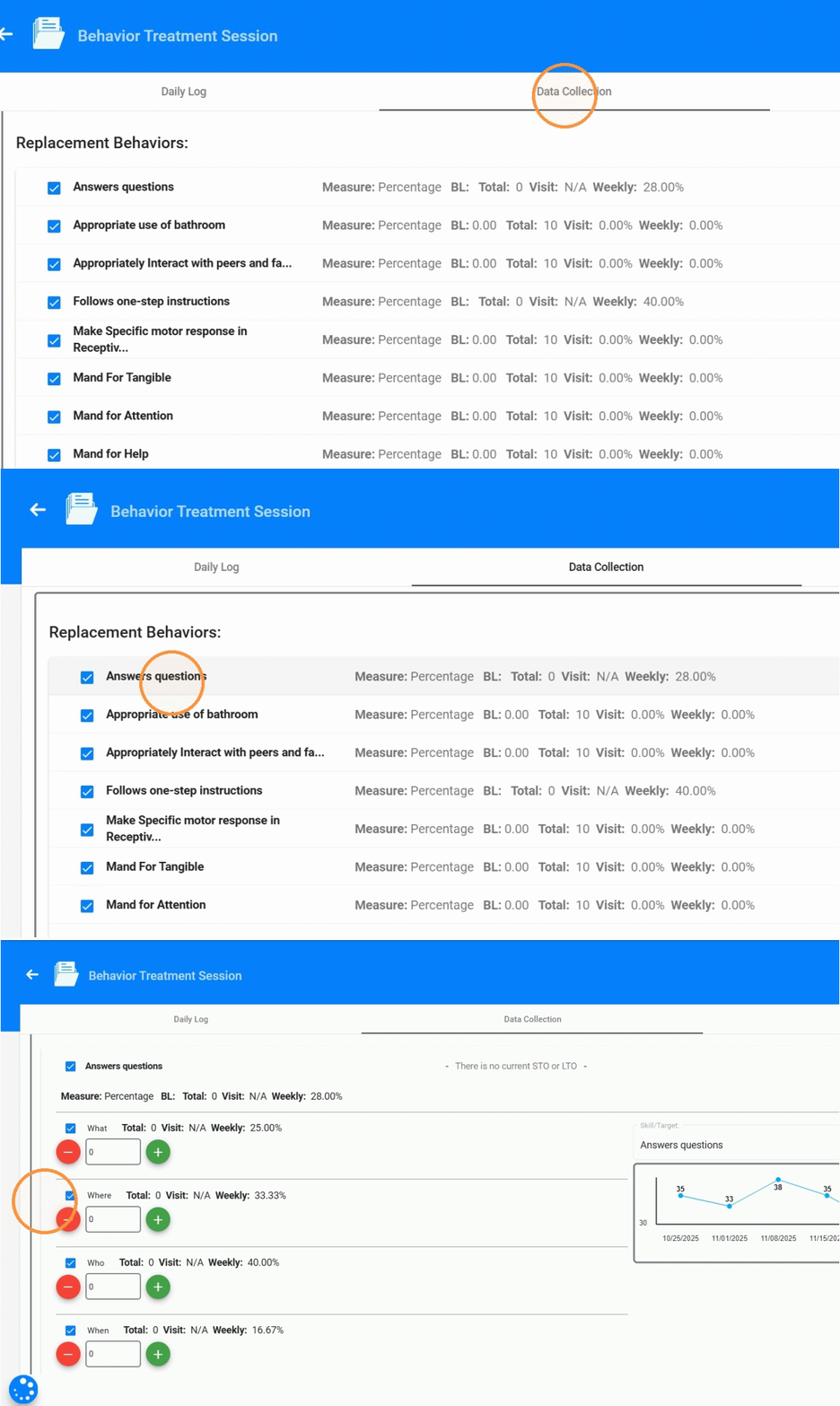
1. Data Collection inside the Behavior Treatment Session Note
2. When you open a program that contains targets, each target appears as an individual item, allowing you to record data independently for each one.
For every target, when collecting data, you’ll see:
- Total Trials: e.g., 4 trials
- Visit %: Percentage for that target during the current visit
- Weekly %: Percentage aggregated across the week
3. When adding trials and marking them as successful or not (Yes/No), you’ll see the target’s totals update instantly. This lets you monitor performance for each individual target before it’s combined into the overall program metrics.
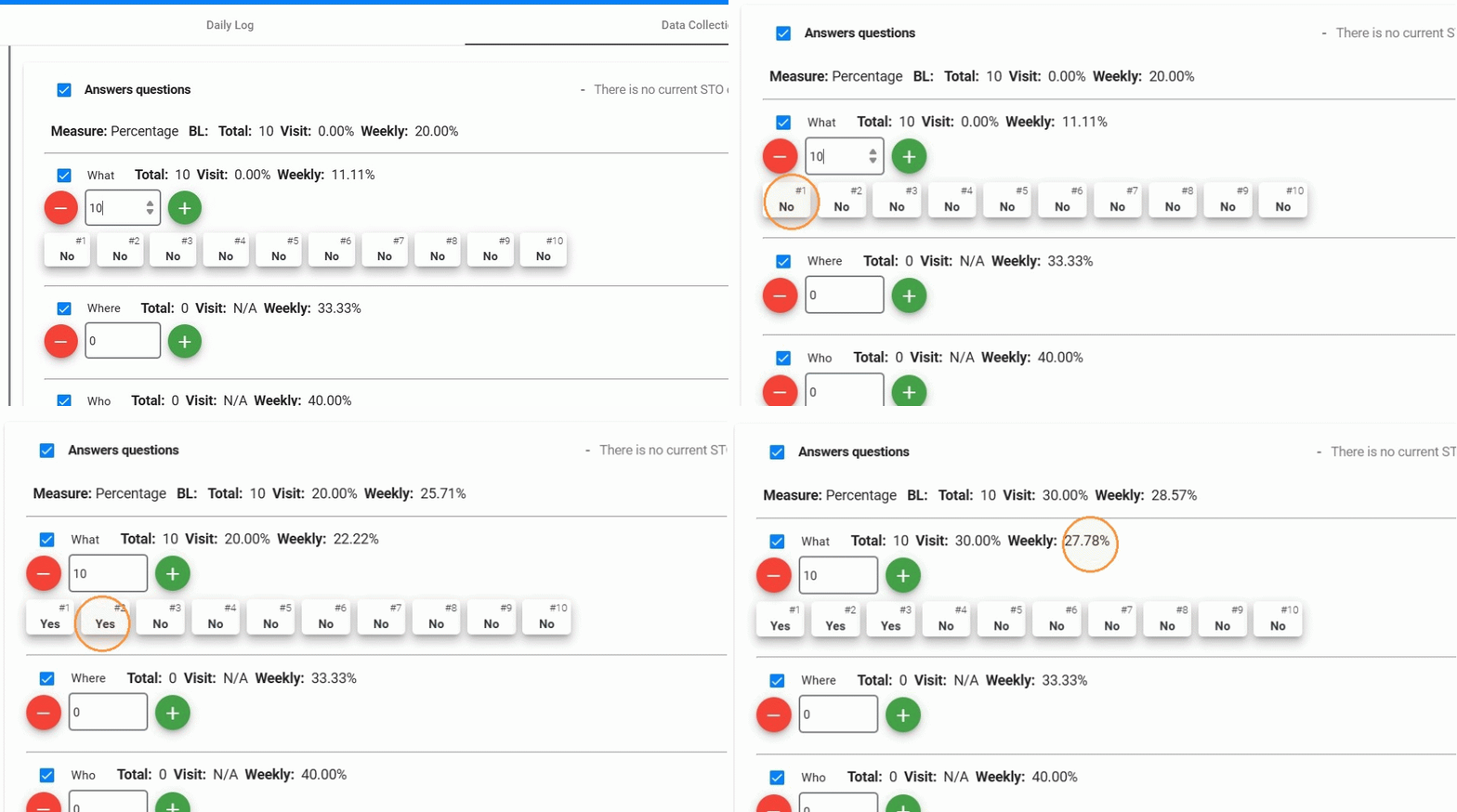
4. The system automatically aggregates the data from all targets inside the program. This means the program’s totals are not collected separately—they are calculated using all the target values combined.
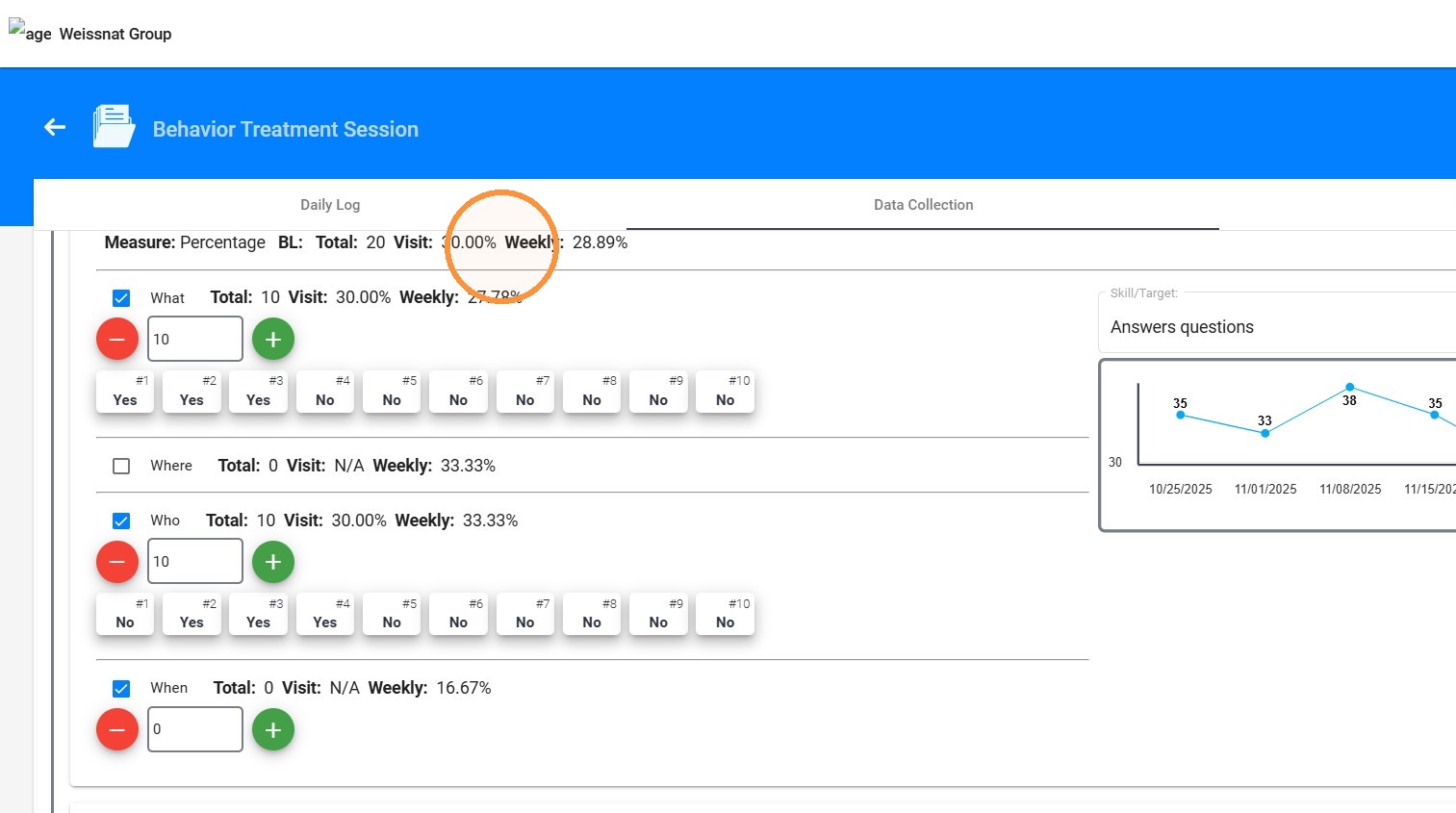
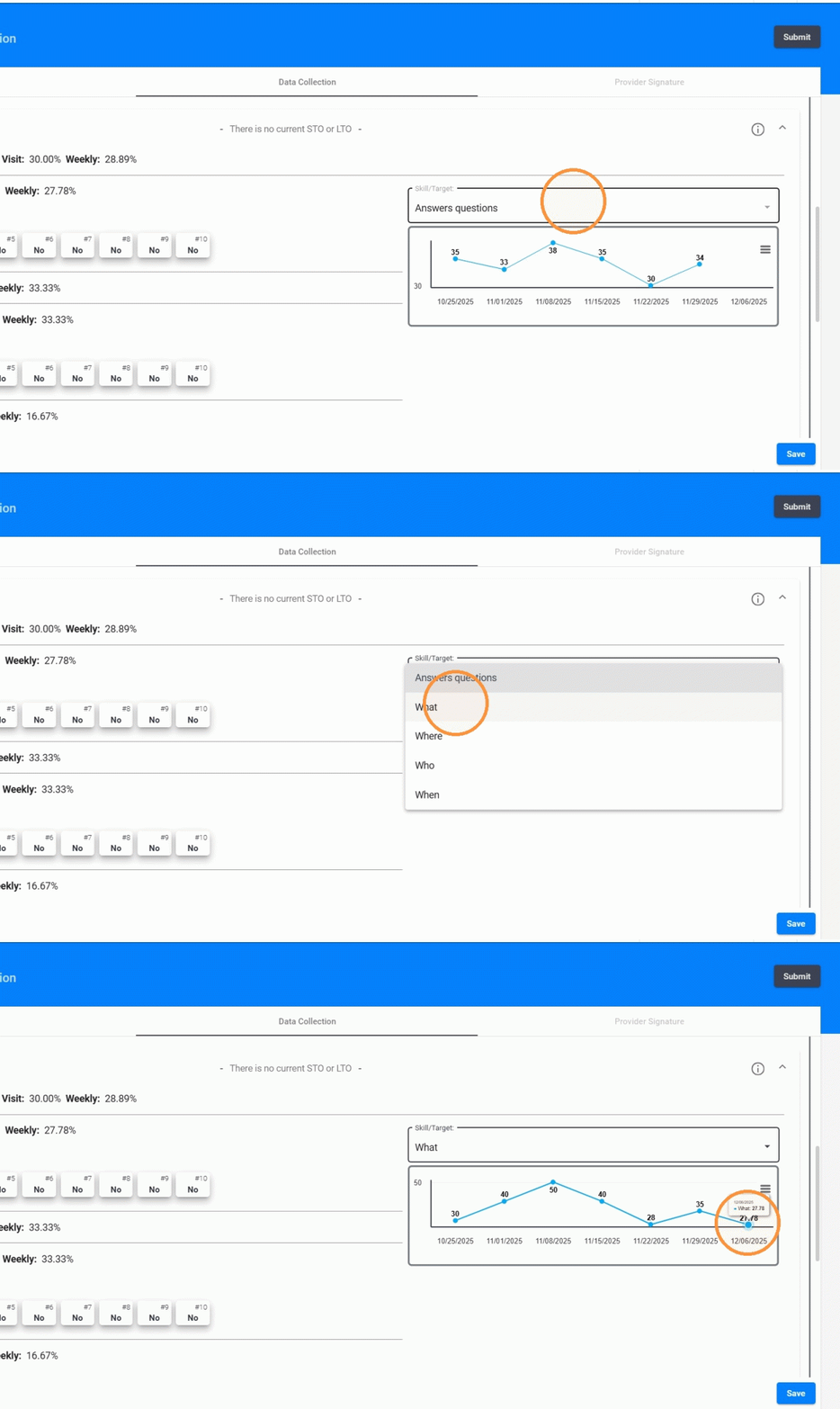
5. The live data collection graph will display the program’s graph by default, but you can switch to view a specific target graph when needed.
This provides clearer insight into which targets are improving and supports more accurate reporting and analysis.
2. Data Collection inside Data Collection Hub
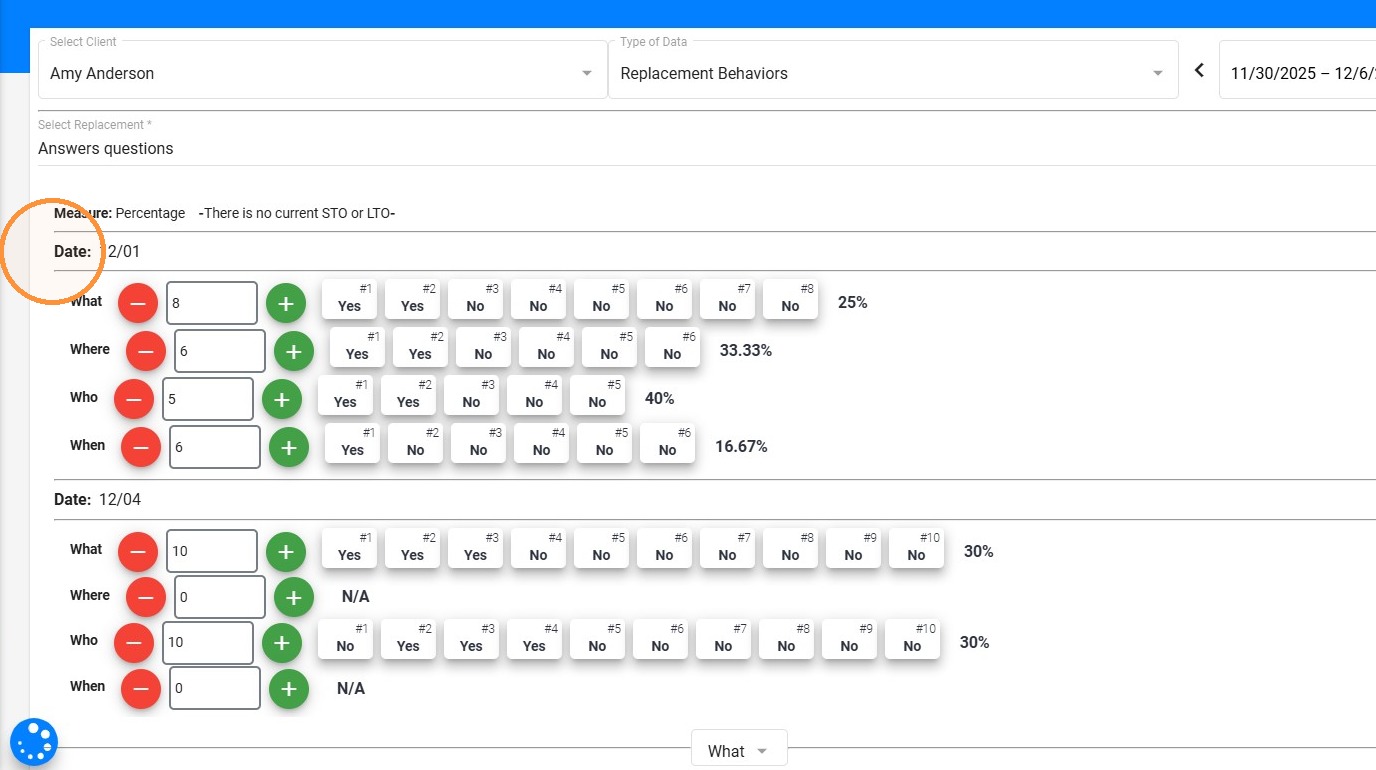
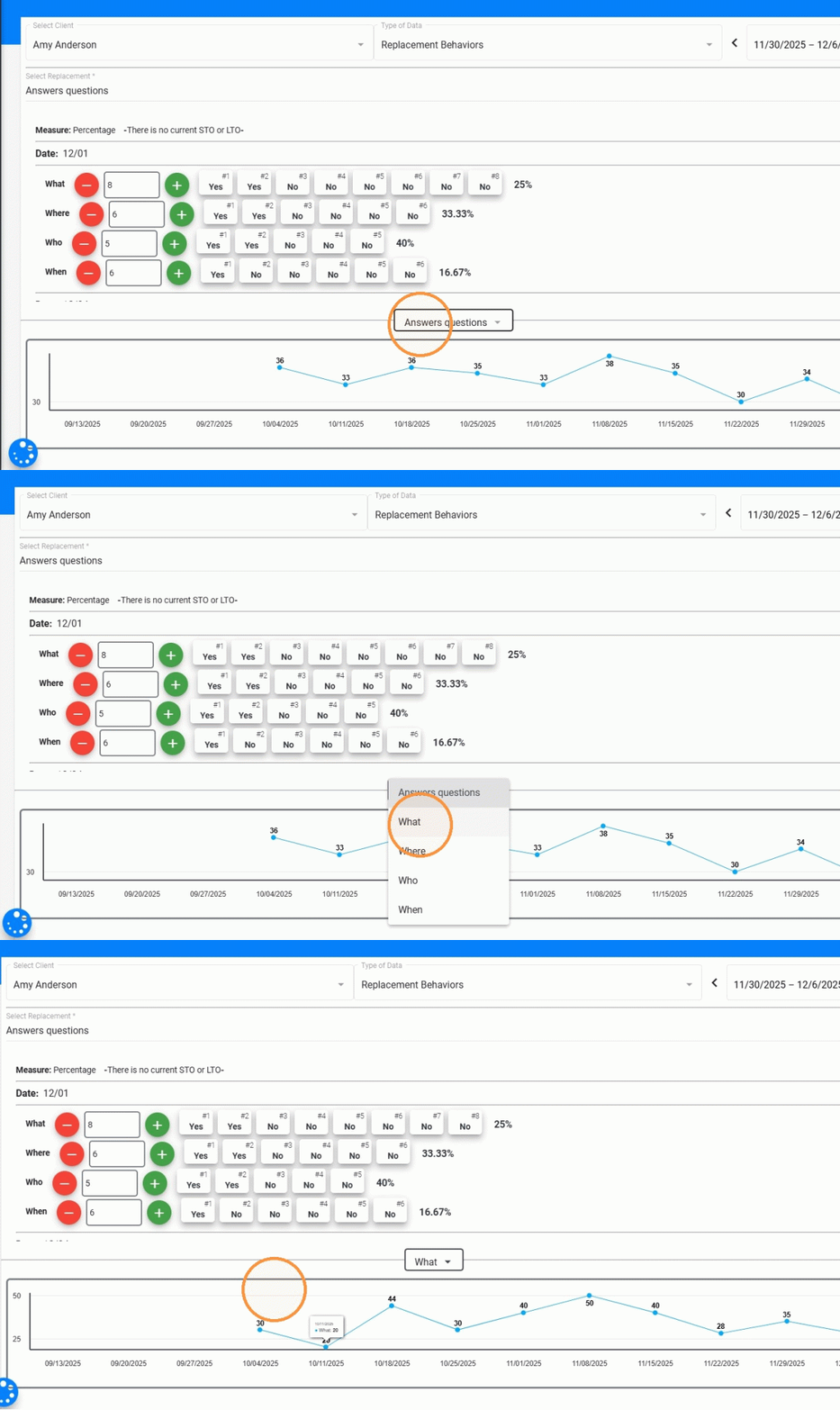
6. In the Data Collection Hub, you can select the client, type of data, and date range. After that, you can choose from a dropdown the behavior, replacement, or skill you want to collect data for.
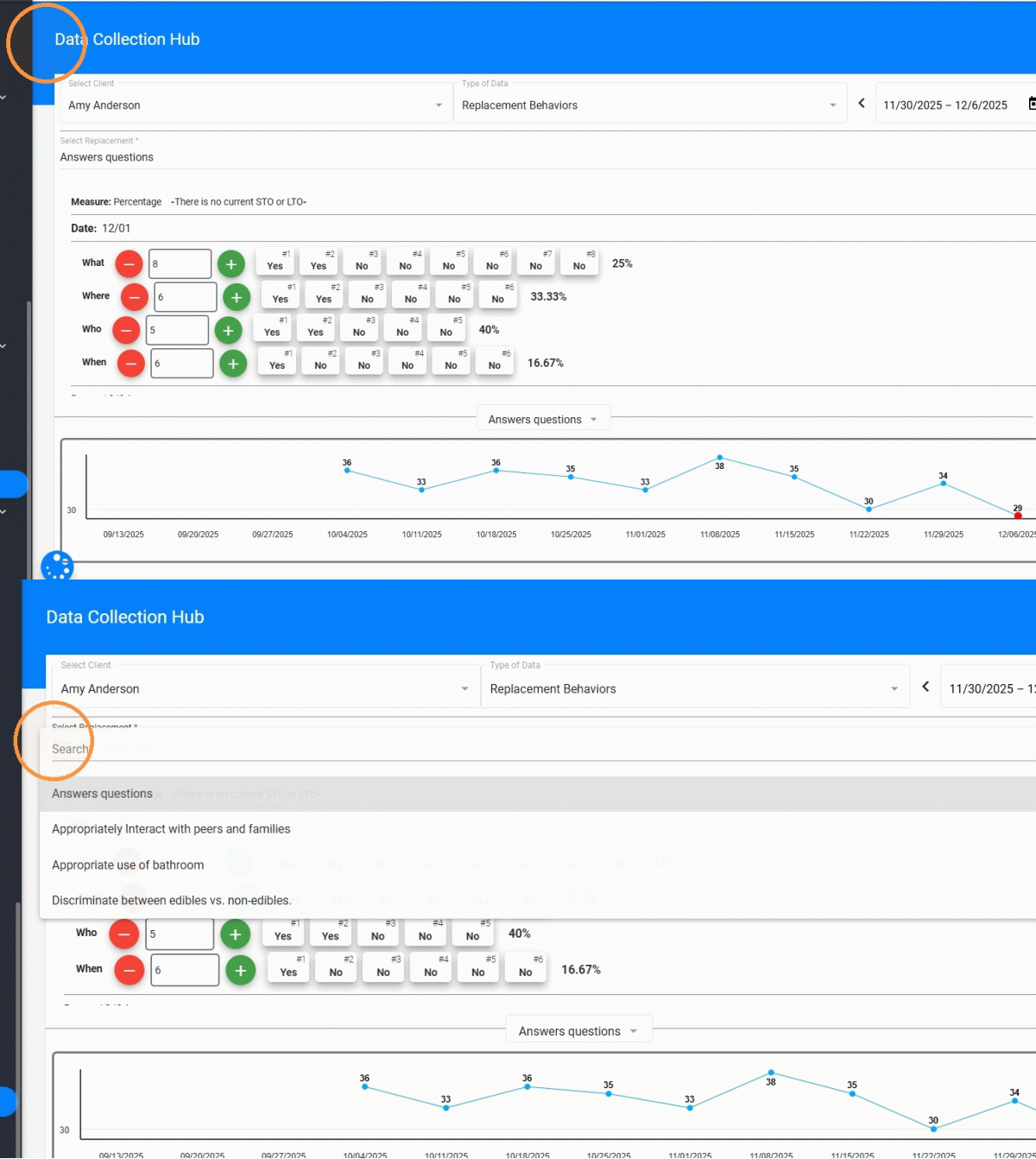
7. If the selected replacement or skill includes targets, the system will display a list of those targets for each session date, allowing you to record data individually for each target, just like in the session note.
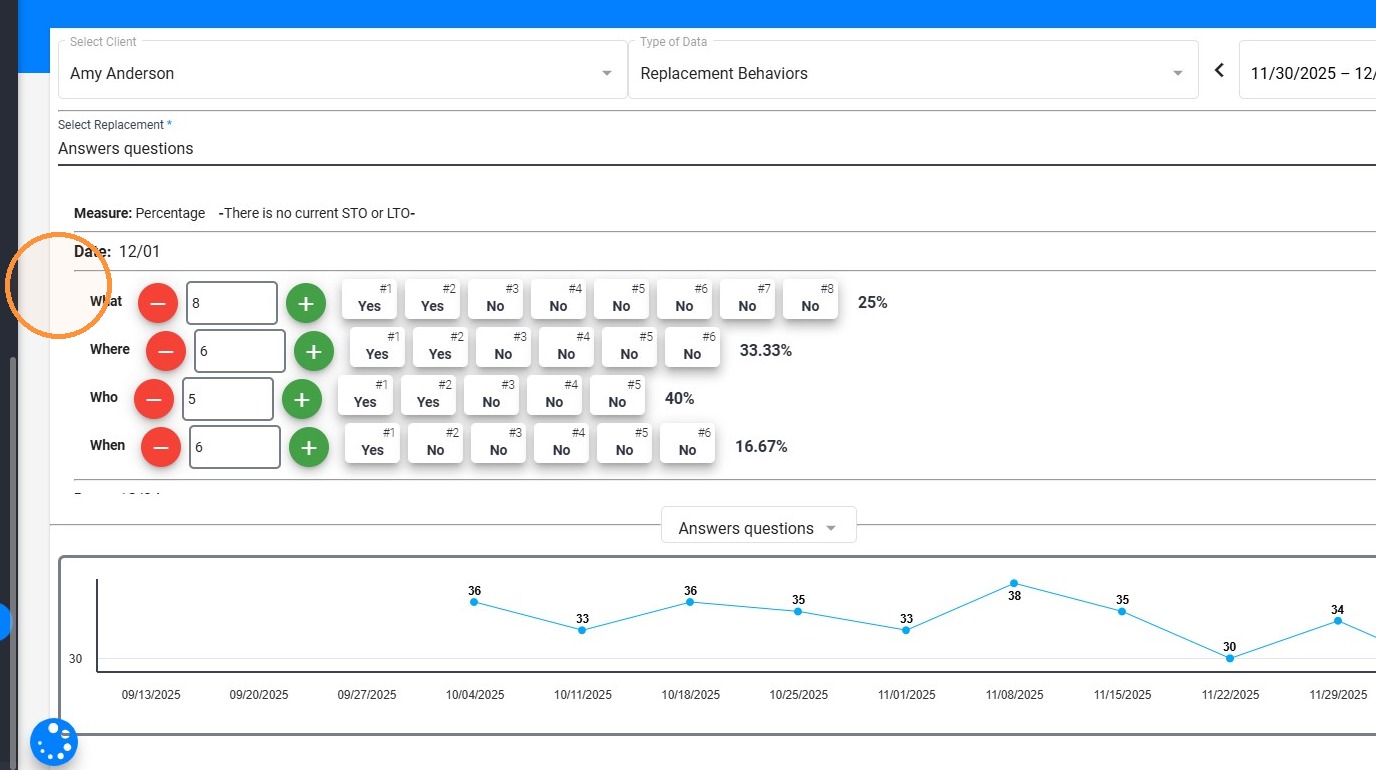
8. The live data collection graph will show the program-level graph by default, but you can switch to view a specific target’s graph whenever needed.
9. You can also hide the graph to give yourself more screen space for reviewing session dates and entering data.
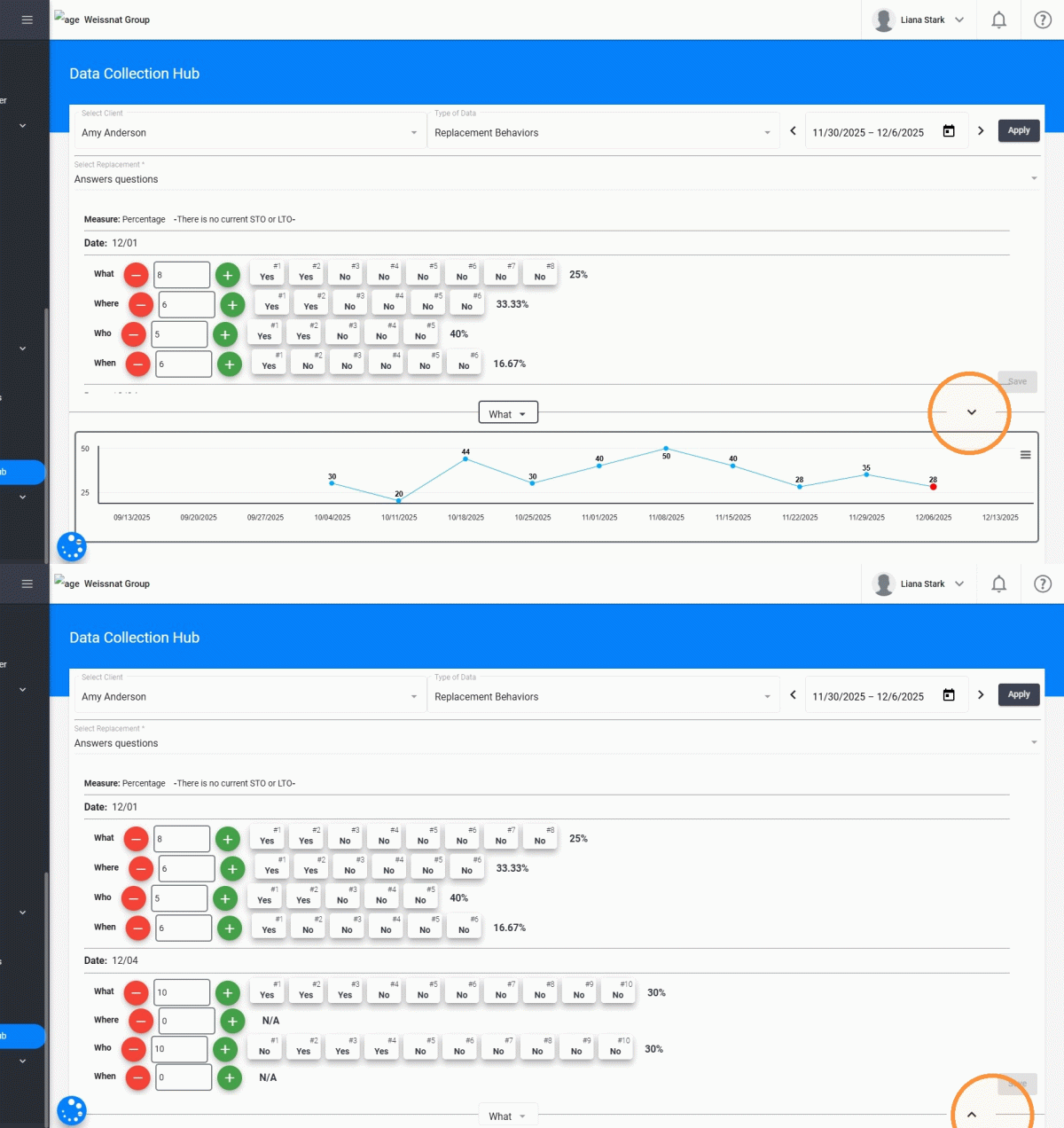
10. These enhancements make the Data Collection Hub more flexible and efficient, giving you a clear visual understanding of both program-level and target-level progress while collecting data across multiple sessions.