
How to manage the Caregiver Acknowledgment & Feedback report (for administrative staff)
This guide offers a comprehensive overview of the Caregiver Acknowledgment & Feedback form, a vital tool for agencies to gather structured feedback from caregivers about ABA services. It streamlines the process of collecting responses, and analyzing feedback using AI Insights, which highlights key themes and urgency levels. By utilizing this guide, agencies can enhance service quality, ensure compliance, and foster better communication with caregivers, ultimately improving care outcomes.
The Caregiver Acknowledgment & Feedback form is a Smart Form designed to collect structured feedback directly from caregivers regarding their experience with ABA services. It also serves as an acknowledgment of services provided and supports agency quality assurance, compliance, and funding source requirements.
This form can be sent directly to caregivers via email, allowing them to securely review, complete, and sign the form online. Agencies can efficiently generate forms, capture caregiver input, and analyze responses using the included AI Insights feature.
Creating the Caregiver Acknowledgment & Feedback Form
1. Go to "Smart Forms" and create a new form using the red + sign
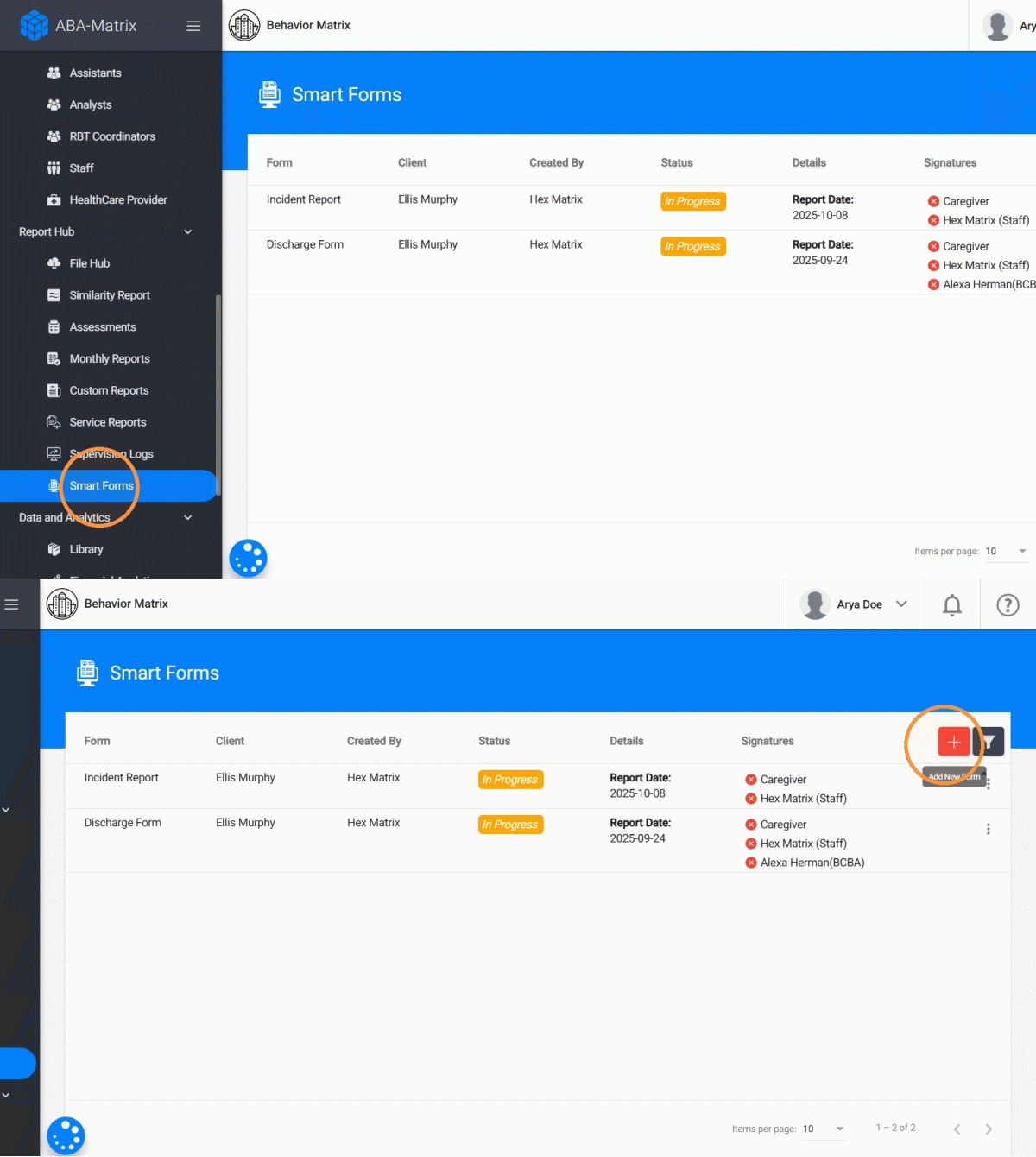
2. Select "Caregiver Acknowledgment & Feedback"
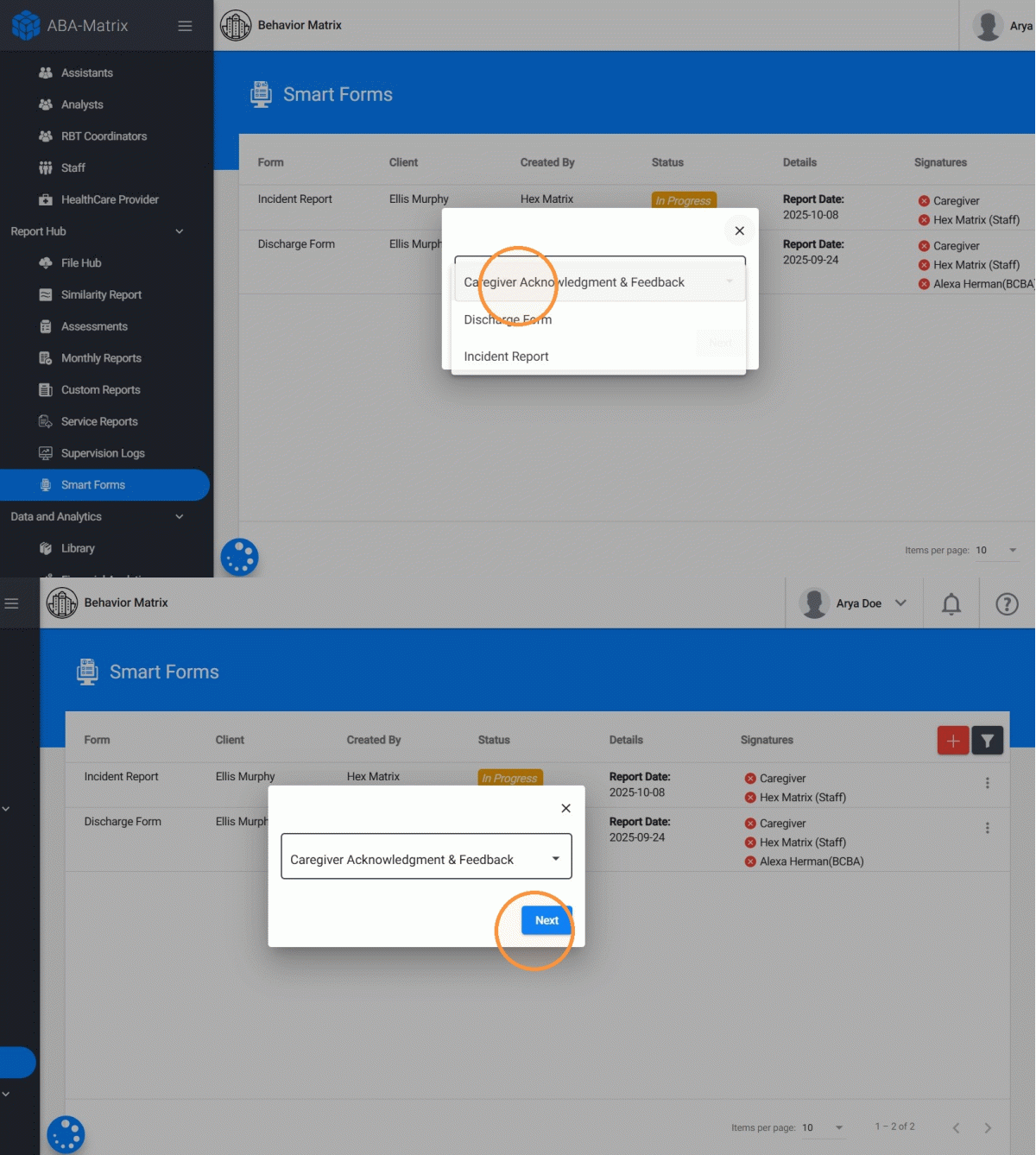
3. You have flexibility when creating the Caregiver Acknowledgment & Feedback:
- Bulk Generation: You can generate the form for multiple clients in the agency at once. By clicking Select All, you can include the entire agency with a single click.
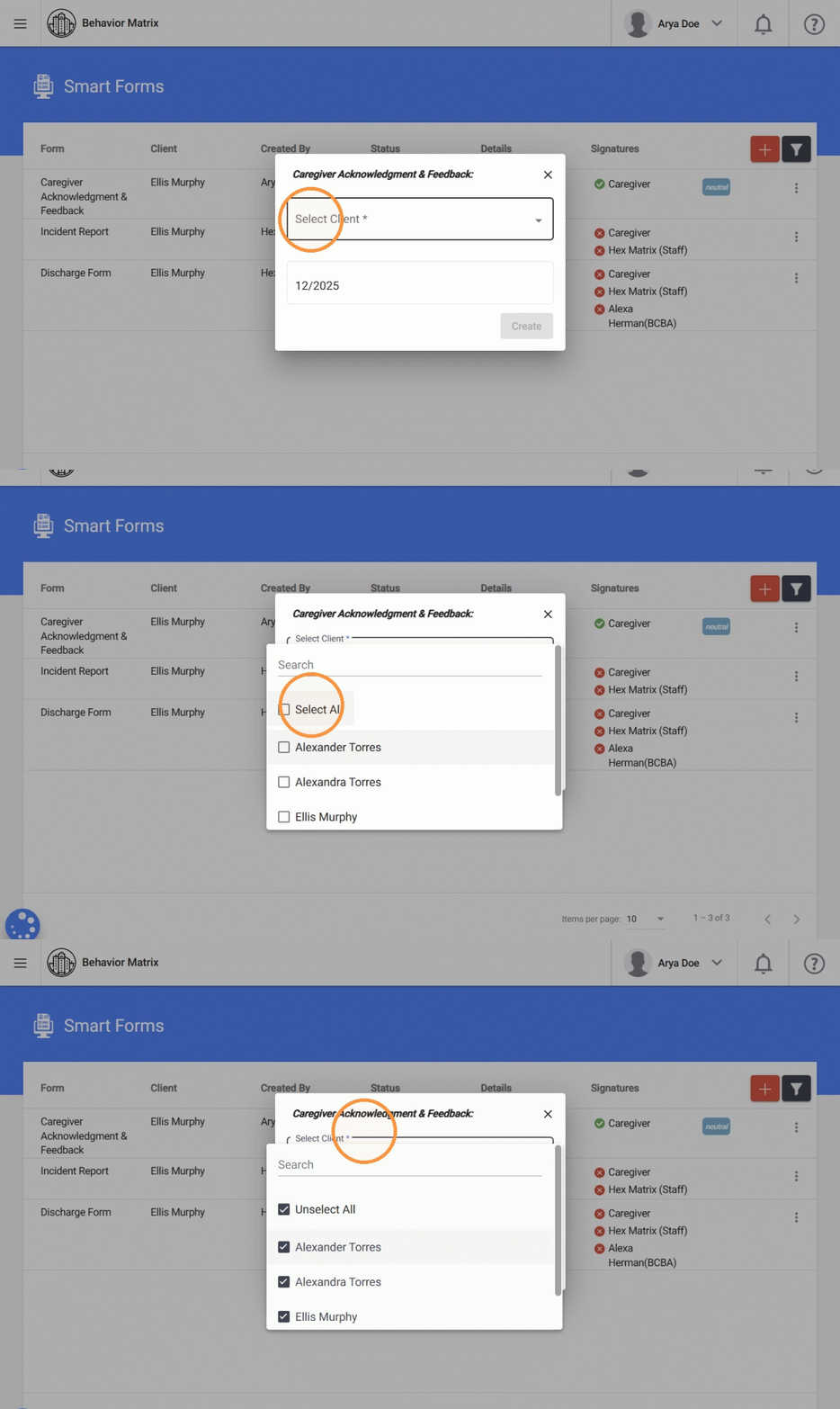
4. - Individual Generation: You can also generate the form for a specific client only.
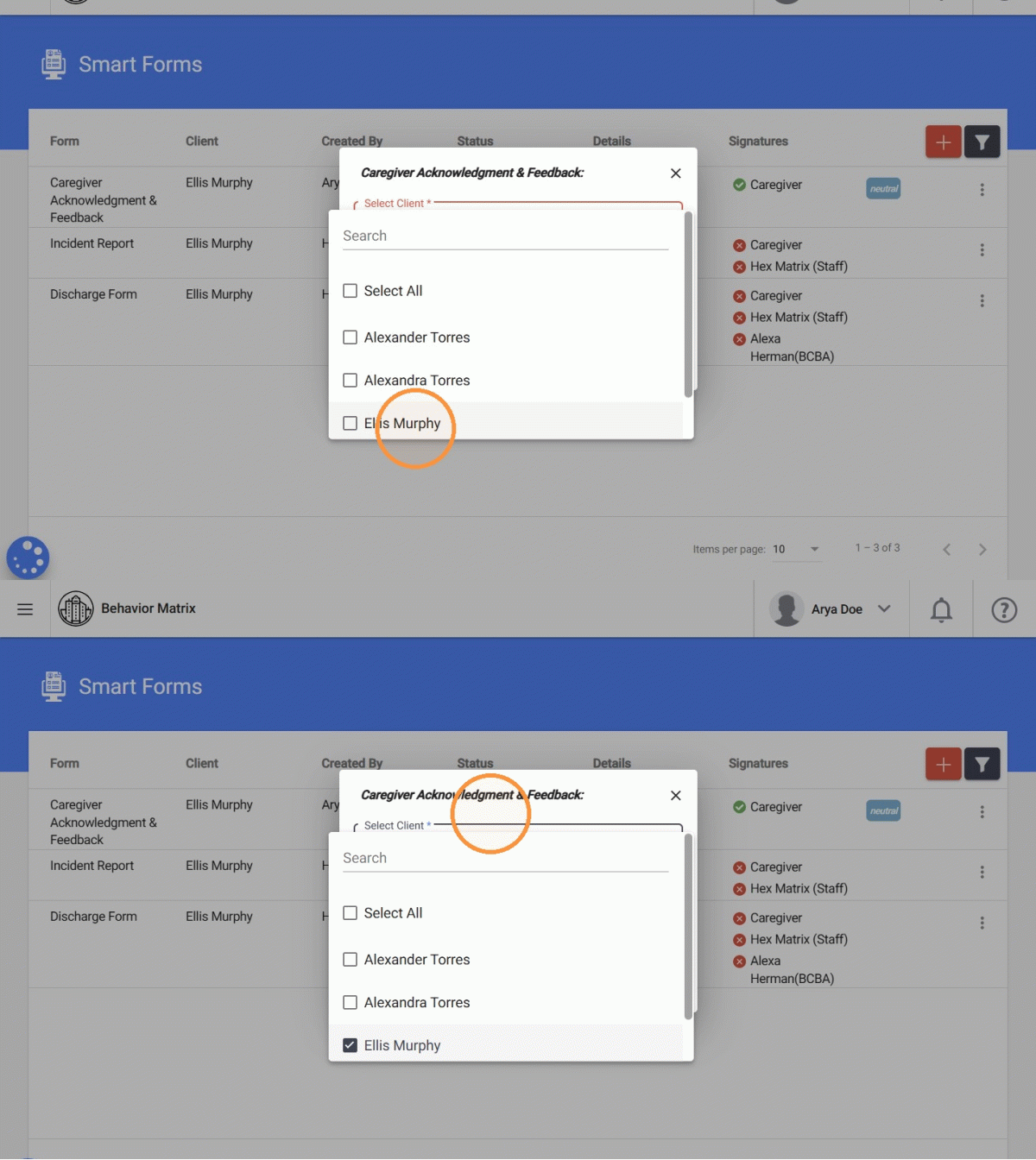
5. - Month Selection: You can select the month for which the form applies, ensuring accurate tracking and reporting.
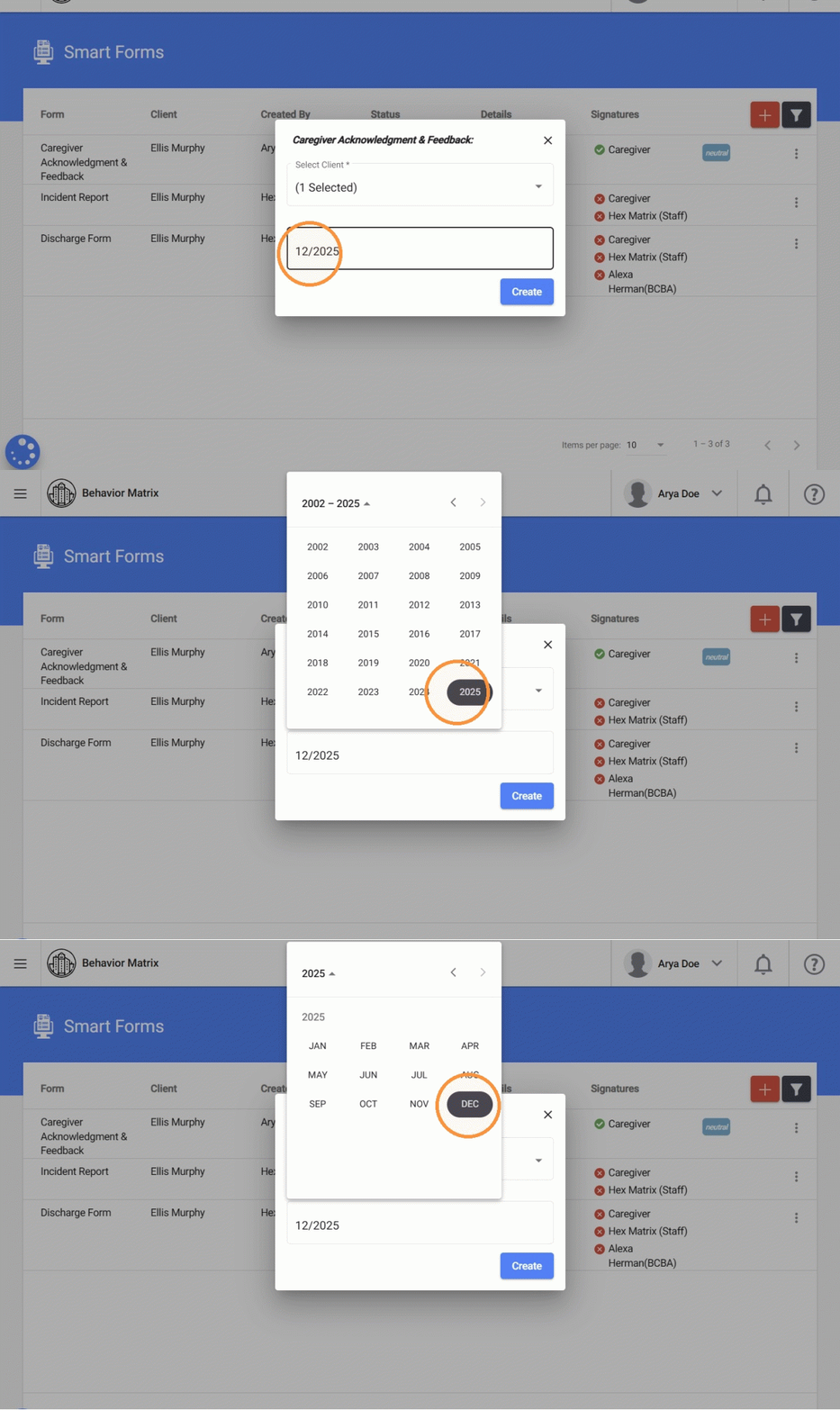
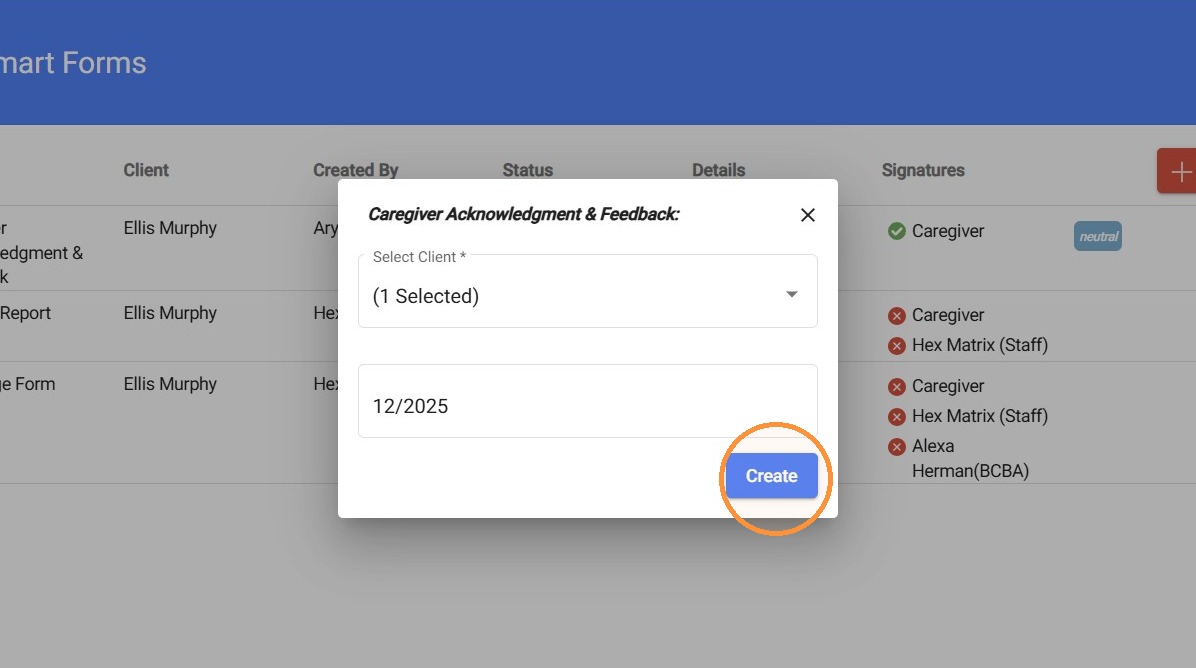
6. Click "Create" to generate the forms
Sending email invitations to Caregivers
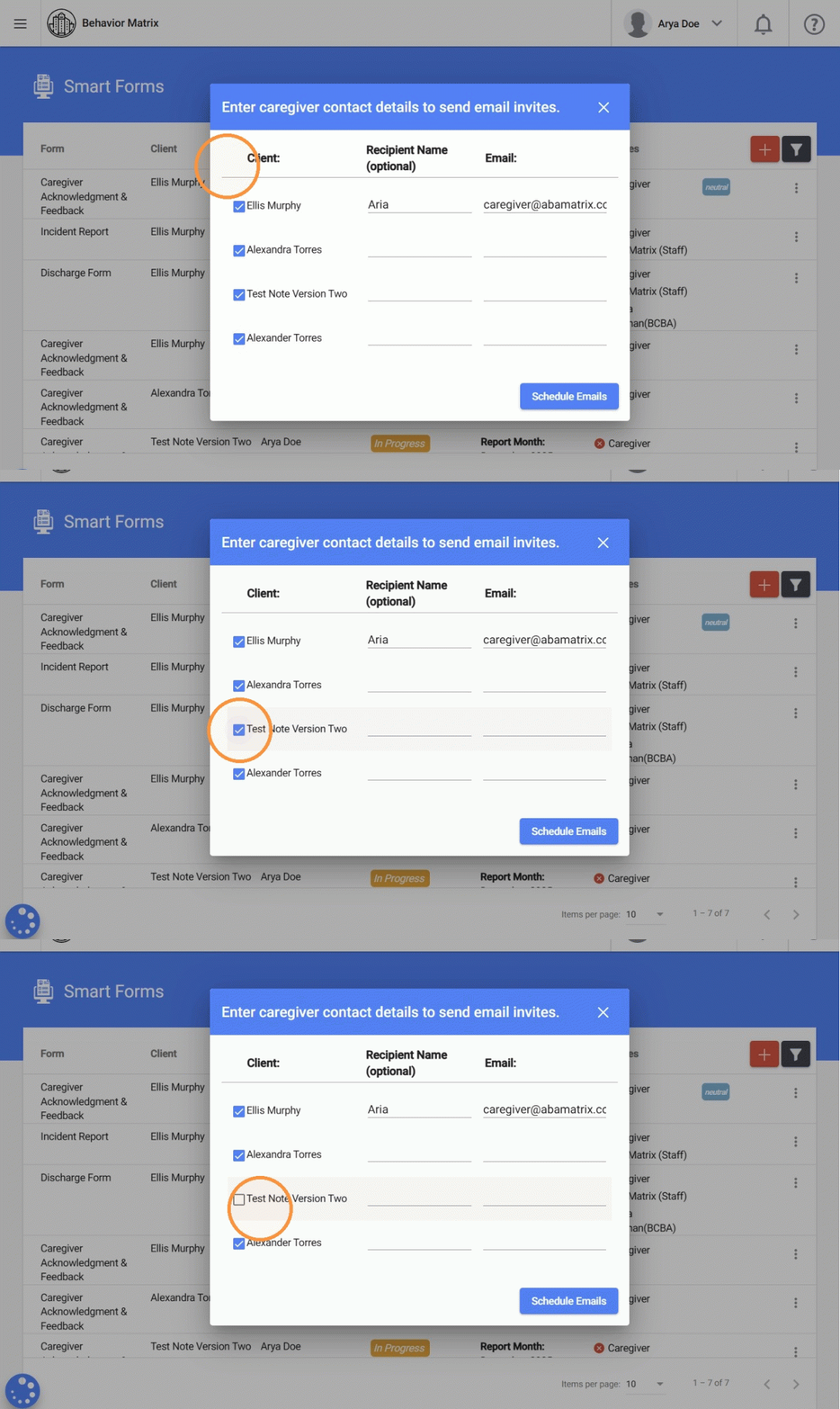
7. After creating the form, users can enter caregiver contact information to send email invitations to complete the form. Available fields include:
- Client: Displays a list of all clients selected when creating the form. If you do not want to send the email invitation for a specific client, you can uncheck the checkbox next to their name.
- Recipient Name (optional)
8. Caregiver email information
- By default, the system will display the client’s registered email, if available.
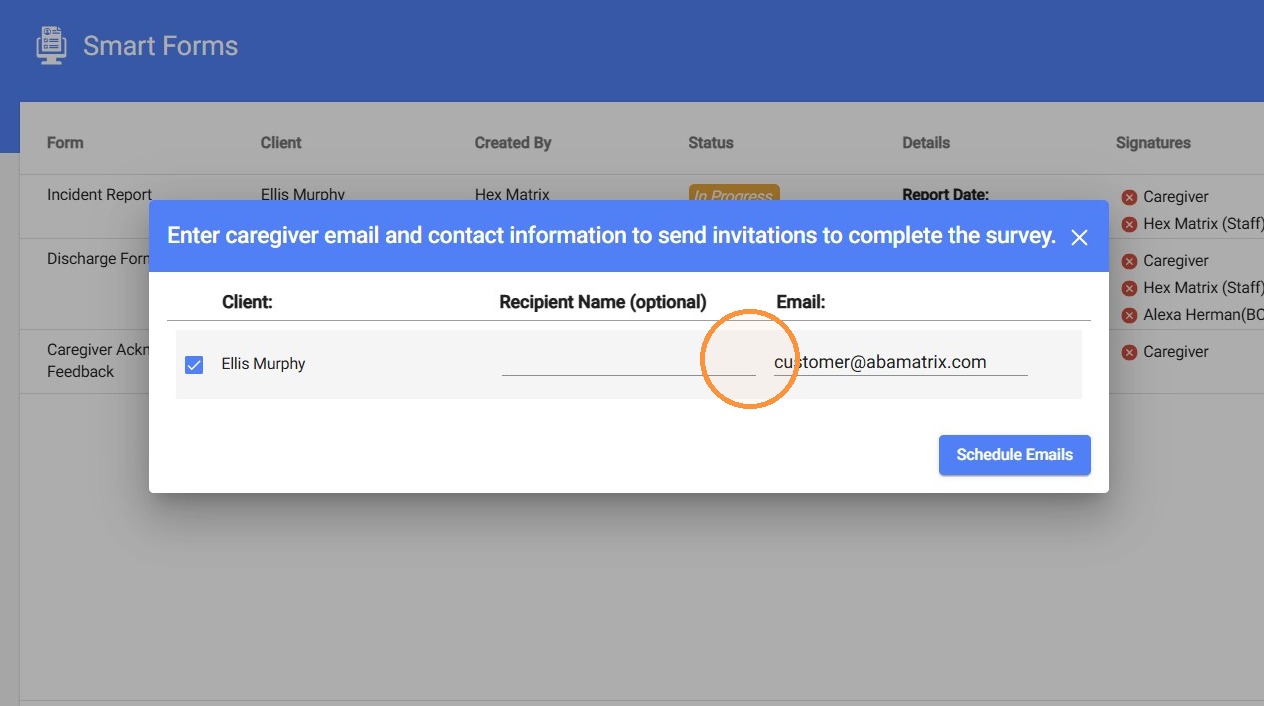
9. - If no client email exists, the system will display the caregiver list for that client, showing only caregivers who have an email address on file.
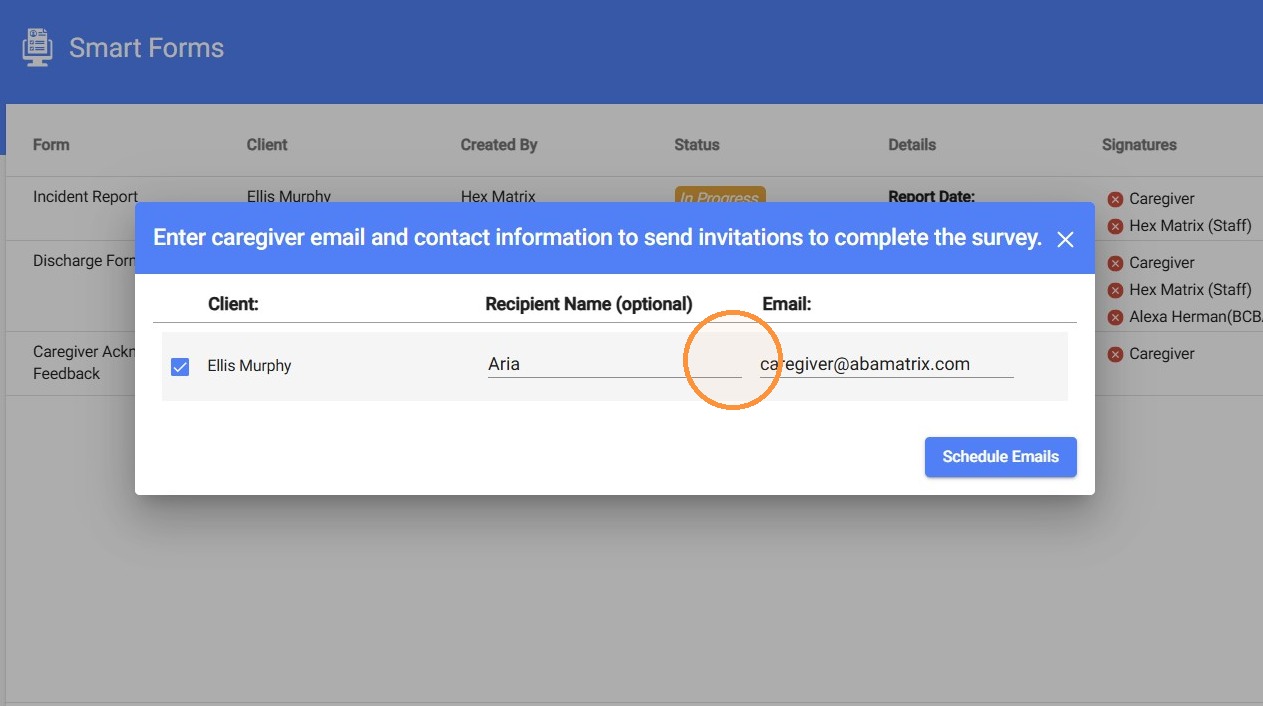
10. - If no caregiver email is available, the email field will be empty, allowing the user to manually enter the contact information.
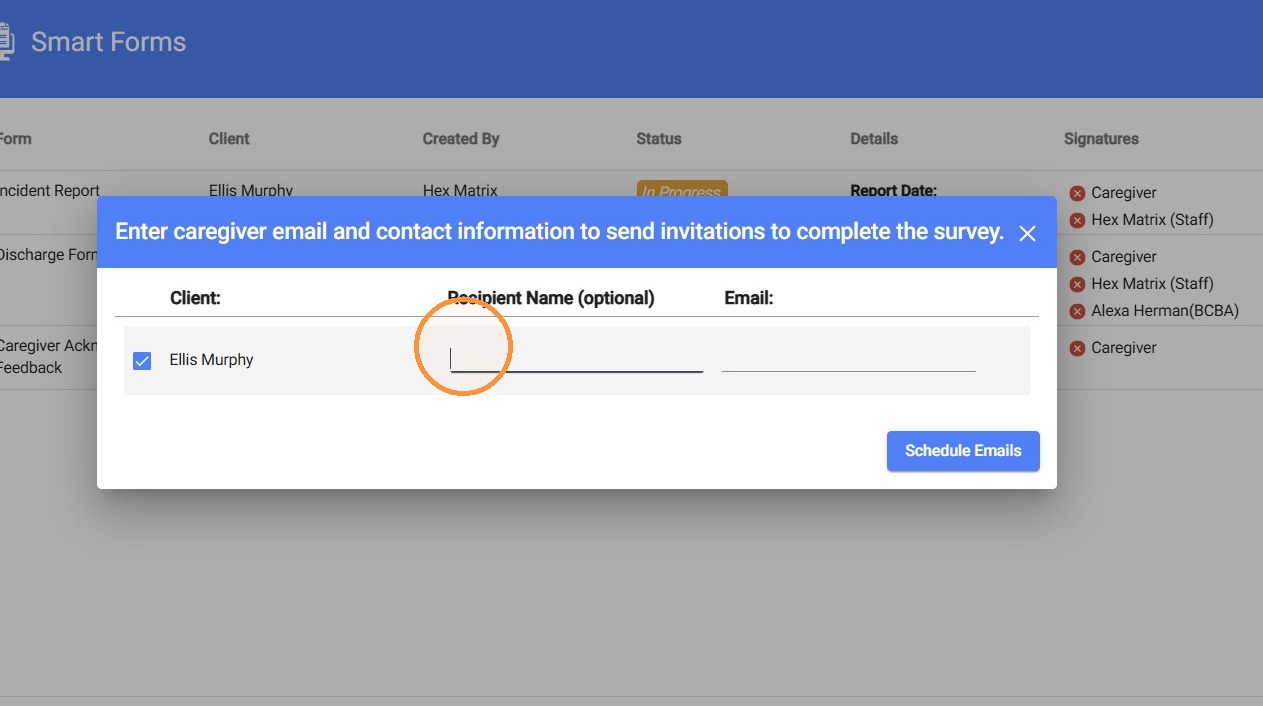
Users can edit the default information to ensure the correct caregiver details are entered.
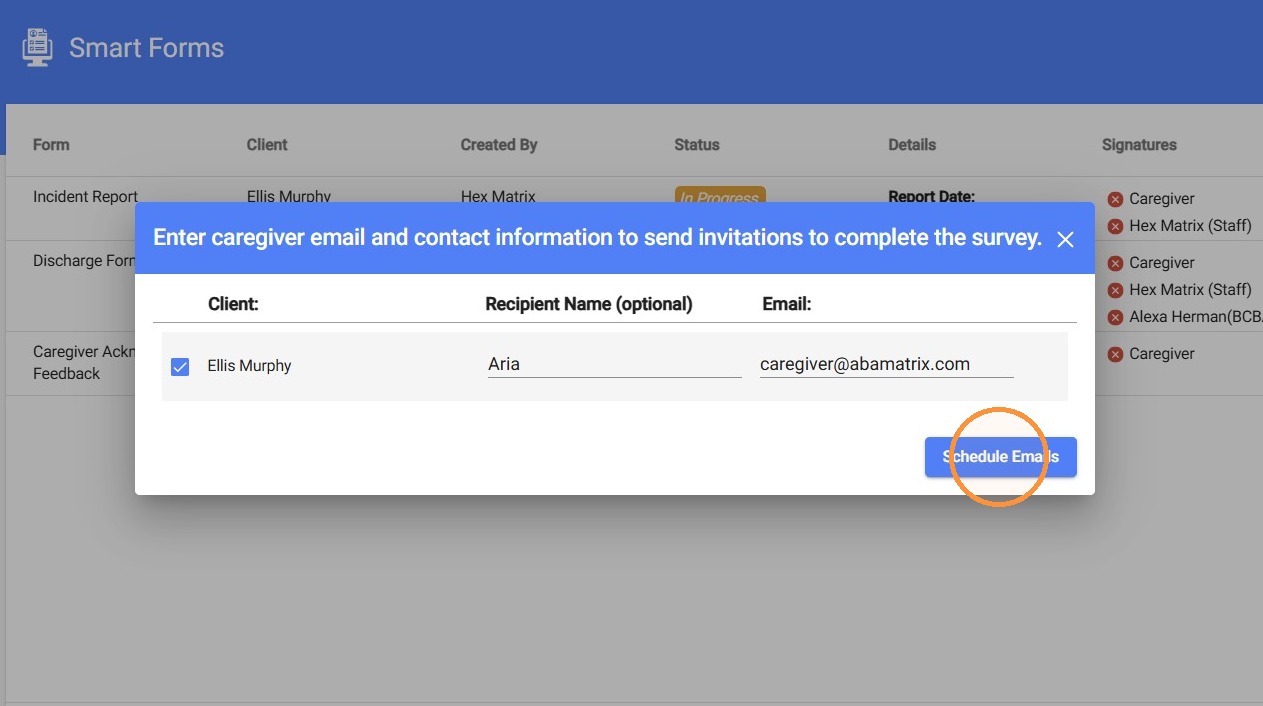
11. Once the correct contact information has been entered or updated, you can send the invitation by clicking Schedule Emails.
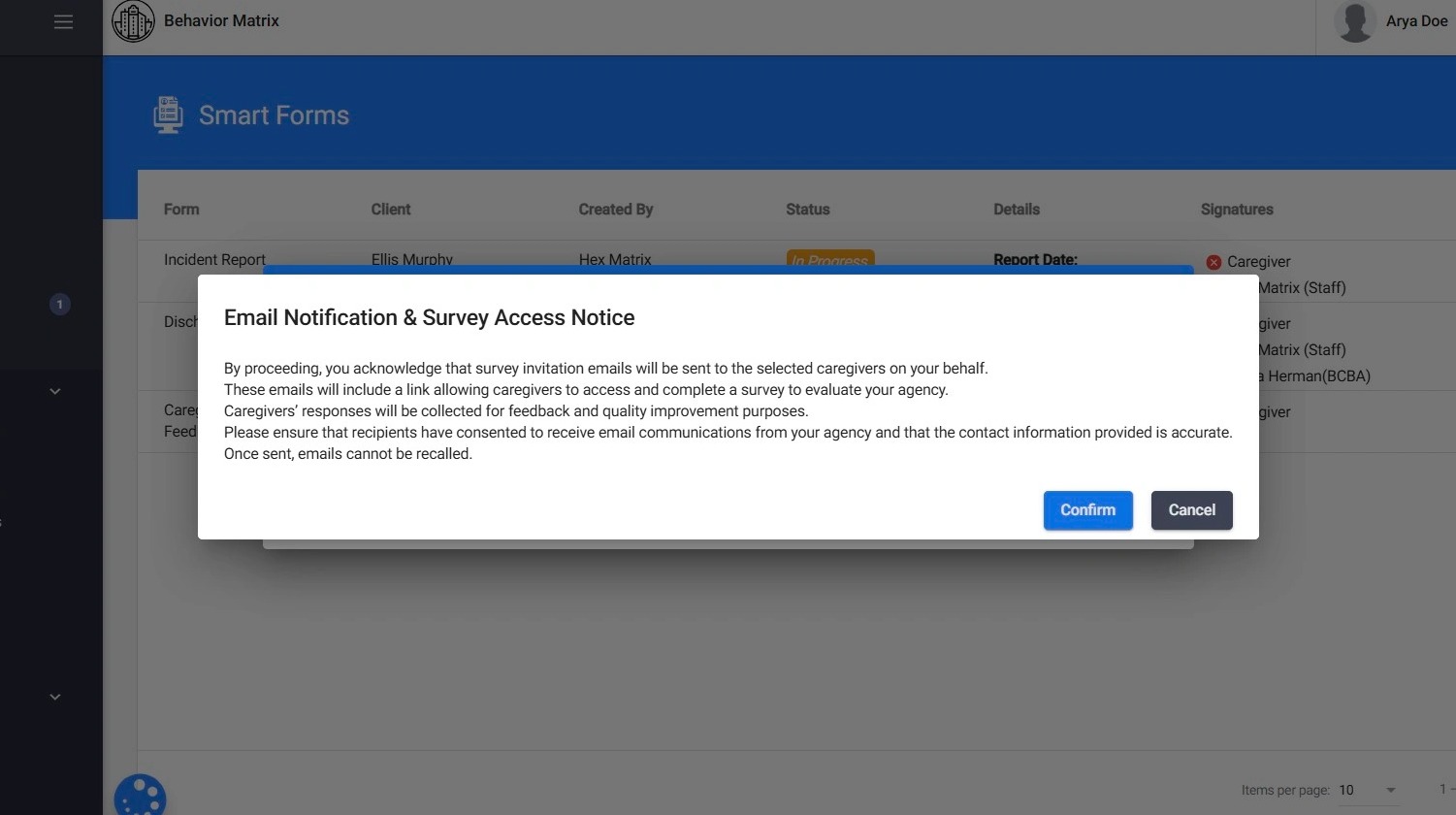
NOTICE:
- Invitation emails will be sent on behalf of the agency
- Emails include a secure link allowing caregivers to access and complete the form.
- Caregiver responses are collected for feedback and quality improvement purposes.
- Agencies must ensure caregivers have consented to receive email communications and that contact information is accurate.
- Emails cannot be recalled once they are sent.
Managing Email Access
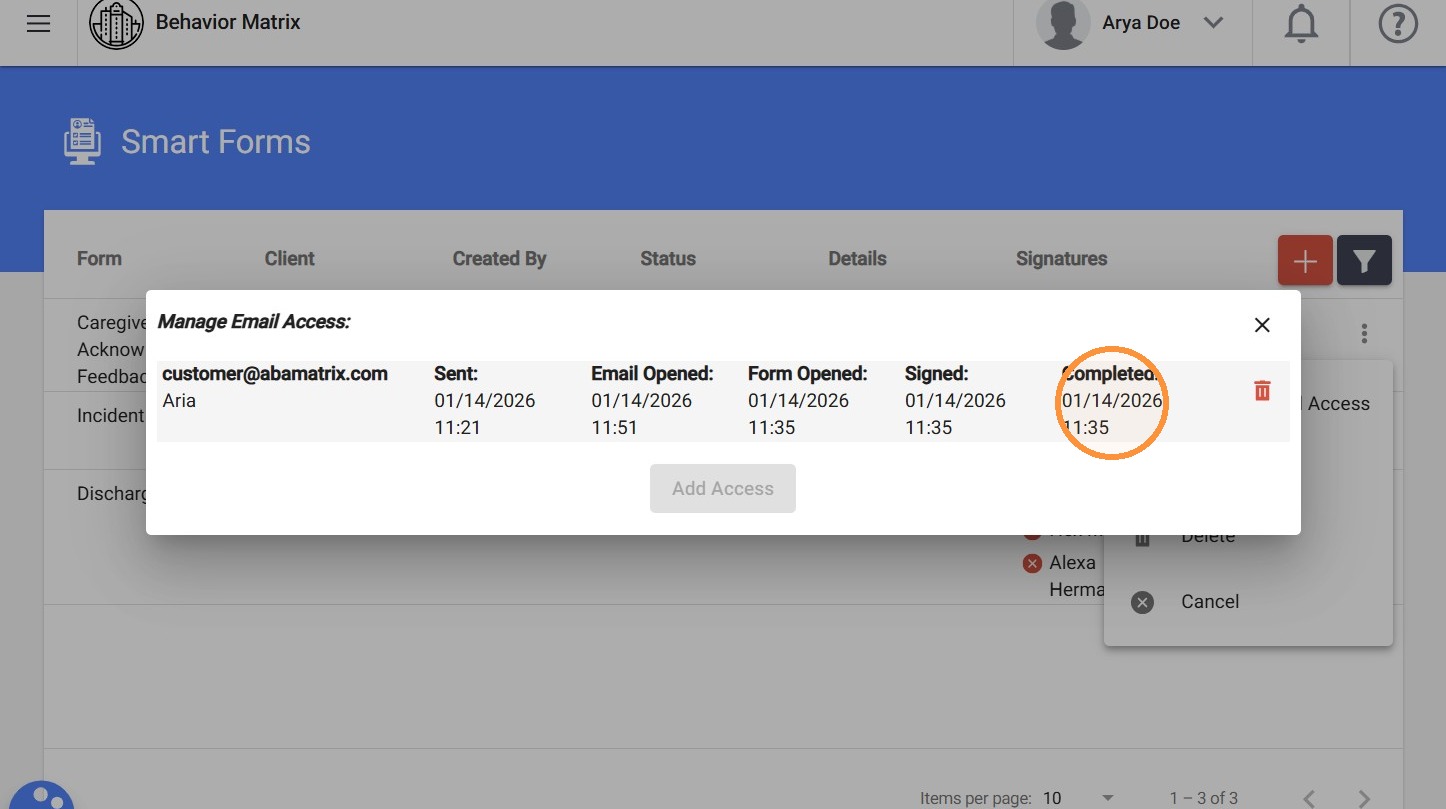
12. You can manage who has access to the form by clicking Manage Email Access.
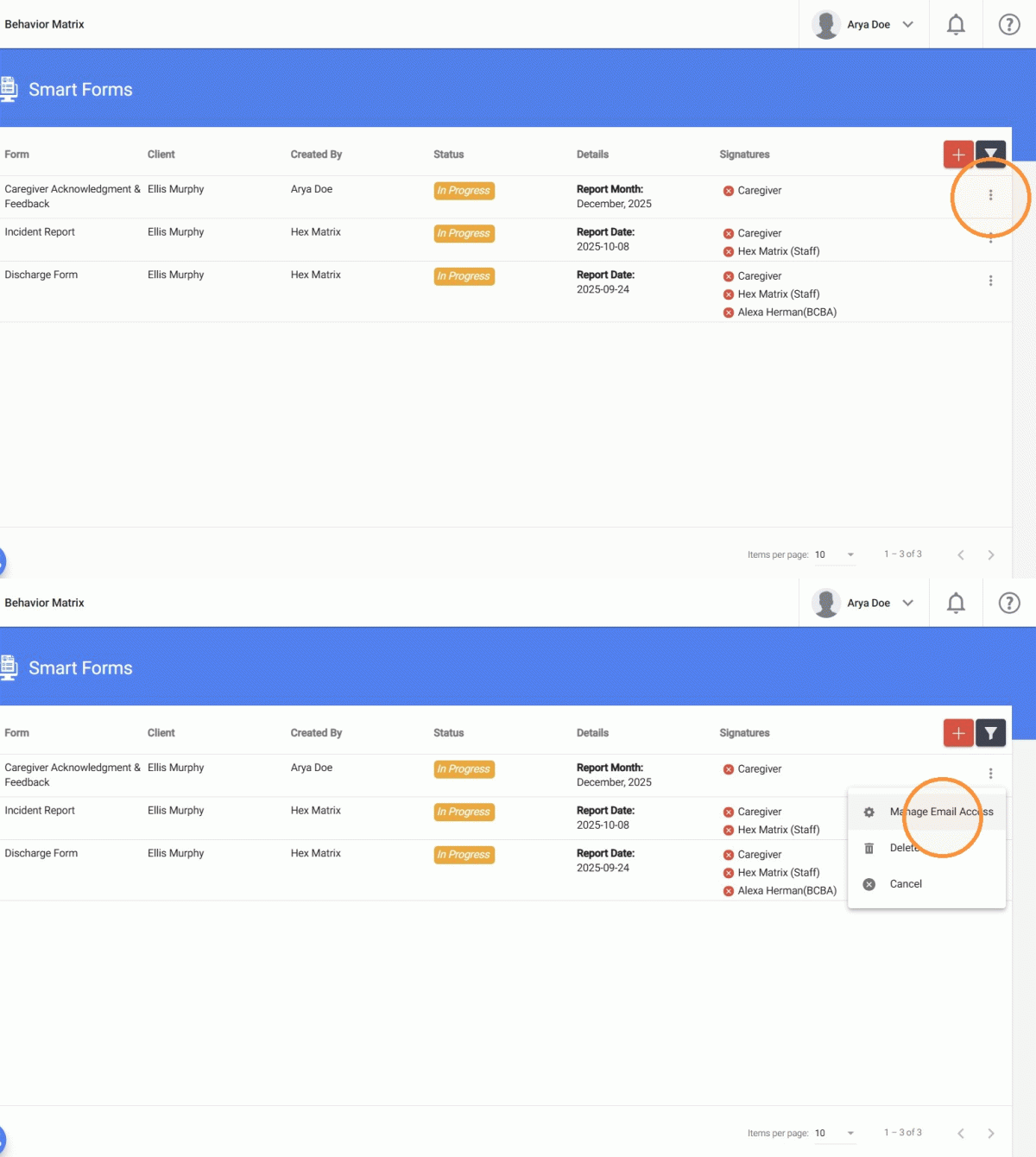
13. From there, you can:
- Add new email access
- Remove existing access
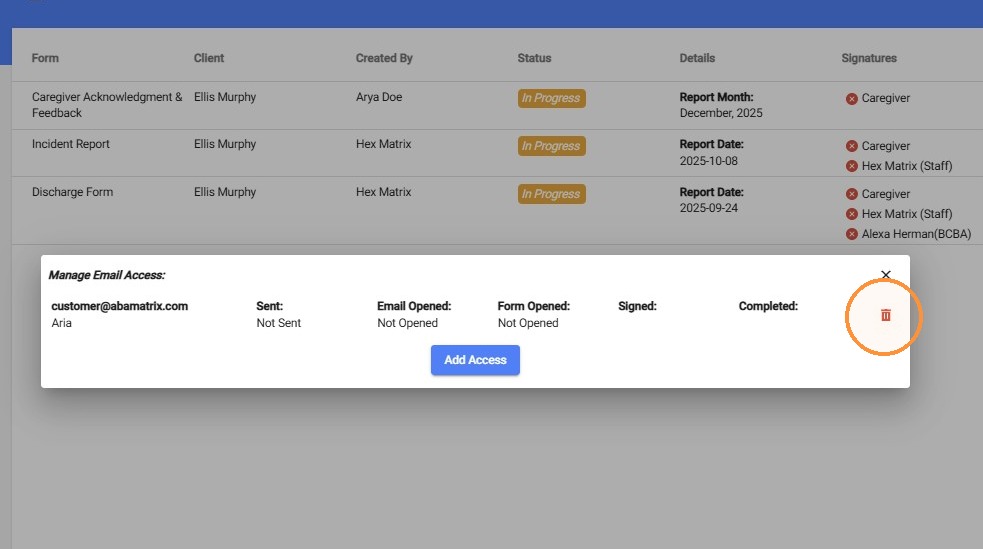
If email access is removed after an invitation has already been sent, the caregiver will no longer be able to access the form. Please note that sent emails cannot be recalled or undone. Removing access only revokes the caregiver’s ability to view or complete the form going forward.
14. To add access, select Add Access and enter:
- Recipient Name
- Recipient Email
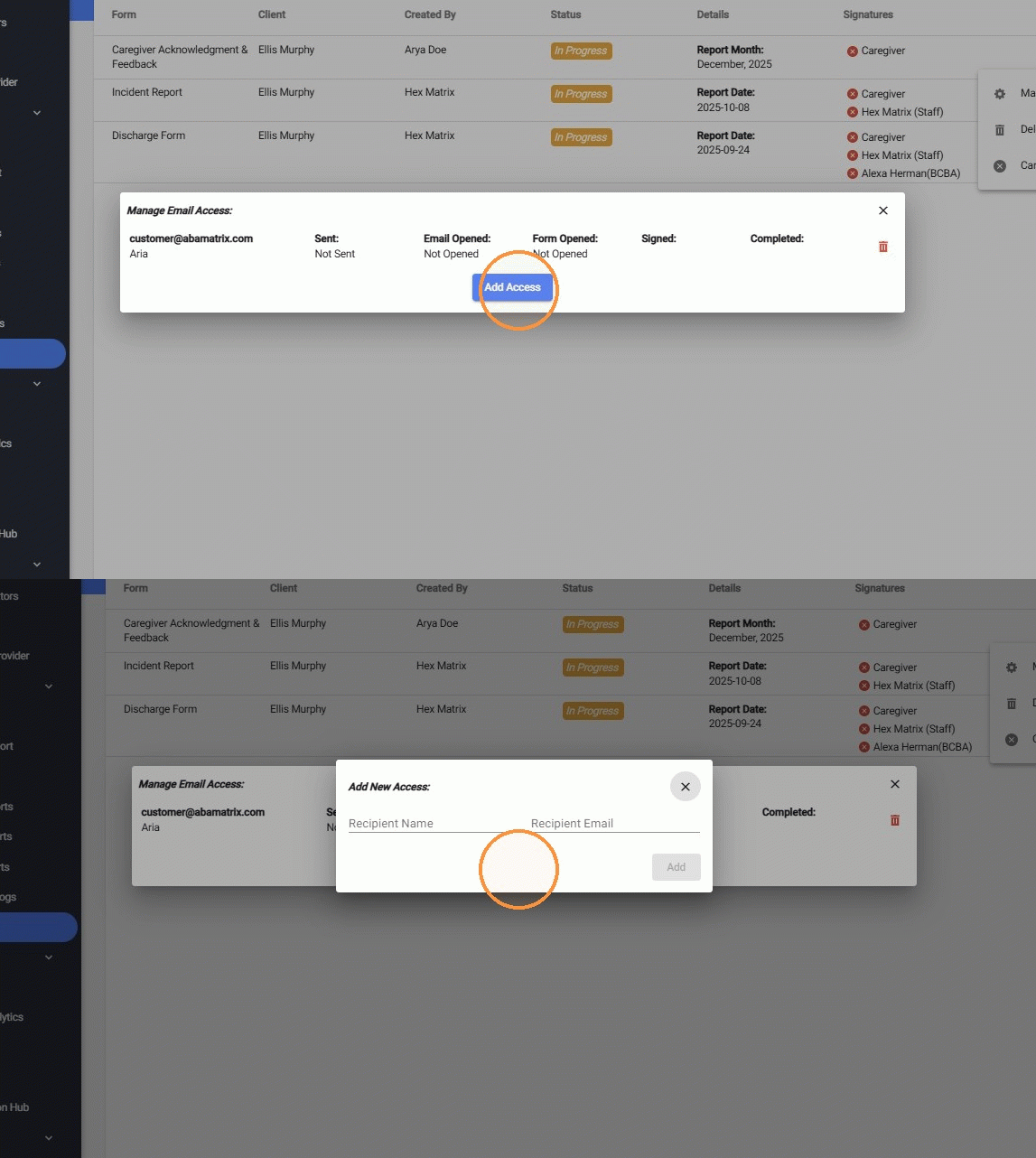
Multiple email recipients can be added to help ensure the form is completed. Even if multiple email accesses are added, only one caregiver can sign and submit the form. If multiple caregivers need to complete the form individually, a separate form must be created for each caregiver.
15. For each email access added, you can see real-time status indicators, including:
- Sent / Not Sent
- Email Opened / Not Opened
- Form Opened / Not Opened
- Signed
- Completed
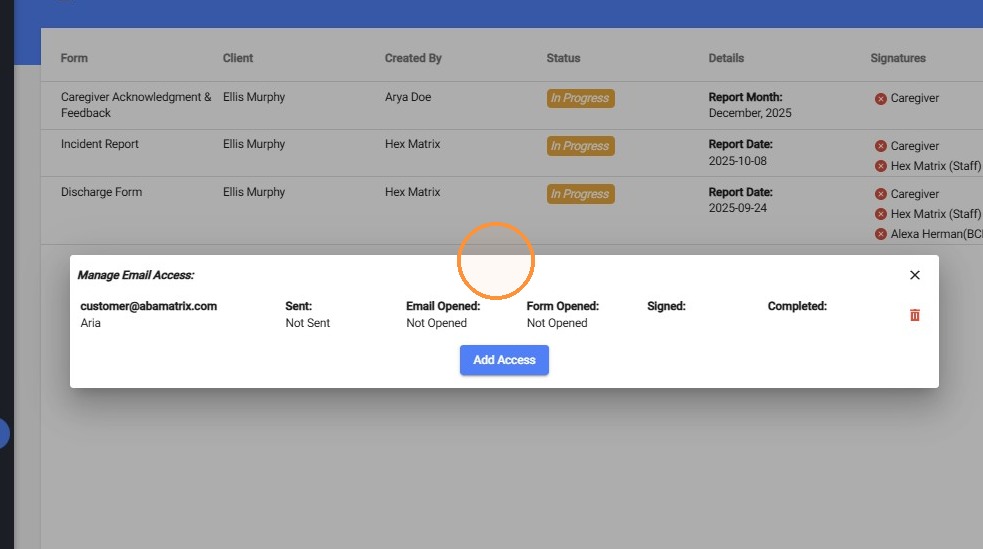
16. Each action is logged with timestamps, allowing agencies to track exactly when the email was opened, when the form was accessed, when the form was signed and completed, and by whom.
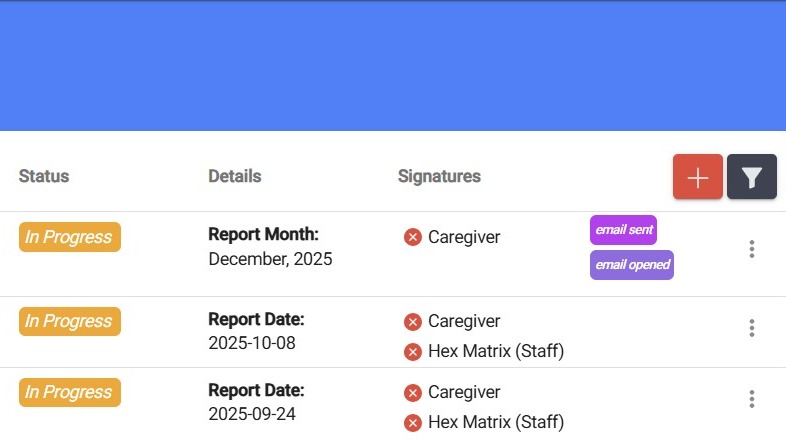
17. As soon as the email is sent, the form will display status tags such as:
- Email Sent
- Email Opened
- Form Opened
These tags update automatically as the caregiver interacts with the email and form. The Manage Email Access section will also reflect updated timestamps.
How Caregivers access and complete the form via Email
18. Caregivers receive an email invitation informing them that they have been invited to complete a brief survey regarding the ABA services their child receives from the agency. The email explains the purpose of the survey, which is to gather feedback to support service evaluation and quality improvement, and notes that the survey takes approximately 5 minutes to complete.
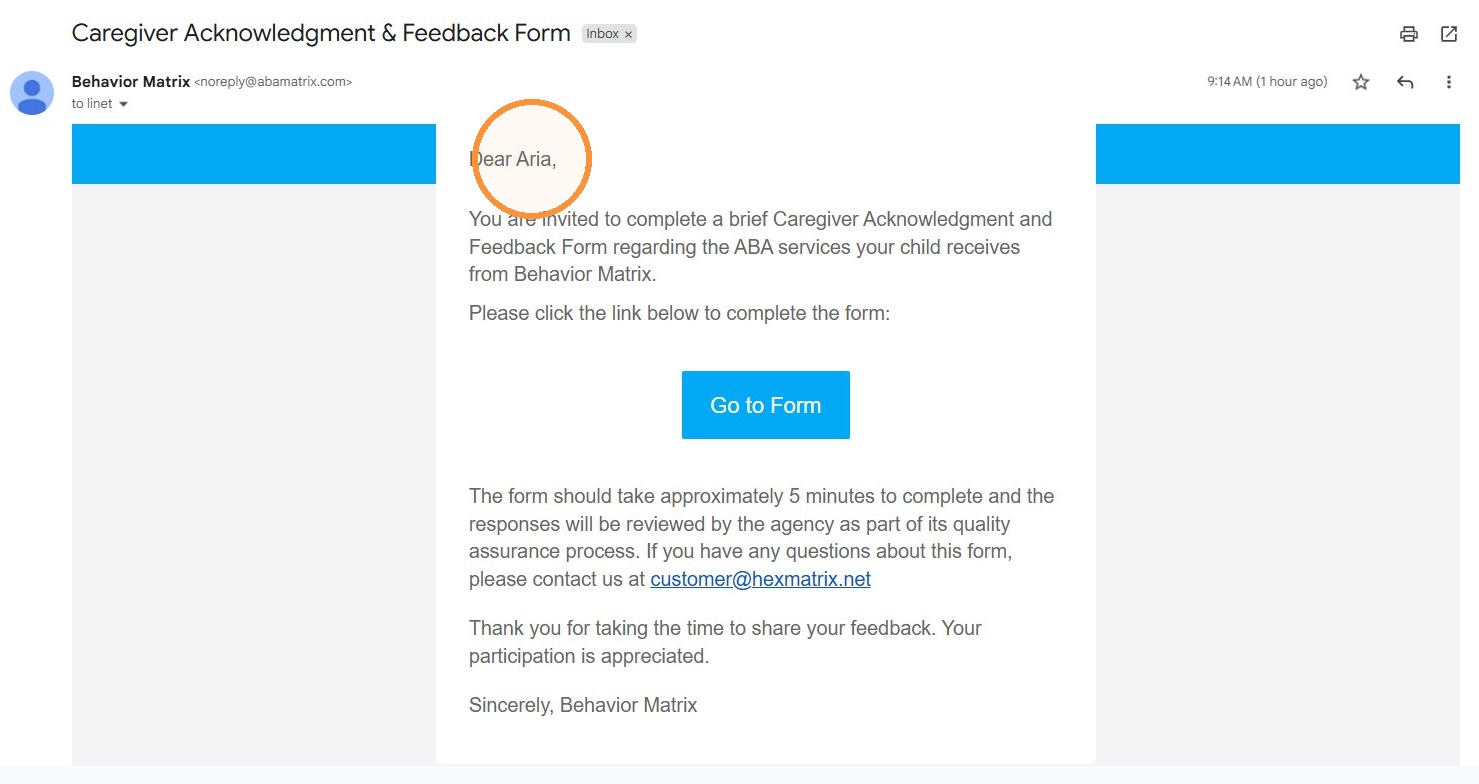
To protect client information:
- The email invitation does not include any client-specific details
- All protected information is contained inside the secure form
- The caregiver accesses the form only through a secure link
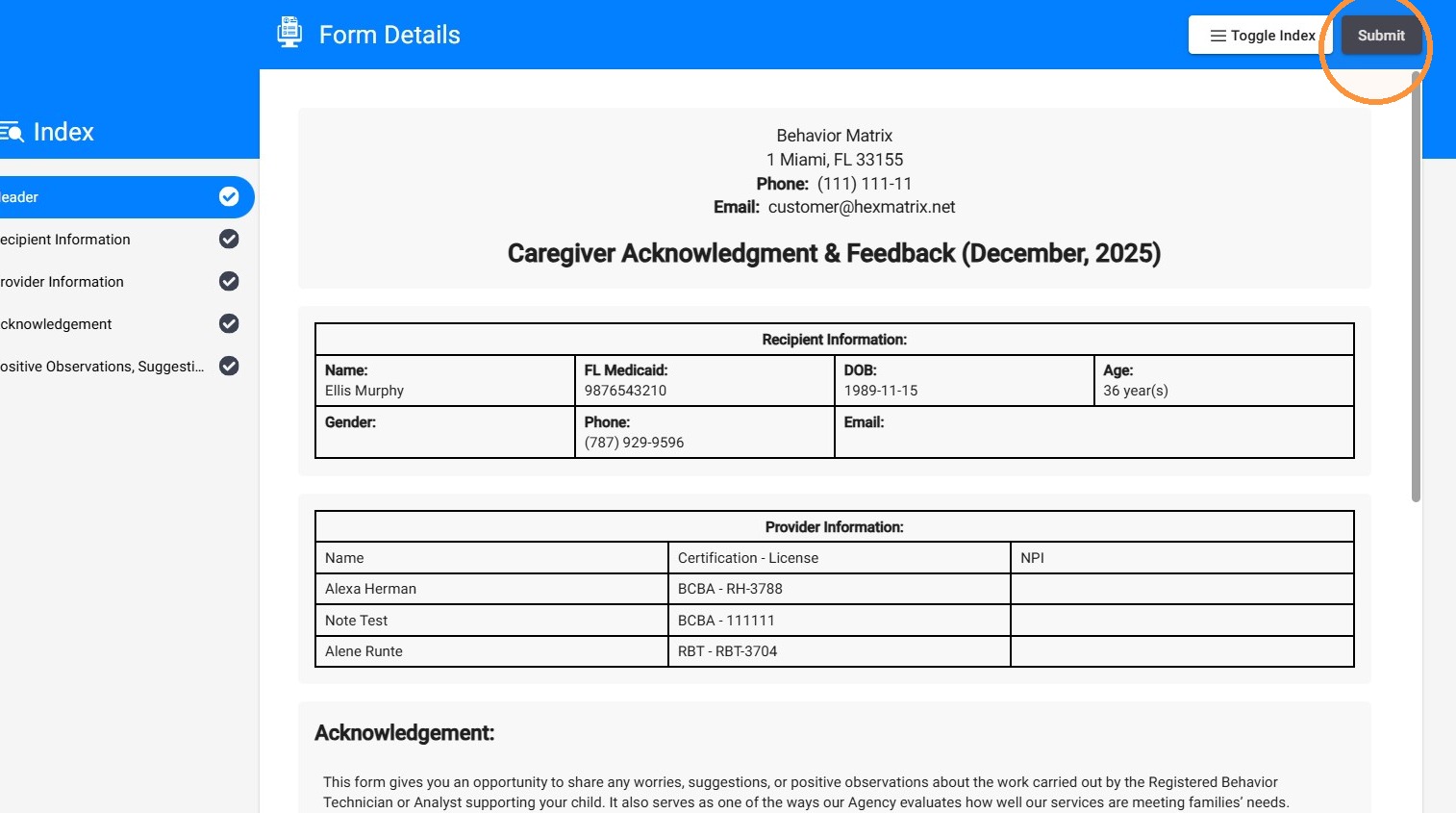
19. After clicking Go to Survey, caregivers are taken directly to the form.
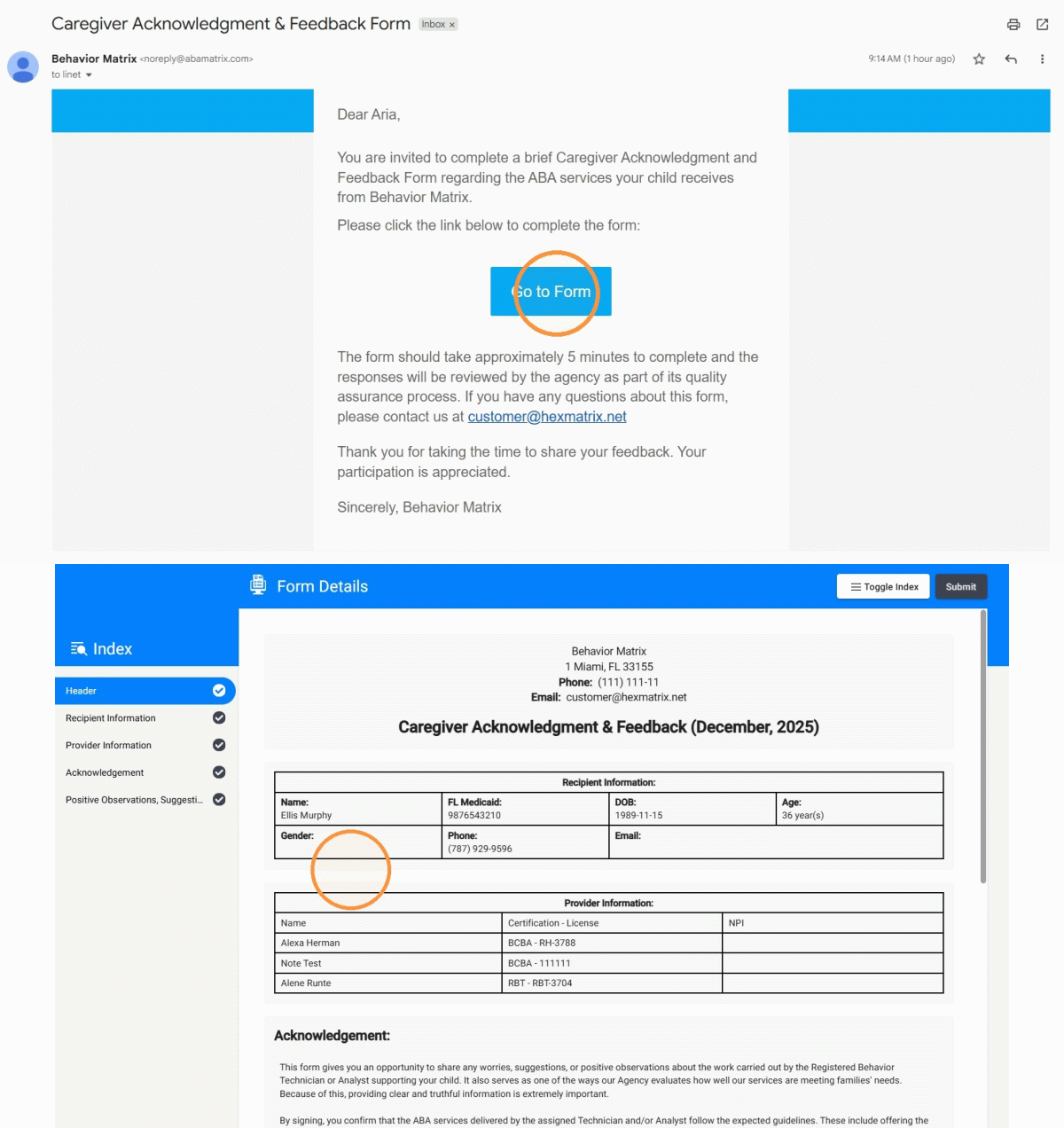
20. In the form, several sections are automatically generated based on existing system data, including:
- Client information
- Assigned provider information
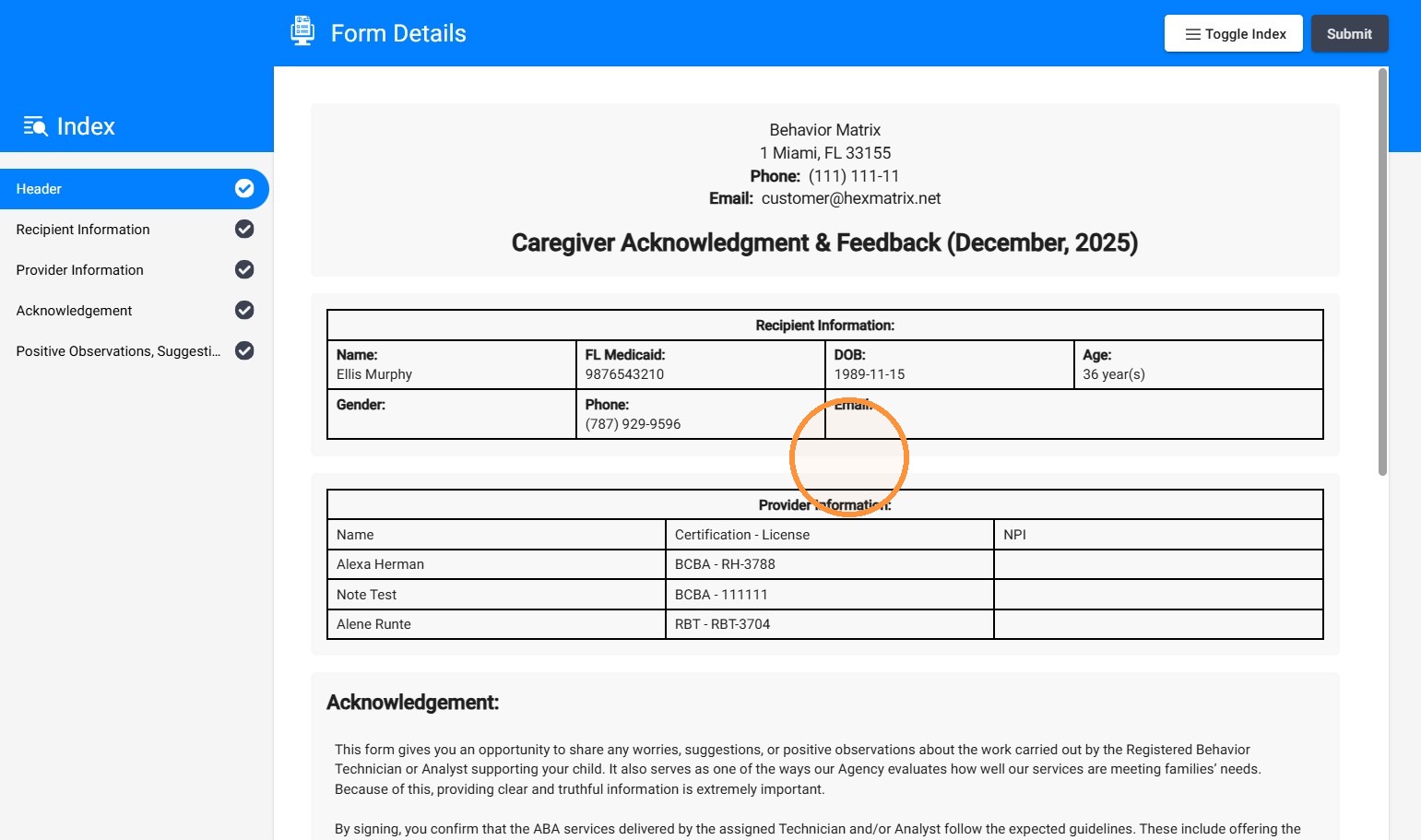
21. The form also includes a default disclaimer message. If needed, this disclaimer can be customized or modified to tailor it to the agency’s needs.
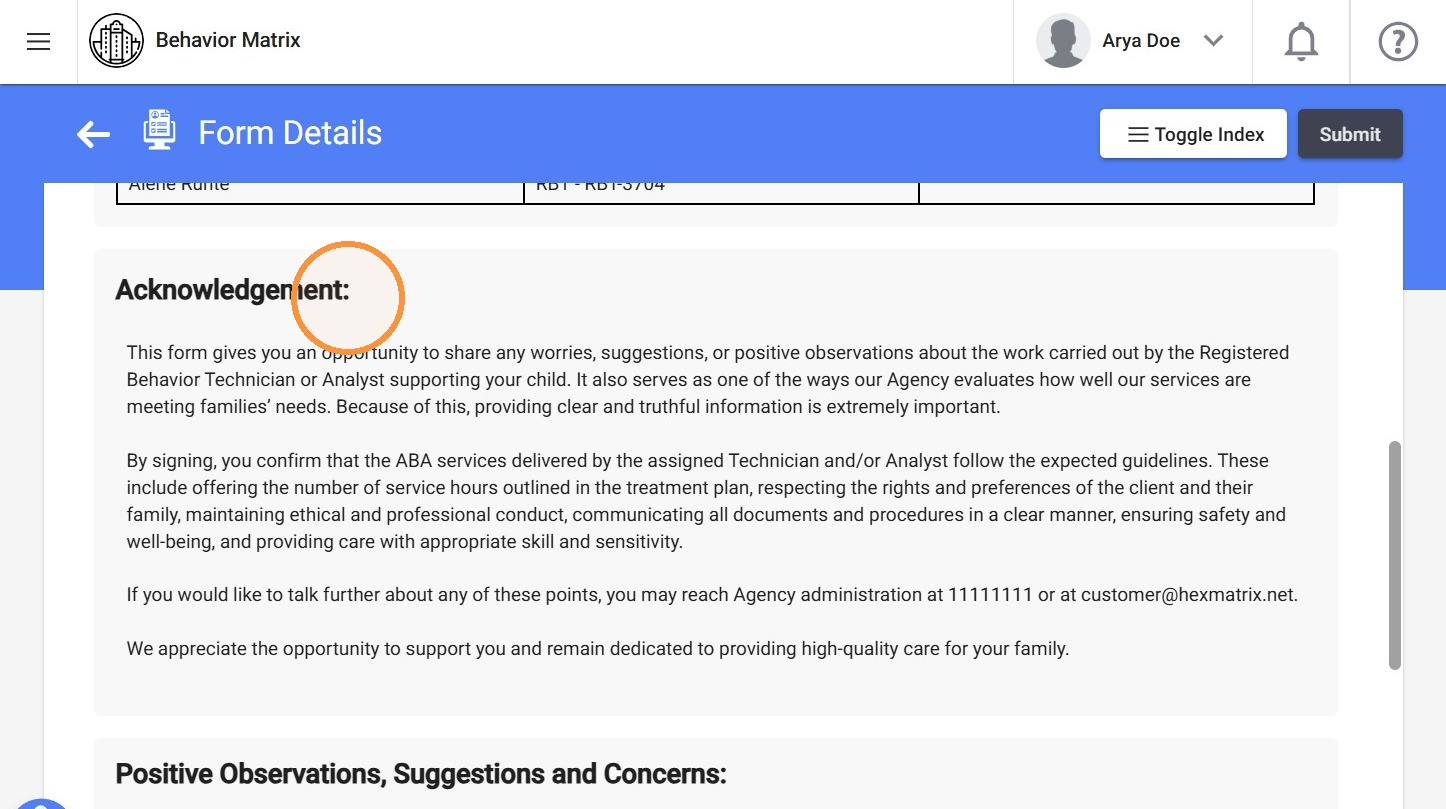
22. The Positive Observations, Suggestions, and Concerns section is designed to give caregivers a flexible space to share feedback about their experience. It may include positive observations about services or providers, suggestions for improvement, questions, or concerns. The information entered in this section helps agencies better understand caregiver perspectives and identify opportunities for quality improvement.
This section is optional and may be left empty if the caregiver has no feedback, suggestions, or concerns to report.
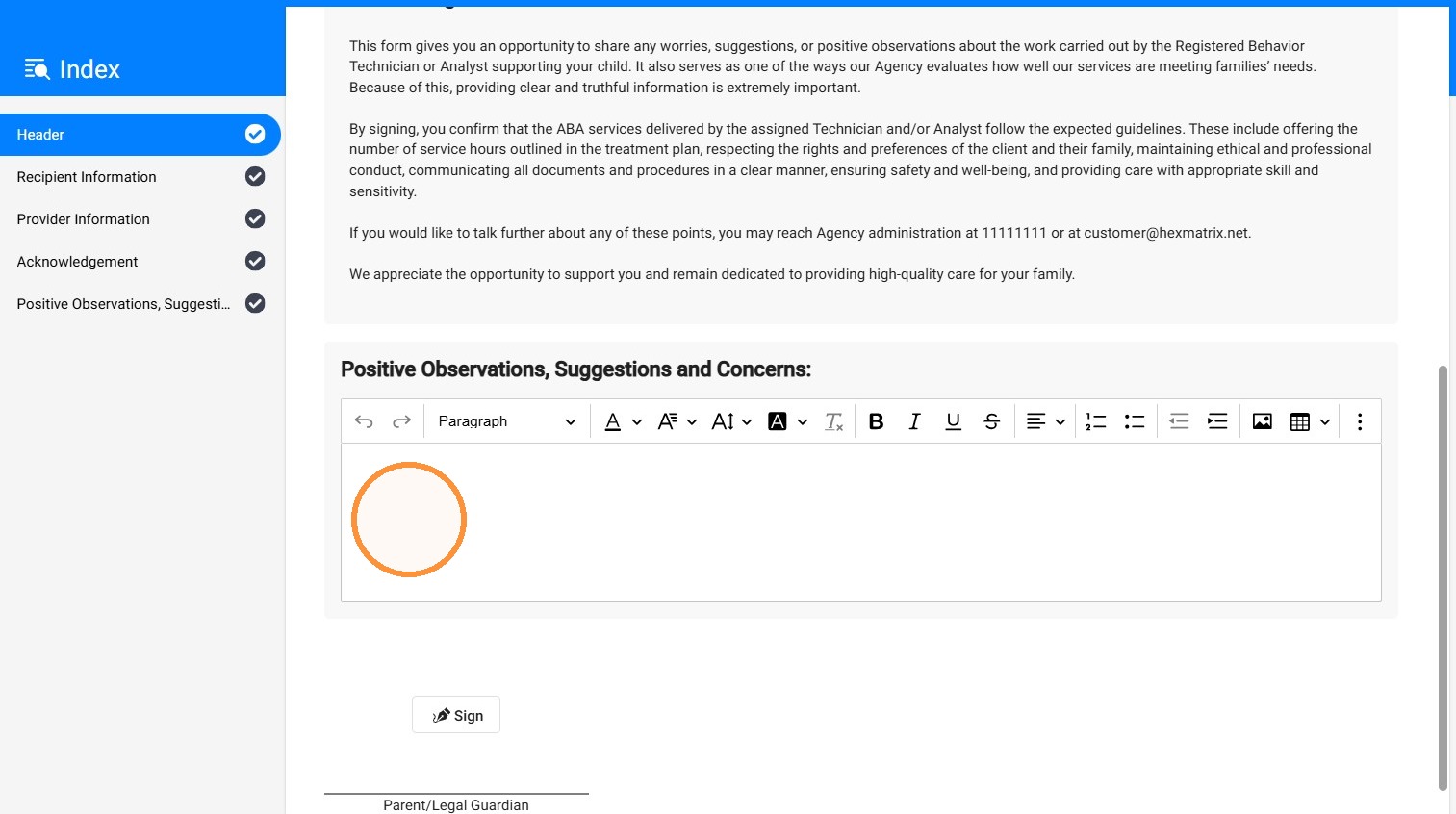
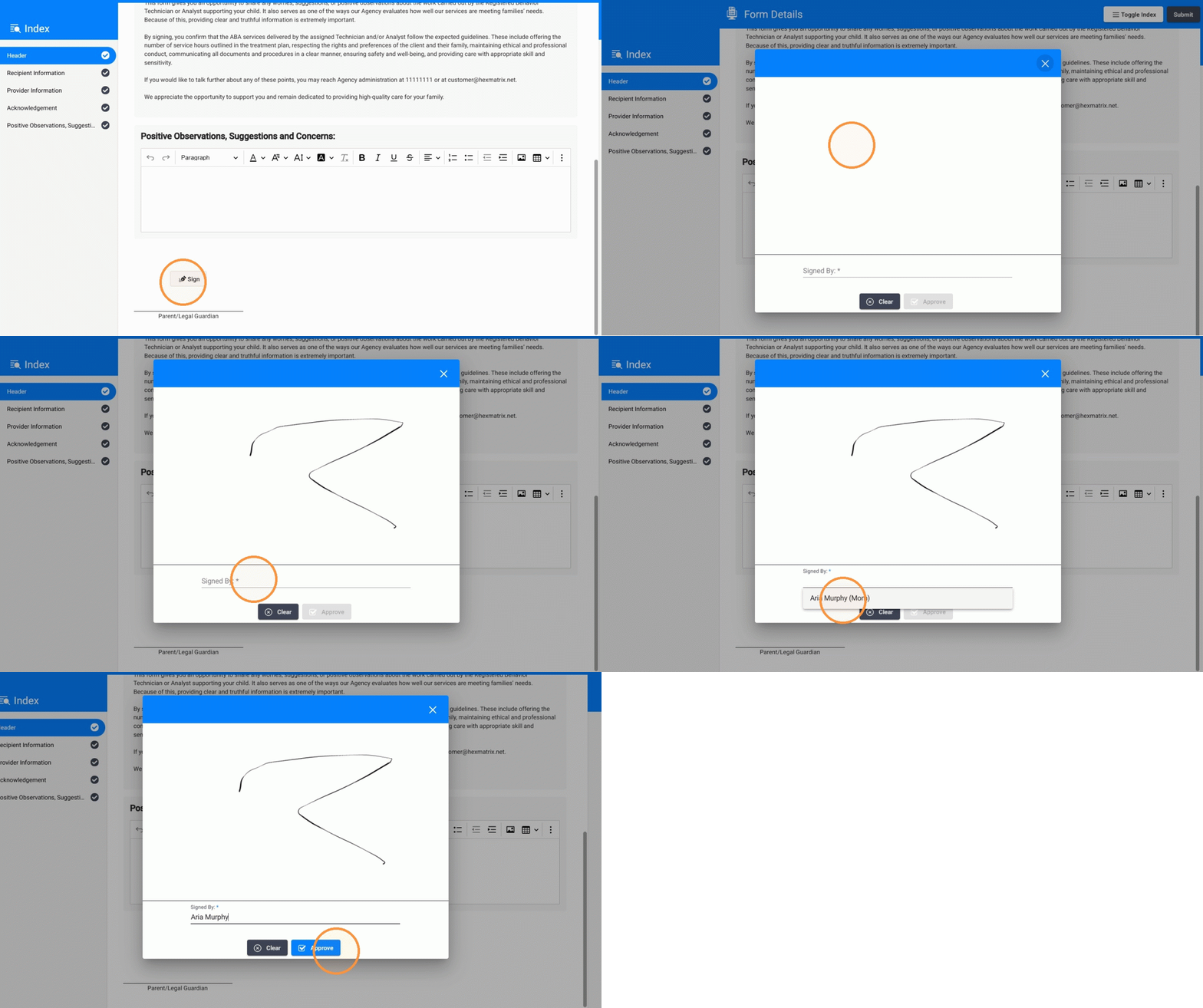
23. The caregiver can sign directly within the form at the end of the report. To sign, the caregiver clicks Sign, enters or selects the Signed By name, and then clicks Approve to complete the signature.
24. Once the form is completed, the caregiver can click Submit.
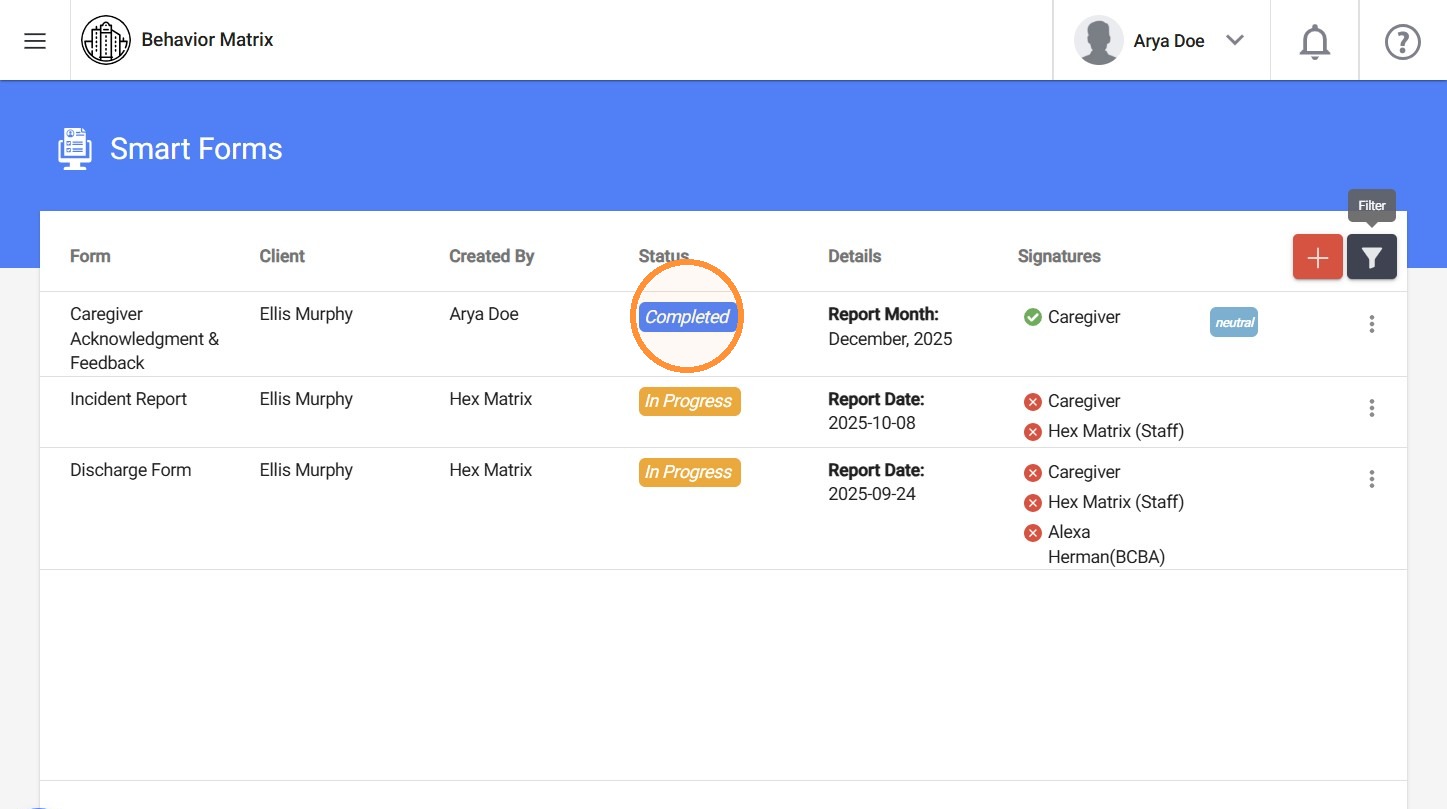
25. After submission the form is marked as Completed and the caregiver loses access to the form.
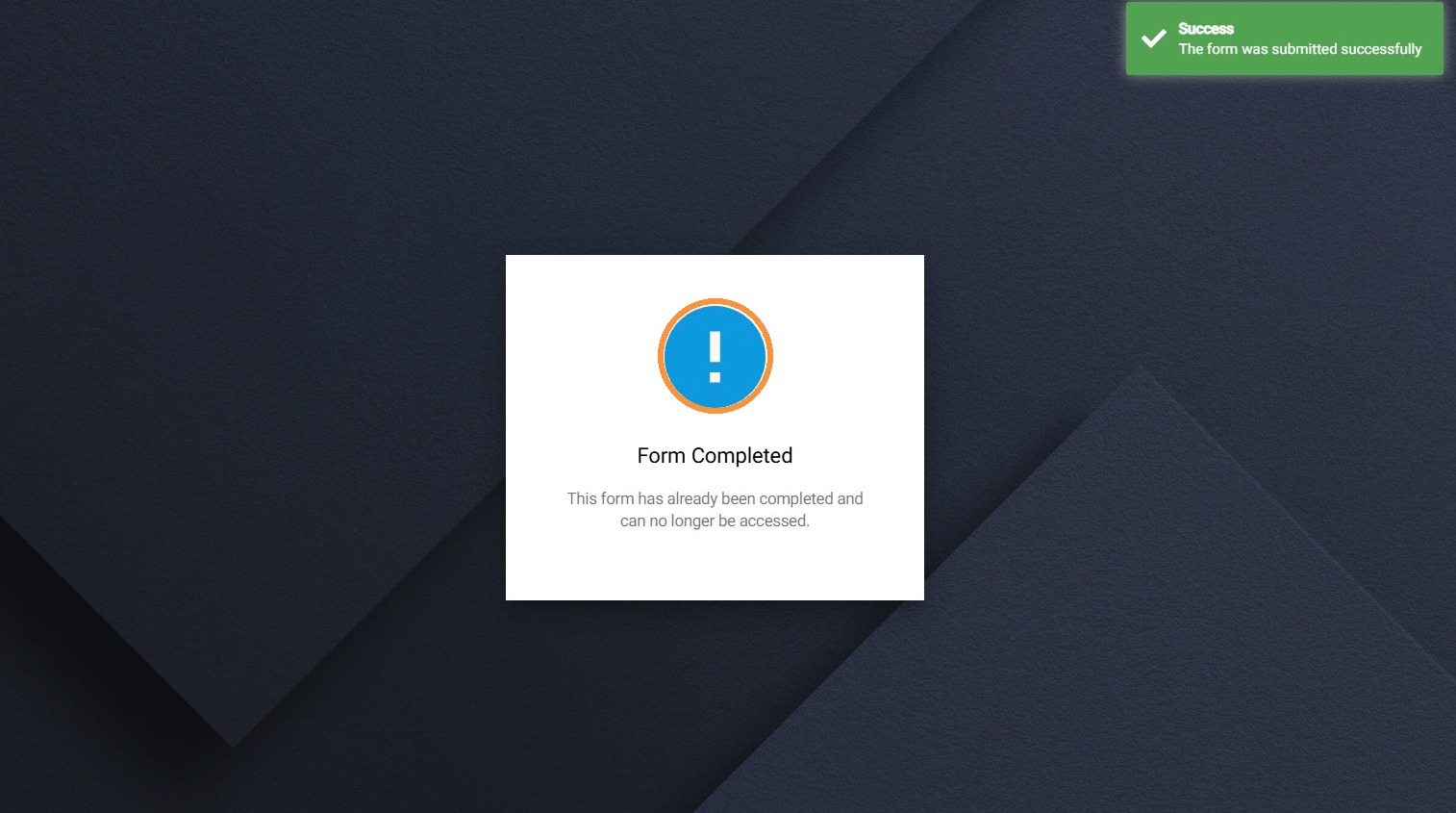
The form link remains active for 7 days or until the form is completed, whichever comes first.
26. Once the report is signed and submitted, the survey will be marked as completed.
How Caregivers access and complete the form directly through an agency employee’s account
27. If you prefer that the Acknowledgment & Feedback report not be sent to caregivers via email, this can be managed during form setup. When creating the form(s), simply close the caregiver email and contact information pop-up window without scheduling any emails, or remove any previously granted email access.
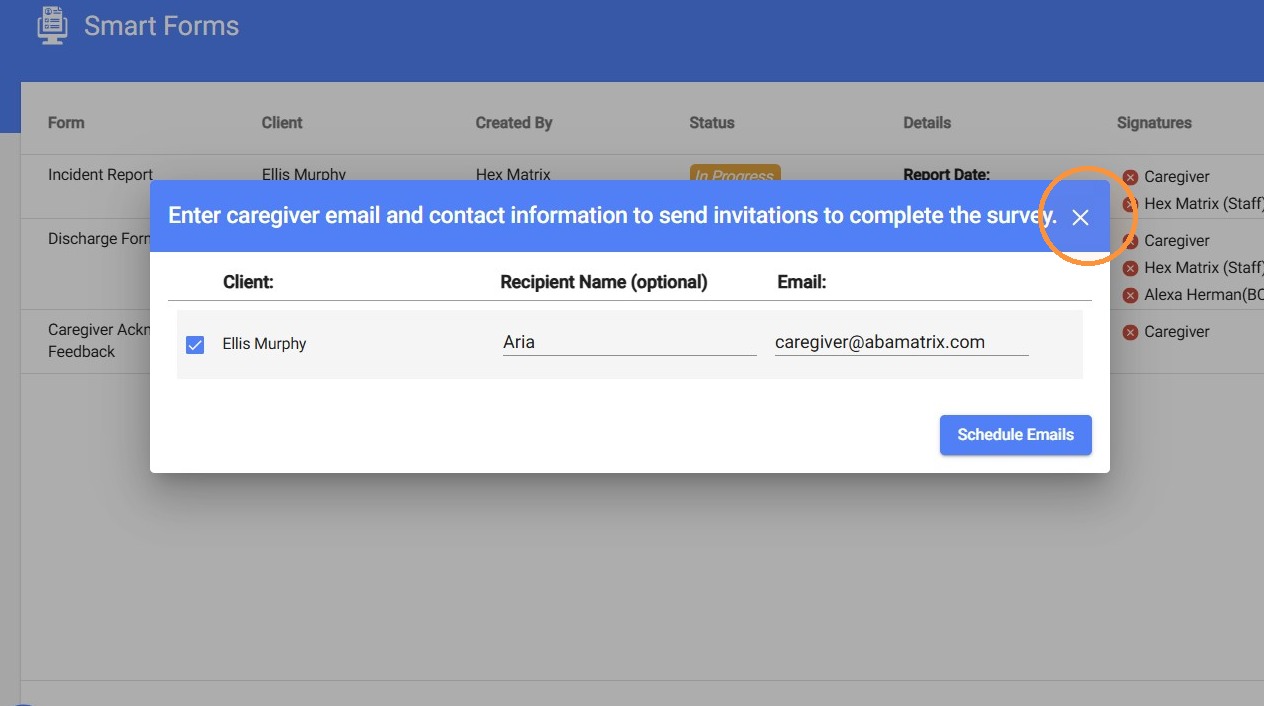
28. In this setup, the caregiver does not need direct email access to complete the form. The caregiver can complete, sign, and submit the report from any agency employee account that has access to the report.
This allows the form to be completed in person during a face-to-face visit with any authorized agency staff member. The staff member simply needs to open the form, and the caregiver can follow the same steps.
By default, only staff accounts have access to the report; however, the agency can request access for additional roles, such as lead analysts or BCaBAs.
AI Insights
The AI Insights feature analyzes all caregiver responses—including observations, suggestions, concerns, and complaints—and generates a concise, actionable summary based on the content of each survey. This helps agencies quickly understand caregiver feedback without needing to read every individual form in full.
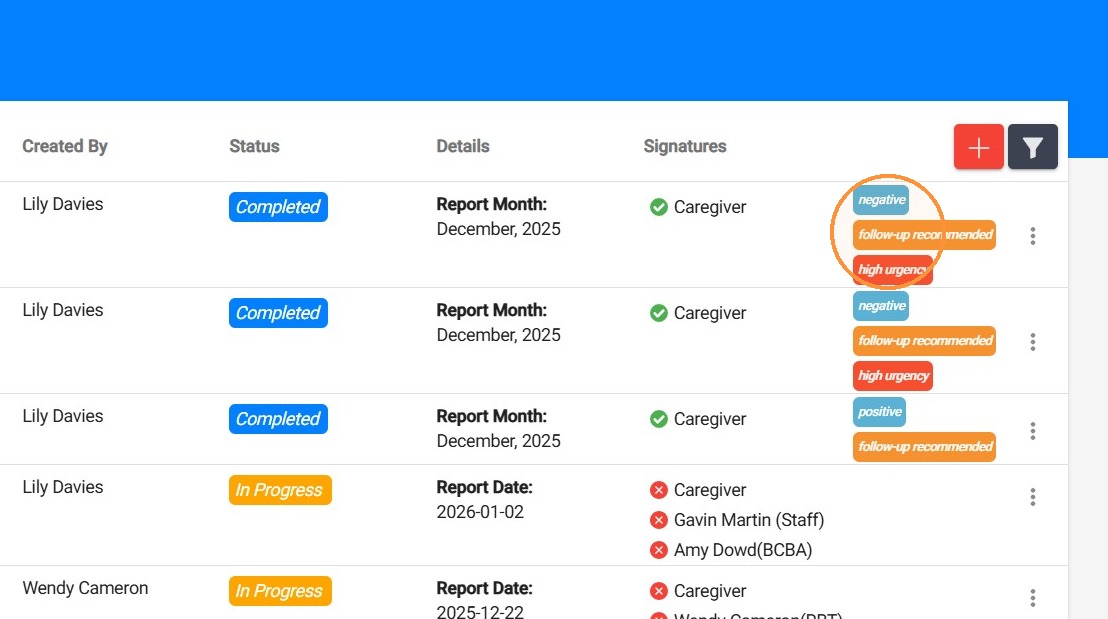
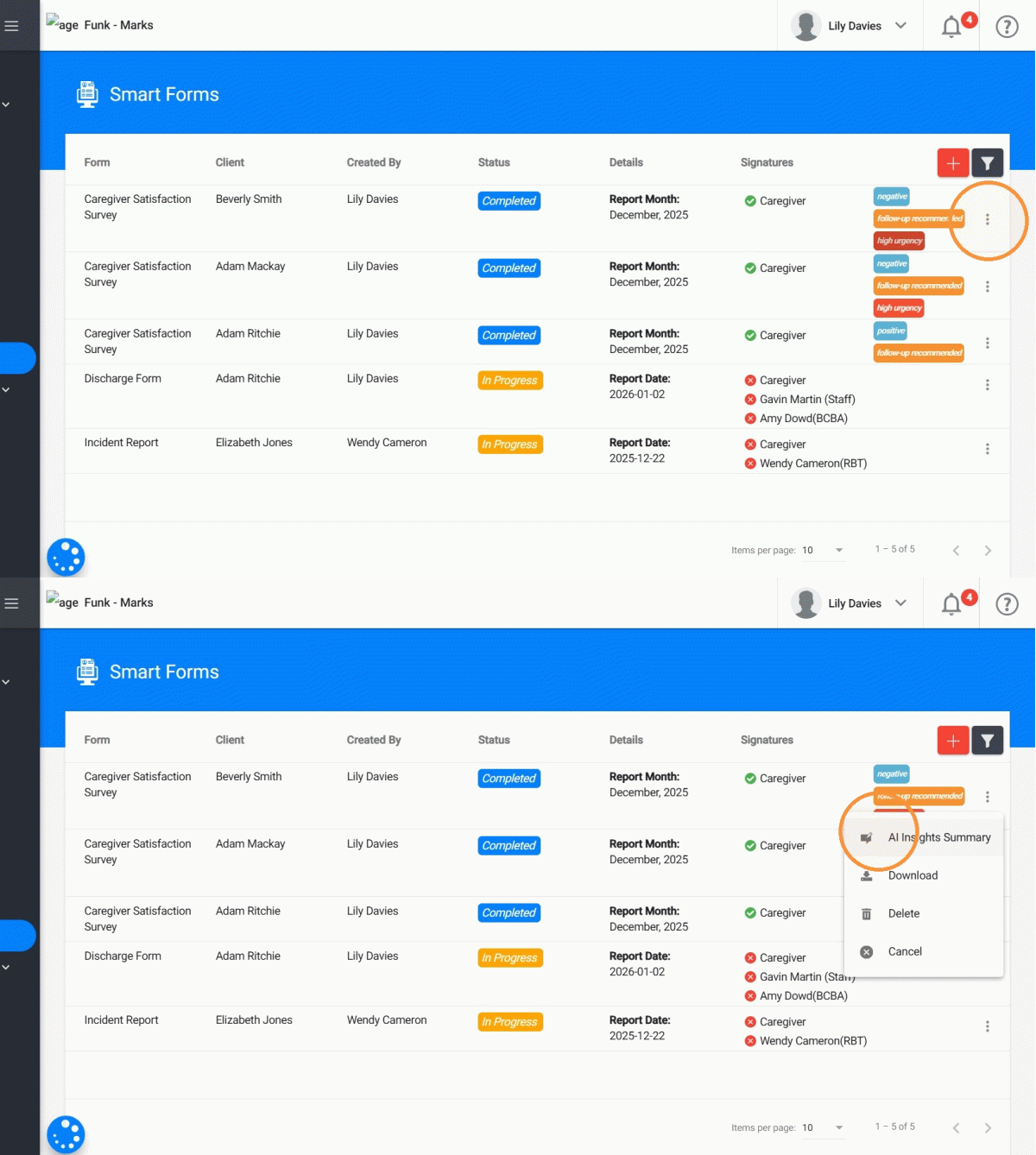
29. In the general view, the following AI-generated tags are displayed to provide immediate visibility into key information:
- Review classification
- Urgency Level
- Follow-Up Recommended
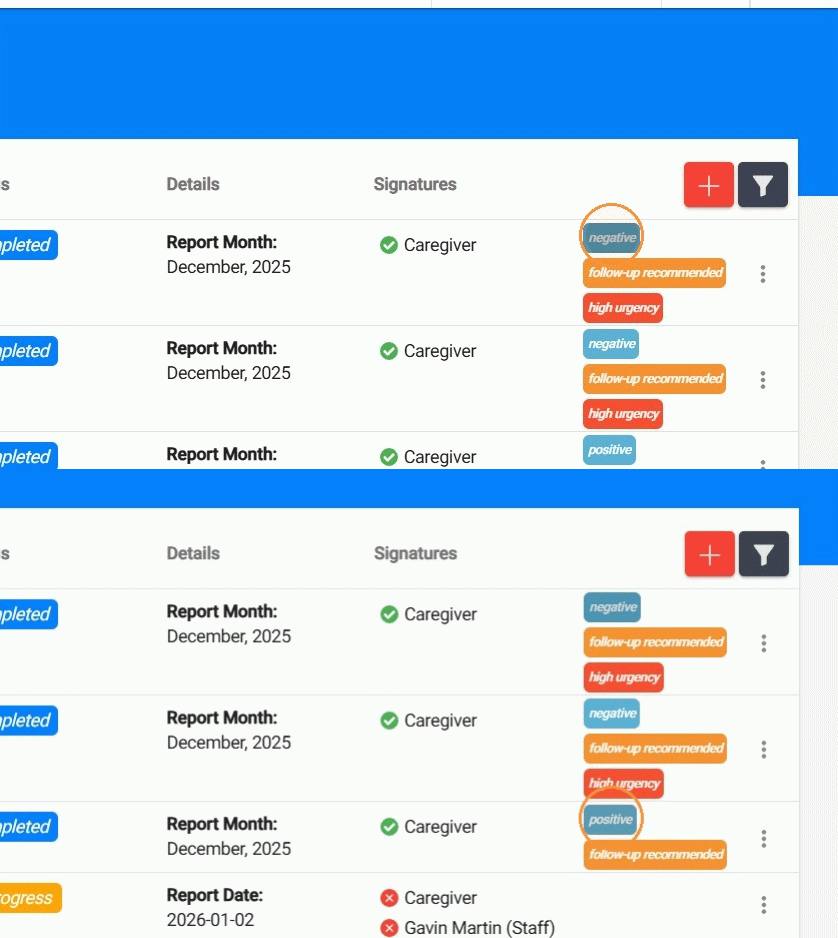
30. Review classification
Each form is categorized into one of the following Review types based on overall sentiment:
- Positive review: is primarily favorable, with satisfaction expressed about services or providers.
- Neutral review: is informational or factual, with little emotional tone and no clear positive or negative sentiment.
- Mixed review: includes both positive comments and concerns or questions.
- Negative review: indicates dissatisfaction, complaints, or significant concerns.
31. Follow-Up
Indicates whether additional review or communication may be needed based on the caregiver’s comments.
- Follow-Up Recommended: Displayed only when follow-up is advised based on the caregiver’s feedback.
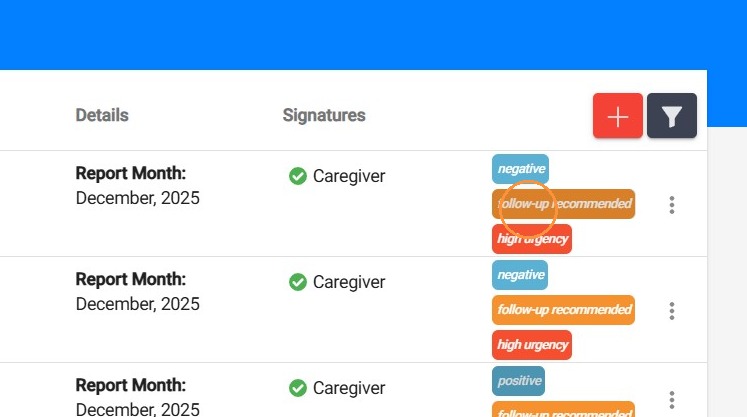
Please note that a form may be marked as Positive and still show Follow-Up Recommended if the caregiver asked a question, requested clarification, or mentioned a concern that may require a response.
This allows agencies to quickly identify which forms require attention without needing to open and review each form individually.
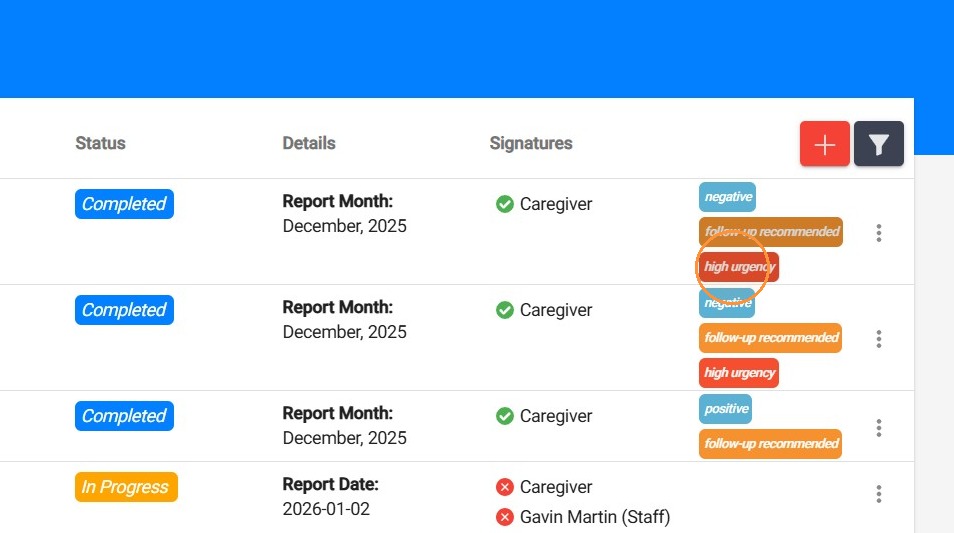
32. Urgency levels
AI Insights also assign an urgency level to help prioritize responses:
- Medium urgency: General feedback, suggestions, or minor concerns that should be reviewed but are not time-sensitive.
- High urgency: Clear concerns or dissatisfaction that may require timely review or action.
- Critical urgency: Serious issues that may impact care quality, safety, or compliance and require immediate attention.
33. AI Insights Summary
To view the full AI analysis for a specific form:
- Click the three dots (⋮) on the right side of the form
- Select AI Insights Summary
34. Inside the summary, users will see:
Themes
High-level topics identified across the caregiver’s responses.
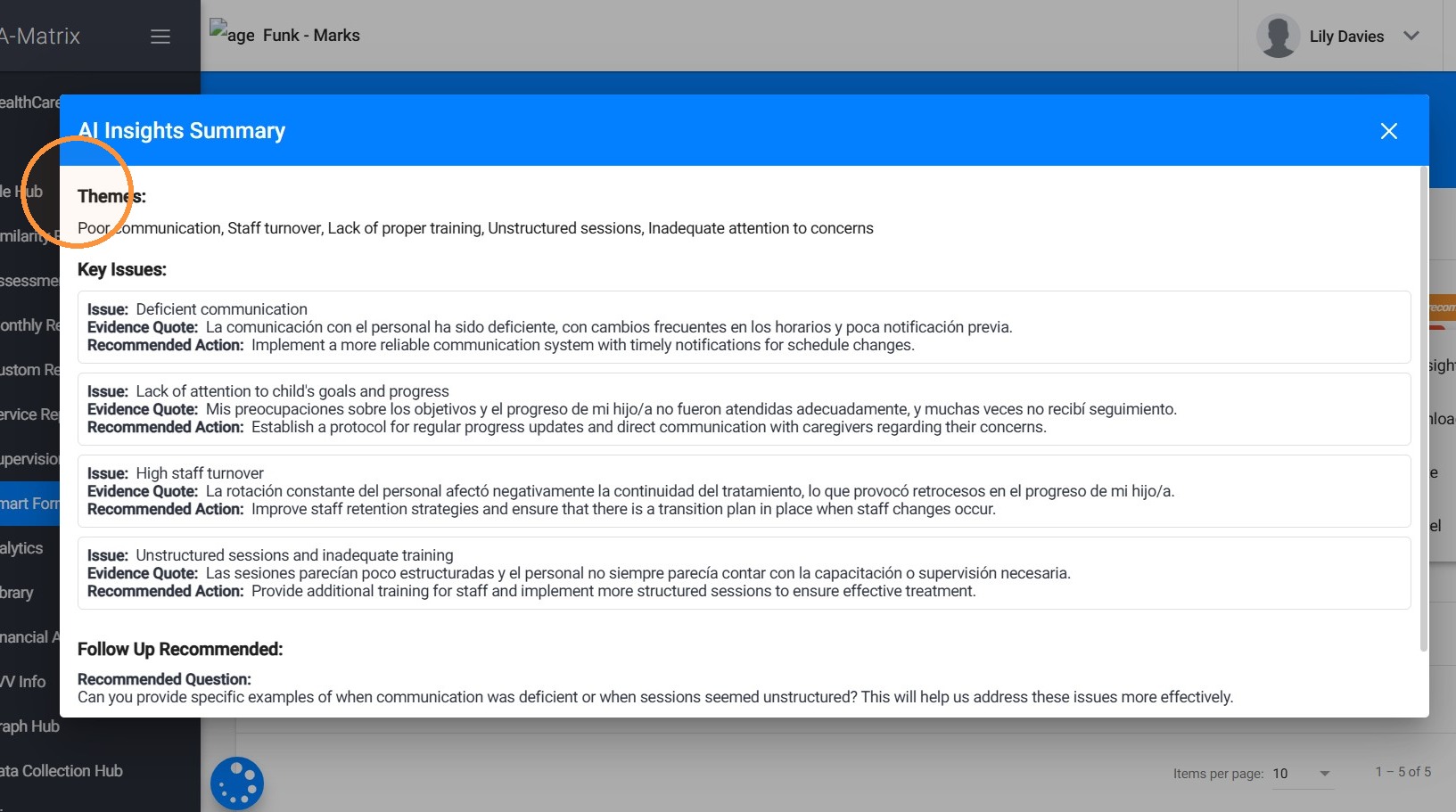
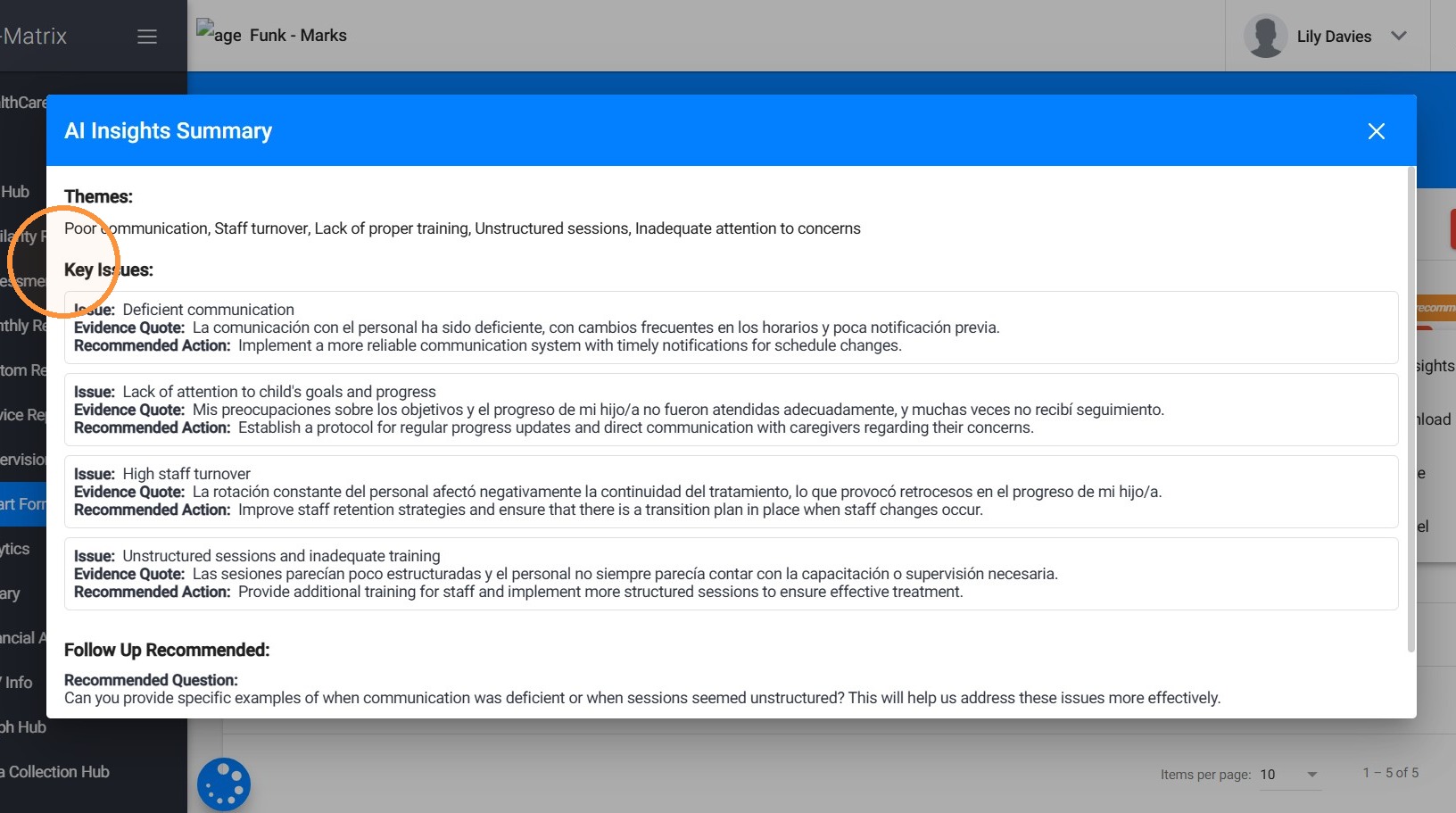
35. Key Issues
Each issue is displayed with structured context:
- Issue: A brief description of the identified topic or concern
- Evidence Quote: A direct excerpt from the caregiver’s response
- Recommended Action: A suggested next step or area for review
36. Follow-Up Recommendation
A consolidated recommendation indicating whether follow-up is advised based on the full context of the form.
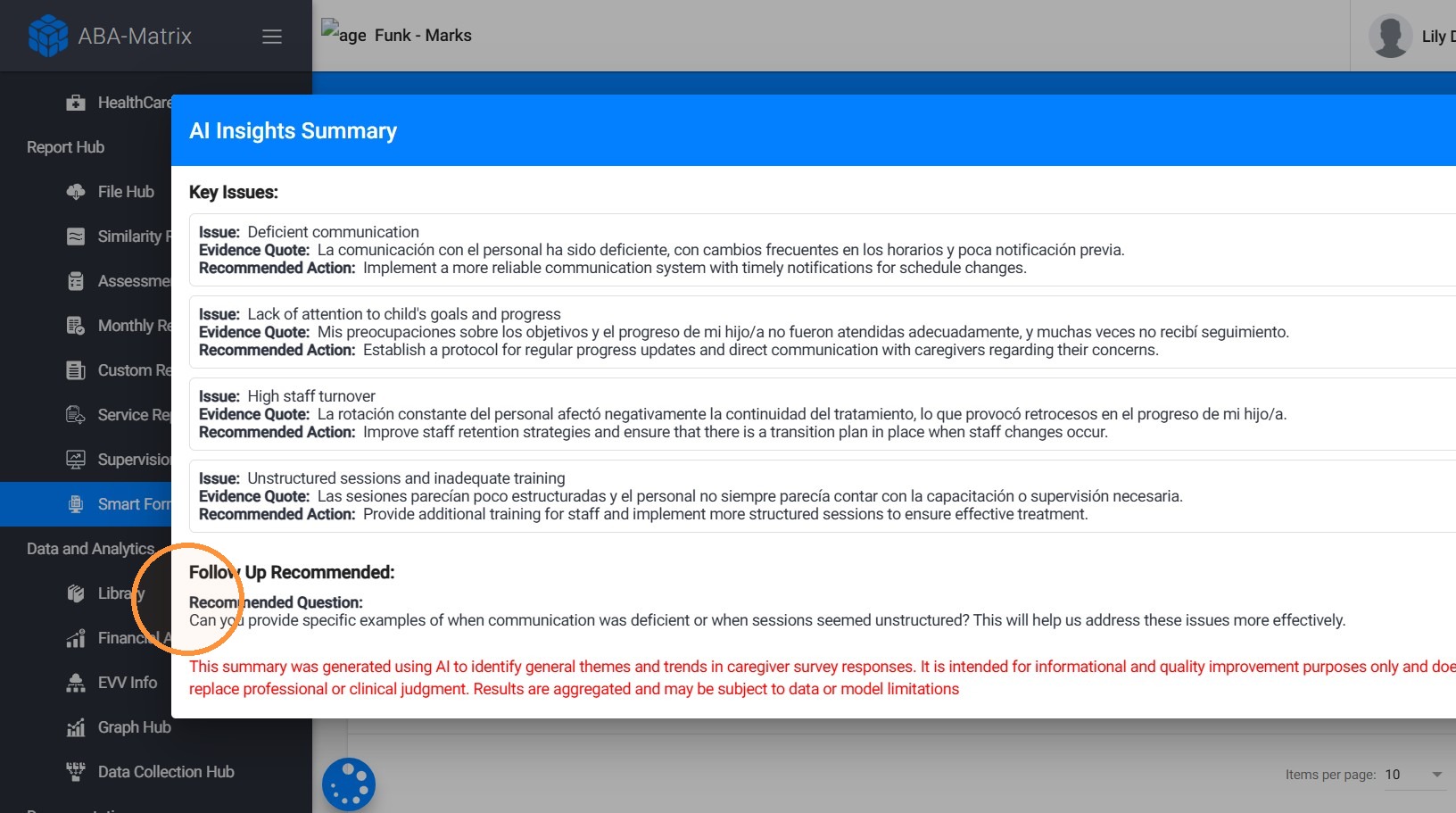
If a caregiver submits feedback in Spanish or another supported language, the AI will still recognize and analyze the content accurately.
This summary was generated using AI to identify general themes and trends in caregiver responses. It is intended for informational and quality improvement purposes only and does not replace professional or clinical judgment. Results are aggregated and may be subject to data or model limitations.