
How to Use ABA Matrix EVV: Clock In, Clock Out, and verify your Location (For RBTs & Analysts)
This guide shows how to reliably clock in/out and verify your GPS for ABA Matrix EVV so visits are accurately recorded and compliant. It explains checking session details and maps, granting location permission, handling offline use, recognizing in-progress vs finalized EVV, and adding comments for administrators. Follow it to avoid timing/location errors and ensure proper documentation.
1. Before starting a visit
1. Once you access the application, you will land in the Schedule page. From this page you can access all your scheduled appointments. Each visit appears as a session card, designed to give you a quick overview of the most important session details, including session status (e.g., In Progress, Completed), client name, service type and code, session time, signature status for both caregiver and provider, the Offline Ready tag, and EVV status.
EVV status:
- EVV ready to start: When the session is ready to begin, you will see the play option to clock in and clock out.
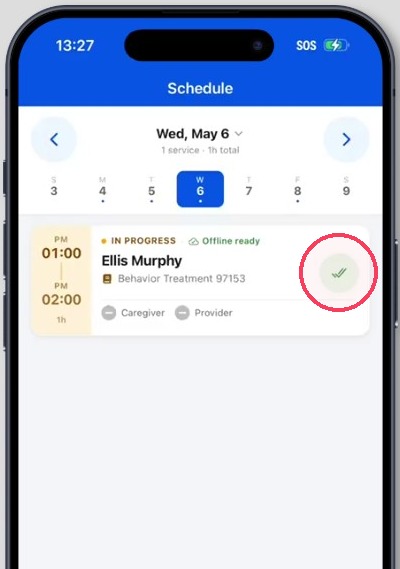
- EVV finalized: Once the EVV has ended and you have clocked out, you will see two checkmarks.
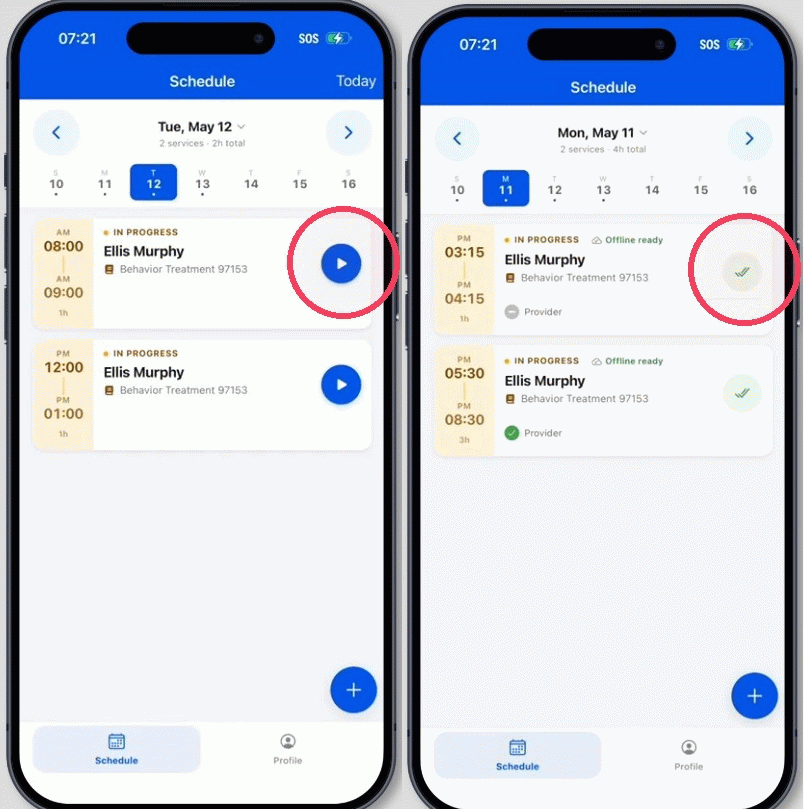
2. From the session card, you can access Session Tools and open EVV Info to review important details before beginning your session.
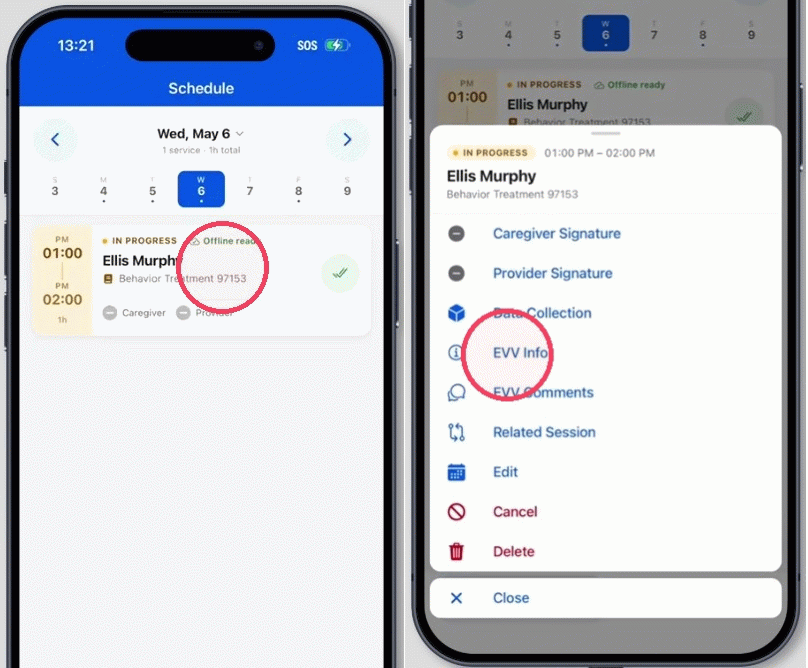
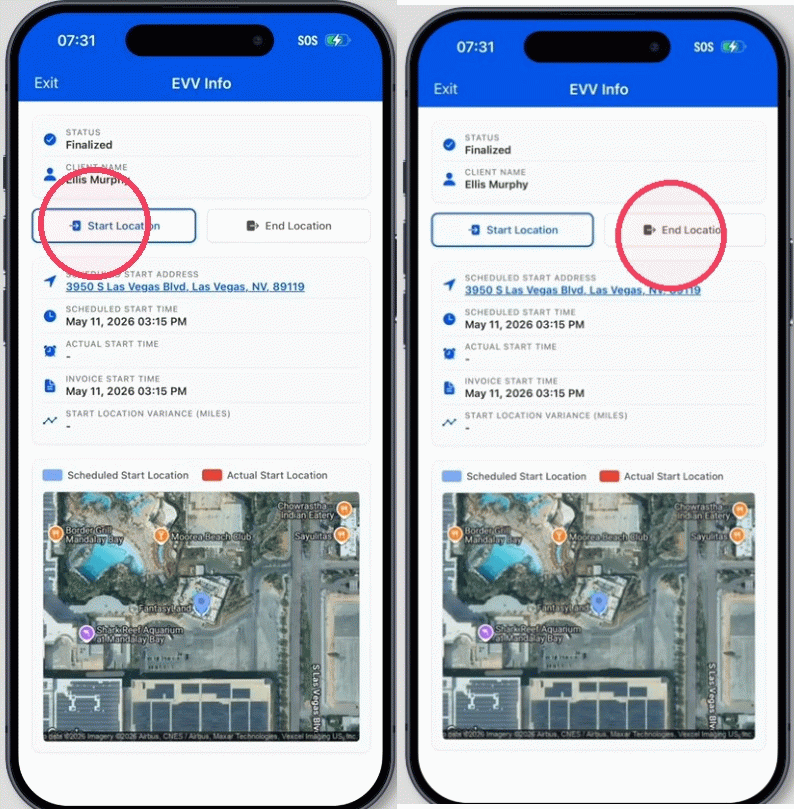
3. In EVV Info, you can view:
- EVV status
- Client name
- Start and End location details, including:
- Scheduled start/end address
- Scheduled start/end time
- Actual start/end time
- Invoice start/end time
- Start/end location variance in miles (if applicable)
- Map showing scheduled vs. actual location
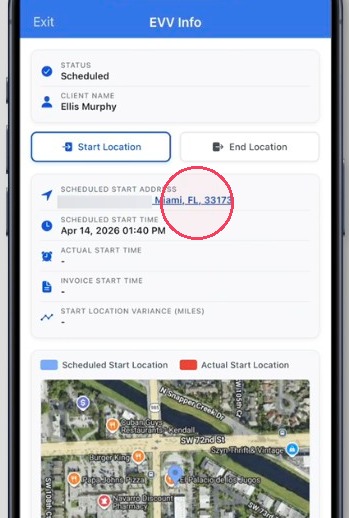
4. The scheduled start address is interactive. If you tap on it, it will open in your device’s map application, allowing you to easily navigate to the session location.
2. Starting a Visit (Clock In)
5. When you are ready to begin:
- Tap the Play button (Start) from the session card
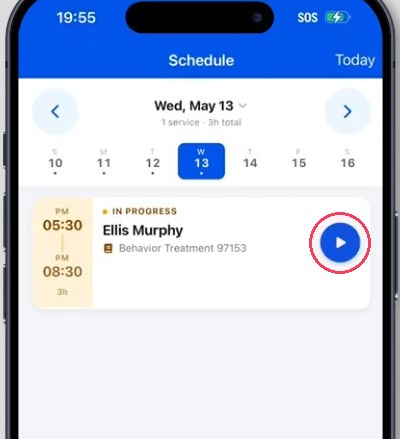
You cannot start a visit before its scheduled date. In other words, sessions scheduled for future dates cannot be initiated in advance.
Additionally, visits cannot be started after their scheduled end time. Please plan accordingly to ensure all visits are initiated within the scheduled timeframe.
6. The first time you do this, the system will request access to your device’s location. You must select “Allow while using the app” in order to continue. This permission is required so the system can record your GPS coordinates. You only need to allow this once, as your device will remember your choice.
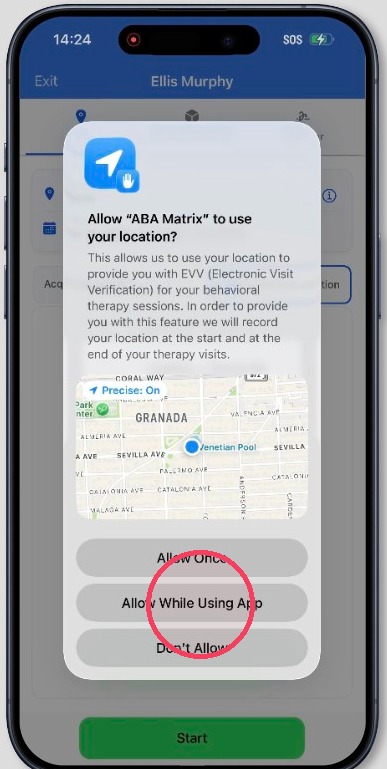
Please be patient and do not close the app while we access your device's location and record your GPS coordinates for the visit. The process can take a few seconds depending on the device.
7. Once permission is granted:
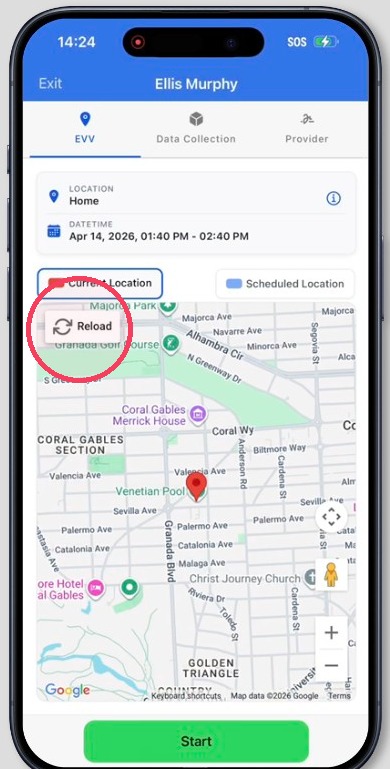
- You will see the scheduled session location (marked in blue)
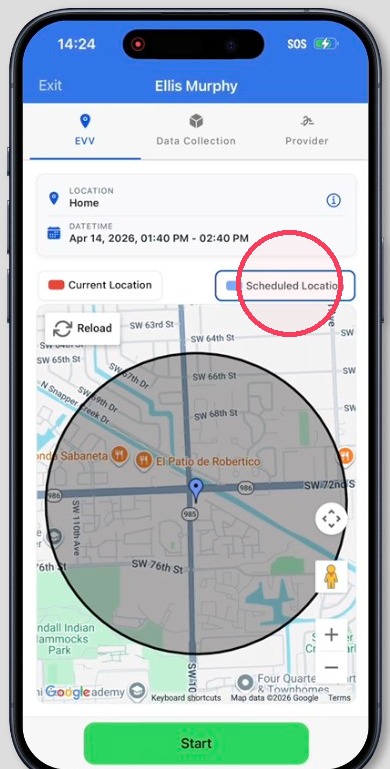
8. - A map will appear showing your current location (marked in red)
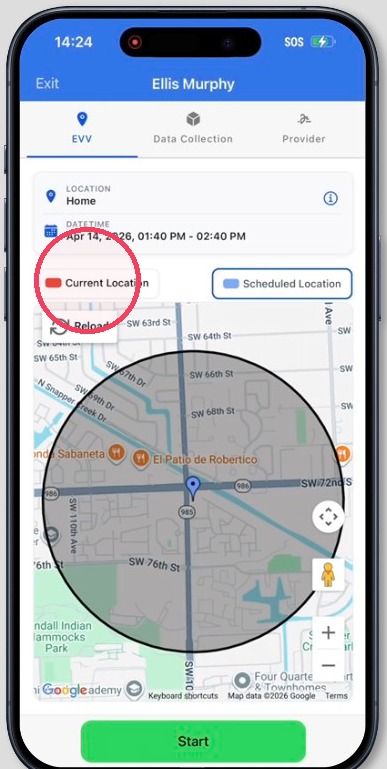
9. - You can refresh the map to update your current location if needed
Use this map to confirm that you are at the correct location before starting the session.
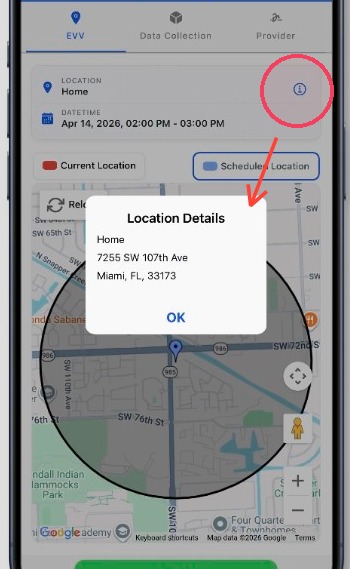
10. From the information (i) icon next to the location, you can confirm the scheduled address
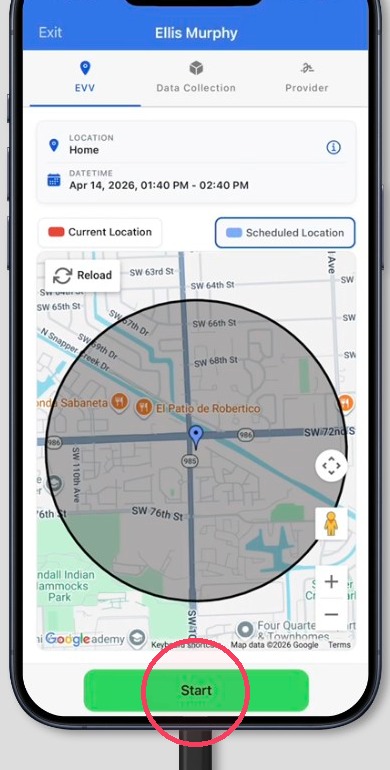
11. Once you verify your location, tap Start to begin the session.
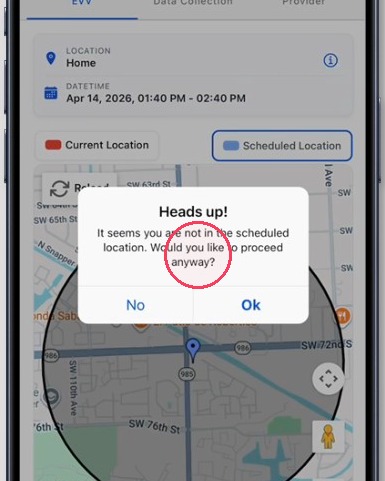
12. Notice that if you are distant from the scheduled place of therapy, the app will warn you before you Start or Stop the session.
3. While the session is in progress
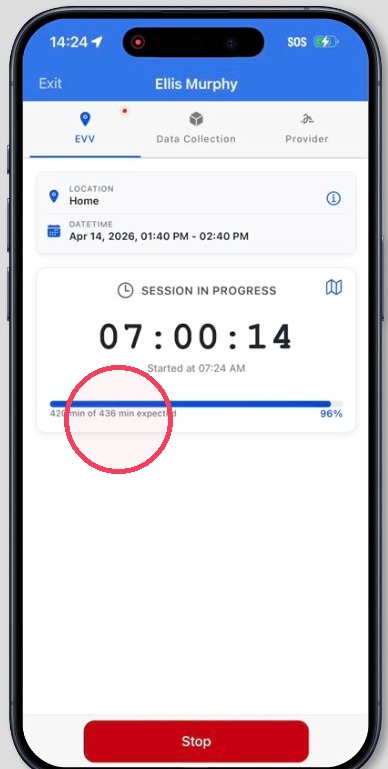
13. After starting the session, you will see the active EVV screen, which includes:
- The location
- The scheduled session time range
- A live timer showing how long the session has been running
- A progress bar indicating how much of the session has been completed based on the scheduled time
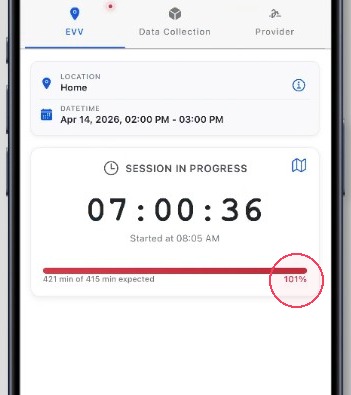
14. If the session goes beyond the scheduled end time, the progress bar will turn red, and you will see the percentage over the scheduled time, indicating that the session is running longer than planned.
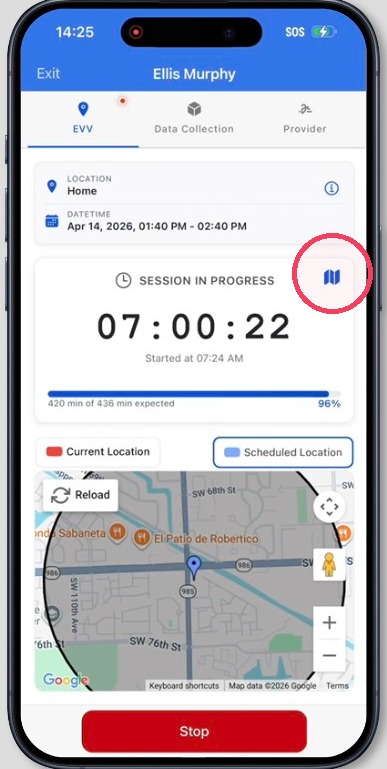
15. You can also expand the map to view more details or collapse it to minimize it, depending on your preference.
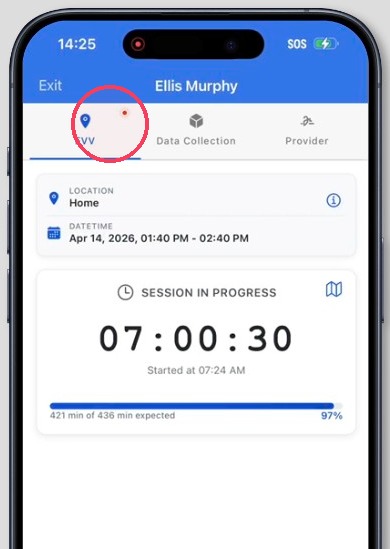
16. While EVV is actively running, the EVV tab will display a red dot. This allows you to easily identify that EVV is still in progress if you navigate to other sections of the session, such as data collection or provider signature.
4. Finalizing a Visit (Clock Out)
17. When the session is over, tap the Stop button.
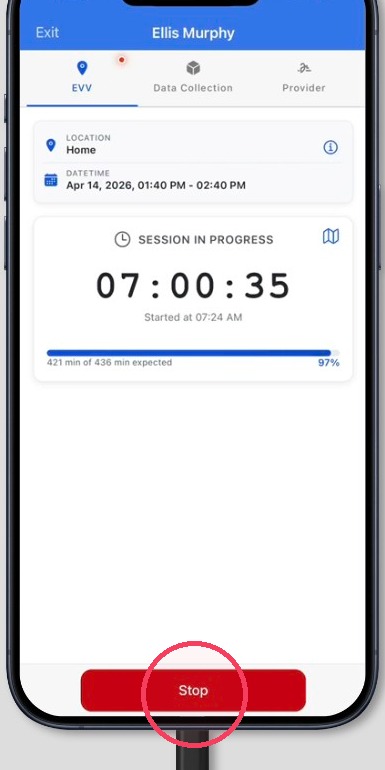
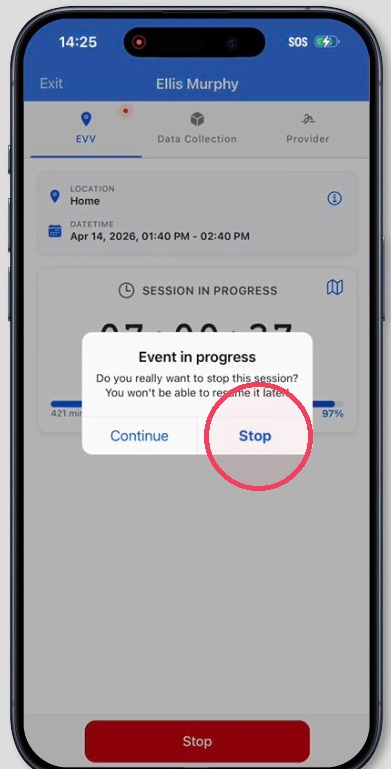
18. After tapping Stop:
- The system will clock you out
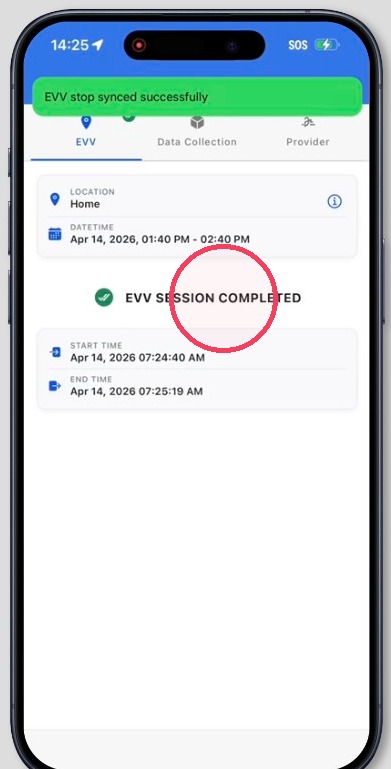
19. The EVV session will be completed.
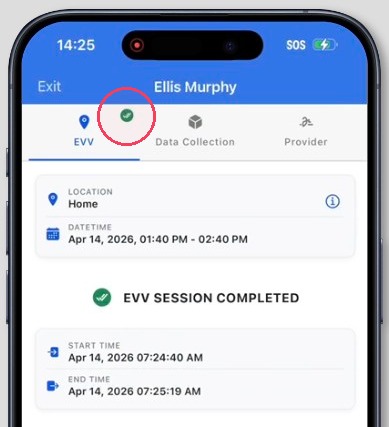
20. Once the EVV ends, the EVV tab will display a double check icon. This allows you to easily identify that EVV has been finalized if you navigate to other sections of the session, such as data collection or provider signature.
21. The session card will also display the double check icon, allowing you to quickly identify from the main schedule view that EVV has been completed for that session, without needing to open it.
5. EVV Comments
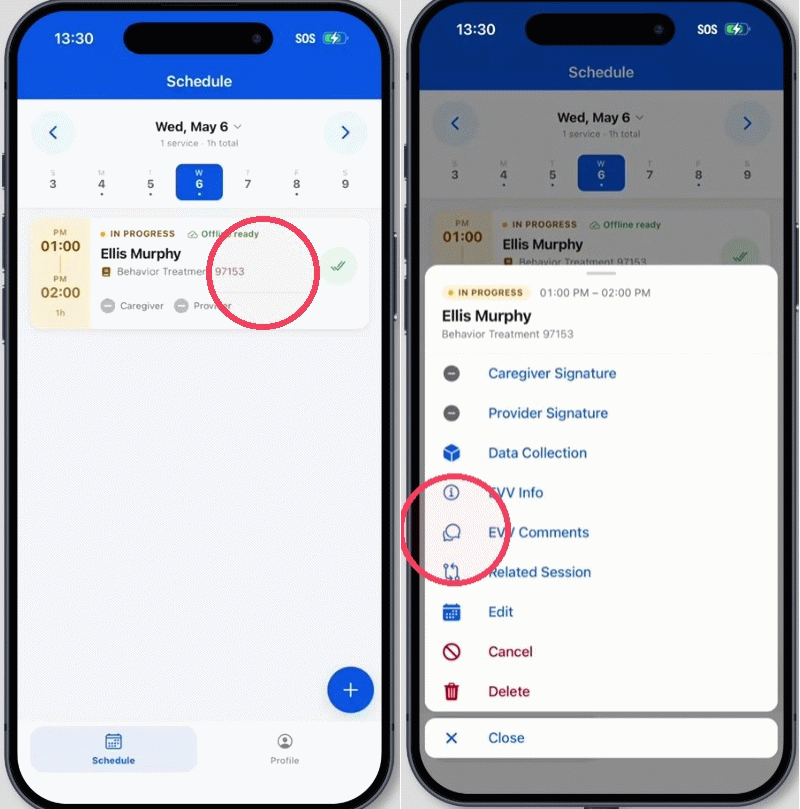
22. After finalizing the visit, you can add EVV comments to provide additional context about the session. To add a comment:
- Tap the session card to open Session Tools
- Select EVV Comments
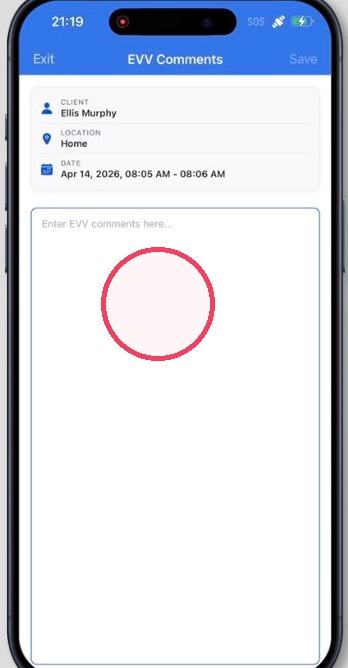
23. You will be taken to a page where you can enter your comments and save your changes. These comments are visible to administrators and can be used for review, compliance, and documentation purposes.
ABA Matrix EVV Intended Use
The application is designed to work in offline mode, by keeping all transactions performed while offline locally in your device and sending the data to ABA Matrix servers as soon as the device regains Internet connection.
1. Although the application works in offline mode, please make sure your device is not in Airplane mode, as this could interfere with your device's Location services.
2. Also, if you know you have poor reception in the place of therapy, it's a good idea to open the app before leaving your home or office in order to refresh the device local data with the latest information from our servers.
3. The application uses your device's time, therefore, please make sure your device it's configured to use automatic time, to ensure the correct visit time stamps are recorded.